
Help centre/Chase/Calls
How calls work
Call customers from Paidnice, then save the transcript and summary to the contact.
Updated 29 October 2026
You can ring a customer straight from Paidnice, either through your computer or by having Paidnice ring your own phone first. Each answered call is recorded, transcribed and summarised, and you can save the summary to the contact’s activity with one click.
Calls are switched on per organisation. If you cannot see Calls in the sidebar, ask support to turn it on for your account.
Before your first call
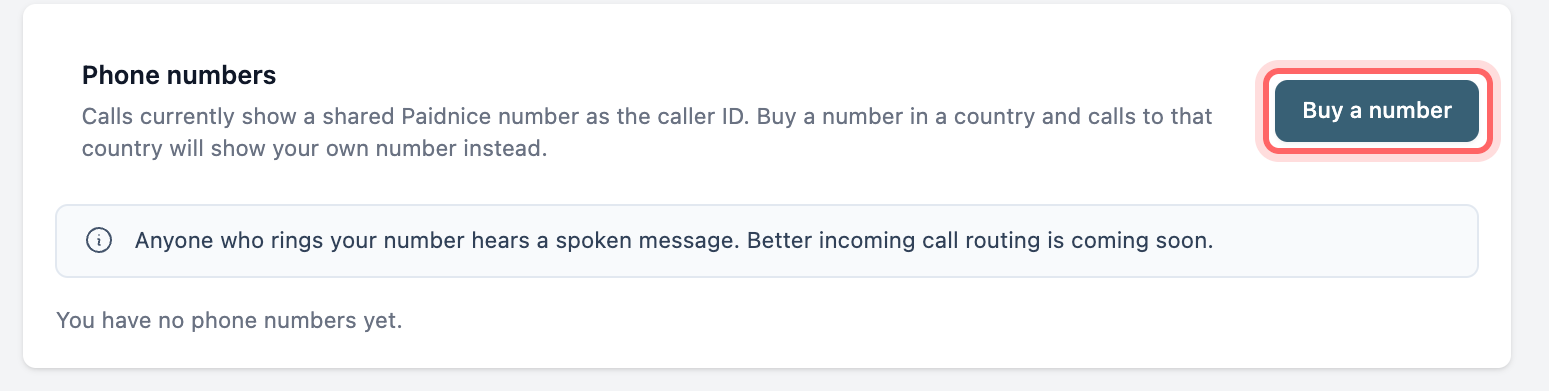
Buy a phone number. Open Calls in the sidebar and click Buy a number on the Phone numbers card. Pick a country, search the available numbers and buy one. The number becomes your caller ID for calls to that country.
Some accounts can also call from a shared Paidnice number, marked Shared when you pick a caller ID. Buying your own number means customers see your number instead.
- You can buy local numbers in New Zealand, Australia, the United Kingdom, the United States and Canada. Mobile and toll-free numbers are not available.
- New Zealand, Australia and the United Kingdom need your business details approved before you can buy. The form asks for your business address and supporting documents (PDF, JPG or PNG, up to 10MB). Review usually takes up to 3 business days.
- You can hold up to 2 numbers per country.
- Only users with edit access to settings can buy or release numbers. Anyone in the organisation can place calls.
Add your own number if you want Paidnice to ring your phone. Go to My Account and fill in Phone Number, including the country code. You only need this for Ring my phone calls.
Making a call
- Open the contact and click Call in the header, or click the phone icon next to a number in the Contact people card. The same Call button is on escalation pages.
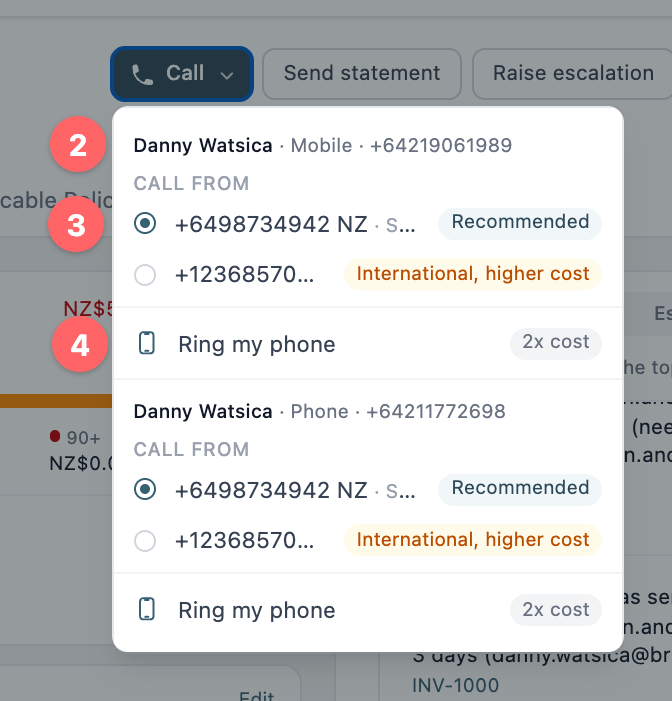
- Find the person and number you want. Each number with a country code is listed with its own options.
- Under Call from, pick the caller ID. Paidnice preselects a number in the same country as the customer and marks it Recommended. Numbers from other countries are marked International, higher cost.
- Choose how to talk:
- Call from browser uses your computer’s microphone and speakers. You can pick and test both before the call. Your browser will ask for microphone access the first time.
- Ring my phone rings the number in My Account first. Answer it, and Paidnice then dials the customer. It is marked 2x cost because it connects two calls. Hang up on your phone when you are done.
- Check the details on the next screen and click Start call. Nothing is dialled until you do.
During a browser call you can Mute or Hang up. If a browser call fails, Paidnice offers to ring your phone instead. If you only see Ring my phone, calling from the browser is not available on your account yet.
Recording, transcript and summary
Calls are recorded from the moment the customer answers. Paidnice does not play a message to the customer, so tell them the call is recorded if your region requires it.
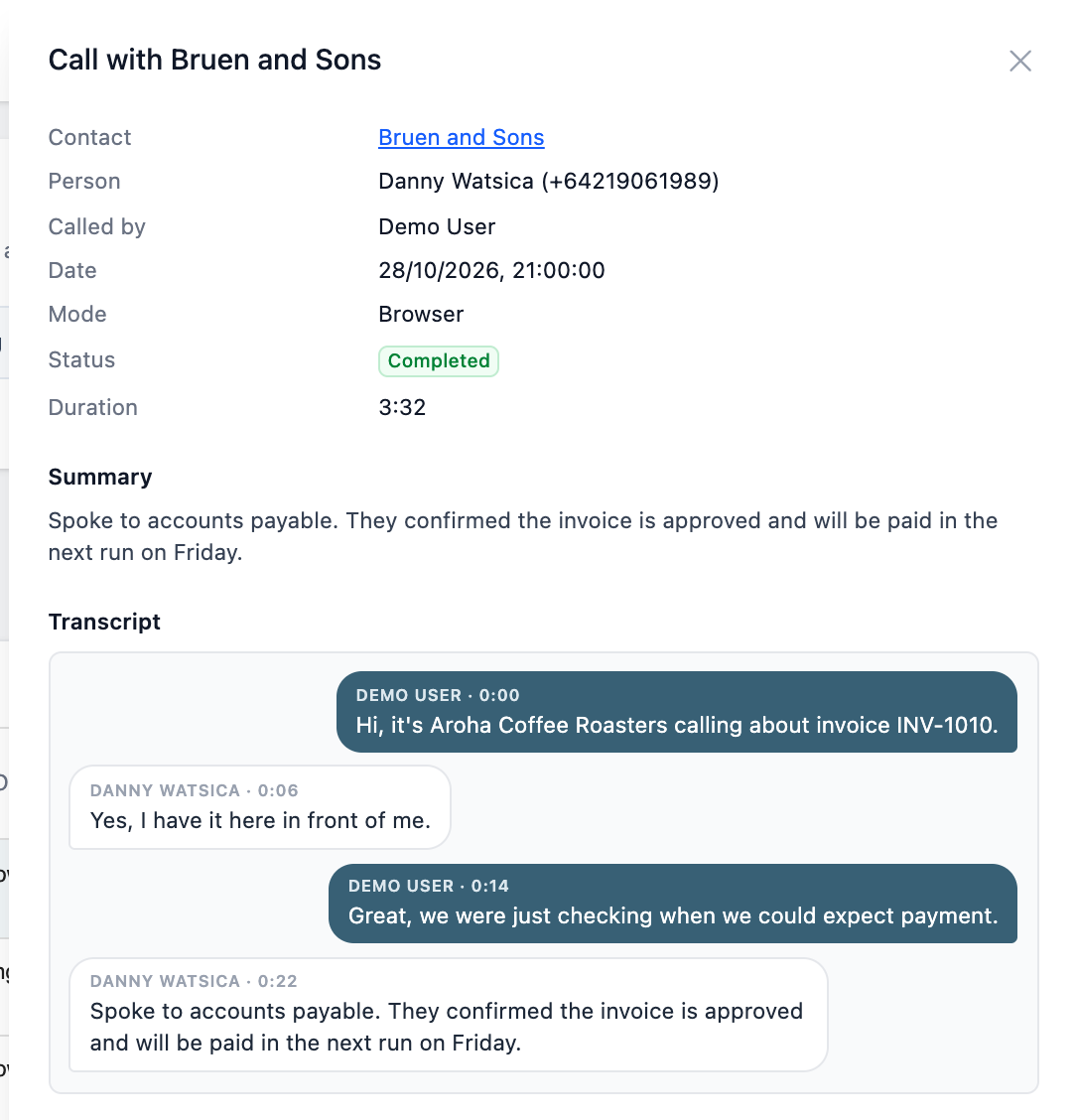
When the call ends, the transcript is usually ready in under a minute. It shows who said what, with timestamps. Paidnice also writes a short summary of what was discussed and anything agreed, such as a promised payment date, a dispute or a follow-up. Calls that were not answered have no transcript.
Saving the call to the contact
Calls are not added to the contact’s activity on their own. When the call ends, click Record activity. The Record Activity form opens with the type set to Phone Call and a note that includes the summary. Edit the note if you like, then save it.
The call then shows in the contact’s activity, with View transcript underneath. If you added a note, it is also saved as a contact note and sent to your accounting system.
For a call you made outside Paidnice, use Log call in the contact’s activity feed. It opens the same form, but there is no recording or transcript.
The Calls page
The Calls page lists every call placed from Paidnice, with the contact, the person called, who called, the mode, the status, the duration and the summary. Search by contact, person, number or summary, or filter by contact, caller or status. Click a row to see the full summary and transcript.
While a call is live its status is Queued, Ringing or In progress. Once it ends, it shows one of these:
| Status | Meaning |
|---|---|
| Completed | The customer answered and the call ended normally. |
| No answer | Nobody picked up. With Ring my phone, this can also mean you did not answer your own phone, so the customer was never dialled. |
| Busy | The line was busy. |
| Failed | The call could not be made. A browser call that has not connected after 60 seconds, for example because the microphone was blocked or the tab was closed, is marked Failed. |
| Canceled | The call ended before anyone answered. |
Incoming calls
Your numbers are for outgoing calls. Anyone who rings one hears a short spoken message and the call ends. Nothing is recorded and there is no voicemail.
To change the message, click Edit message next to the number on the Calls page. It can be up to 500 characters. Use default puts the standard message back.
Things to know
- Escalate to call escalation policies do not dial anything. They put an escalation in your team’s queue, and you place the call from the escalation page. A call made from an escalation is saved to the contact, not to the escalation or invoice.
- Paidnice shows a warning on contacts marked Do Not Call, but it does not stop you calling them.
- You can have one call going at a time.
- To give up a number, click Release next to it on the Calls page. Released numbers cannot be recovered.