
Help centre/Chase/Email reminders
How email reminders work
Send reminders before and after the due date, thank-you emails when invoices are paid, and control who receives them.
Updated 29 October 2026
A reminder policy sends an email template to the customer a set number of days before, on, or after a date on the invoice. Most organisations run a few of them: a friendly nudge before the due date, one on the day, and firmer ones after.
Setting one up
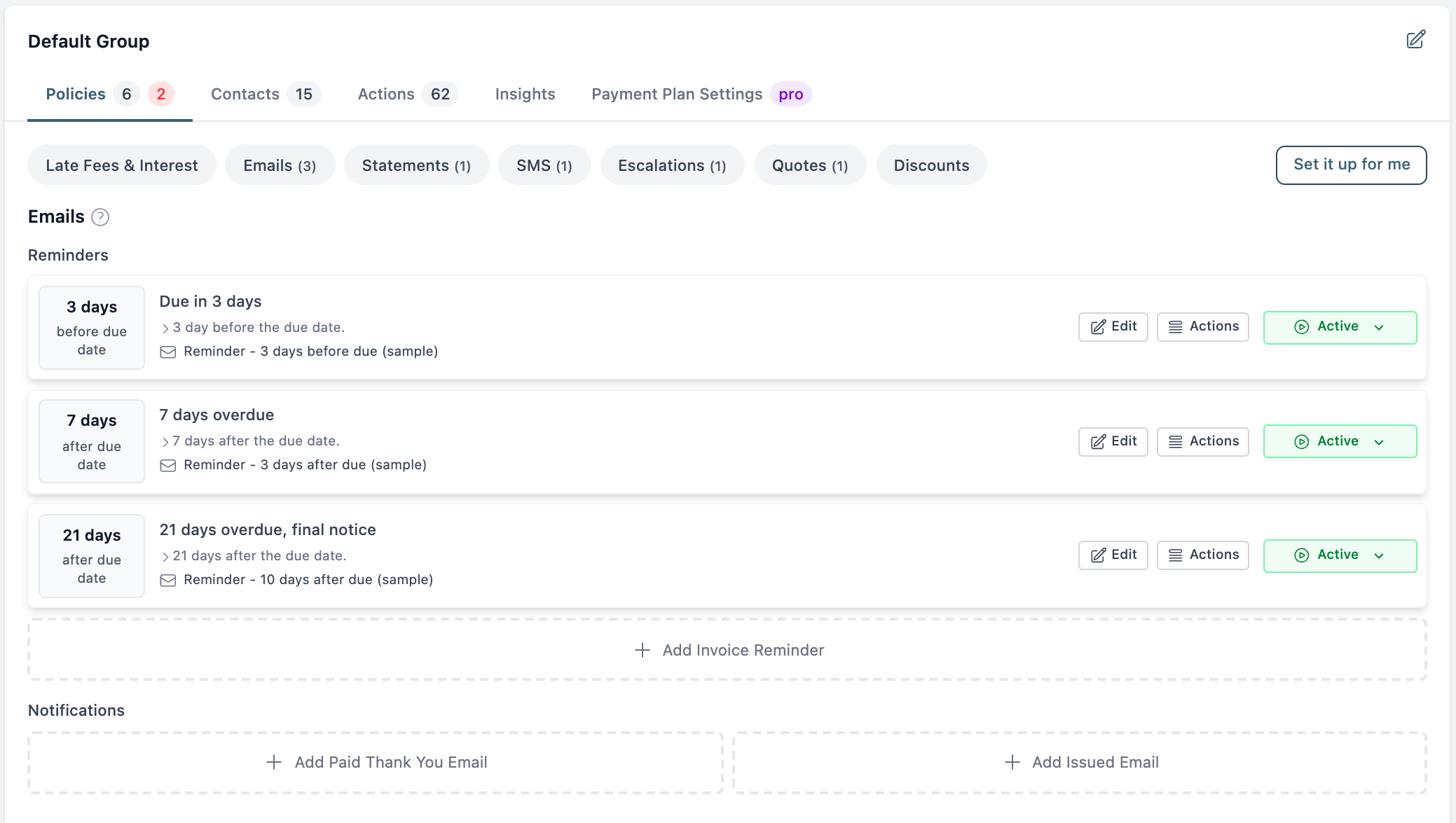
Open a group and stay on its Policies tab. The Emails section lists your reminders in the order they go out. Click Add Invoice Reminder to add one, or Edit on an existing one.
Under Notifications, Add Paid Thank You Email sets up an email that goes once an invoice is paid, and Add Issued Email sets up one that goes when an invoice is issued.
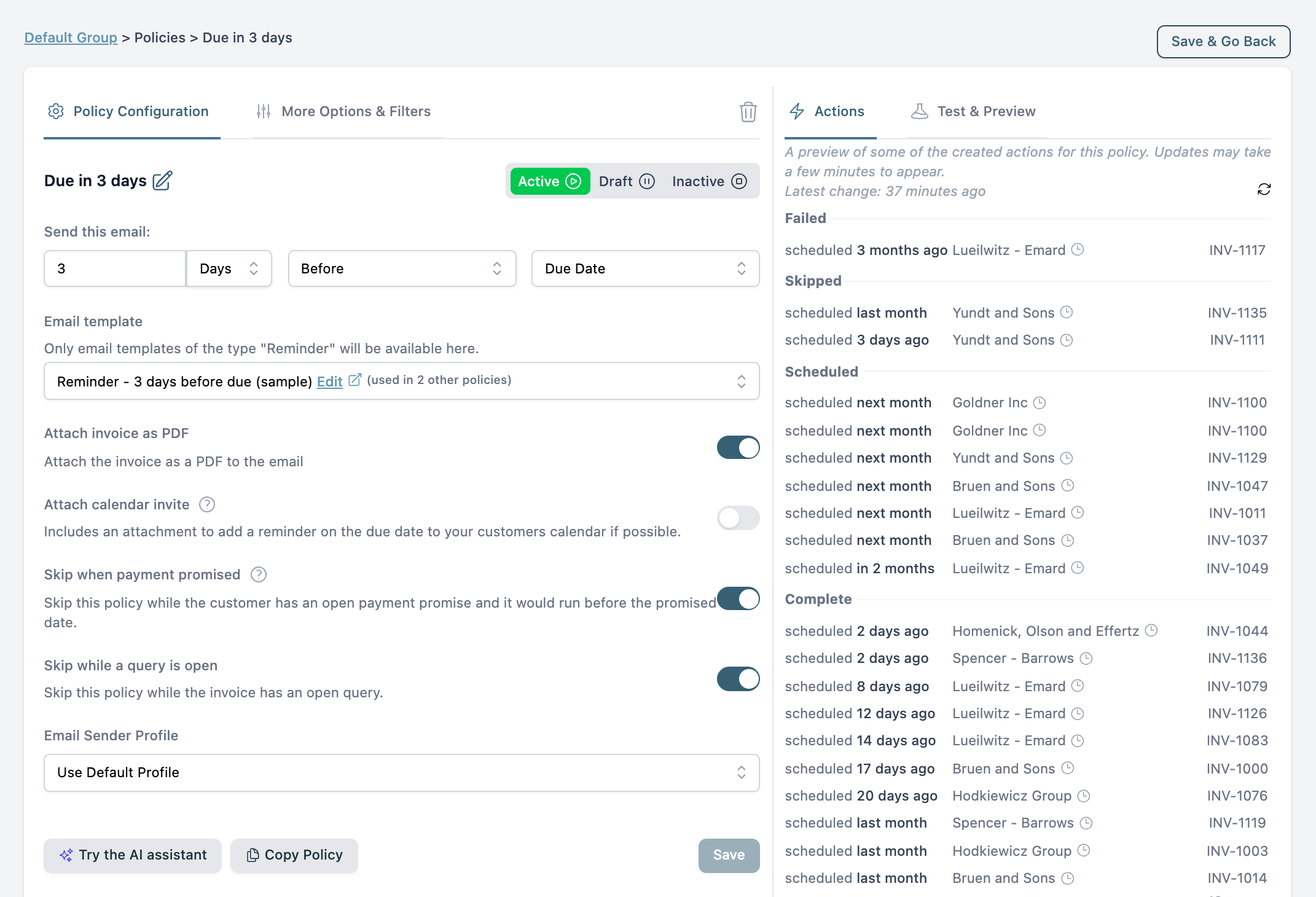
The Policy Configuration tab holds the main settings.
- Send this email: a number, then Days or Weekdays, then Before, After or On The, then the date it counts from. The date can be the Due Date, Issue Date, Date Marked Paid (for thank-you emails) or Amount Updated, which sends again whenever the invoice total changes.
- Email template: only Invoice Reminder templates show here. Click Edit next to the template to change the wording, or find all your templates under Email Templates in the sidebar.
- Attach invoice as PDF: on by default.
- Attach calendar invite: adds a reminder for the due date that the customer can save to their calendar.
- Skip when payment promised: holds the reminder while the customer has an open payment promise, if it would otherwise go before the promised date.
- Skip while a query is open: holds the reminder while the invoice has an open query.
- Email Sender Profile: which name and address the email comes from. Leave it on Use Default Profile unless you have set up others under Organisation Settings, Email Preferences.
Set the status at the top to Active when you are ready for it to send, then click Save.
The More Options & Filters tab adds anything else from the Choose an option list. The ones people use most are:
- Apply only to invoices due from and Apply only to invoices due before, to limit it to a range of due dates.
- Minimum Due Amount and Maximum Due Amount.
- Contact Tags, to include or leave out tagged contacts.
- Include Invoices with Reference.
- Action Time: the hour of day to send, in your organisation’s timezone. Without it, emails go at midday.
- Only send to primary contact and Override Destination Email, to change who gets it.
Who receives it
The primary contact always does. Other contact people get it when Include in notifications is turned on for them. To check, open the contact and look at the Contact people card, where each included person shows “Included in emails”. Click Edit on the card to change it.
Each person gets their own email unless Include all contact persons in same email is on under Organisation Settings, Email Preferences. With it on, everyone goes in the “To” line of one email and the primary contact’s name is used in the greeting.
Things to know
- Emails are not sent late. If the send date has already passed when the invoice arrives, the policy does not apply. Pick Days (or later) or Weekdays (or later) if you want it sent anyway, up to 30 days late.
- The policy is checked again at send time. If the invoice has been paid or changed, the action fails with “Policy no longer applies”.
- Each person gets a given reminder once per invoice.
- The Actions list on the right of the policy shows what it has sent, skipped and has scheduled.
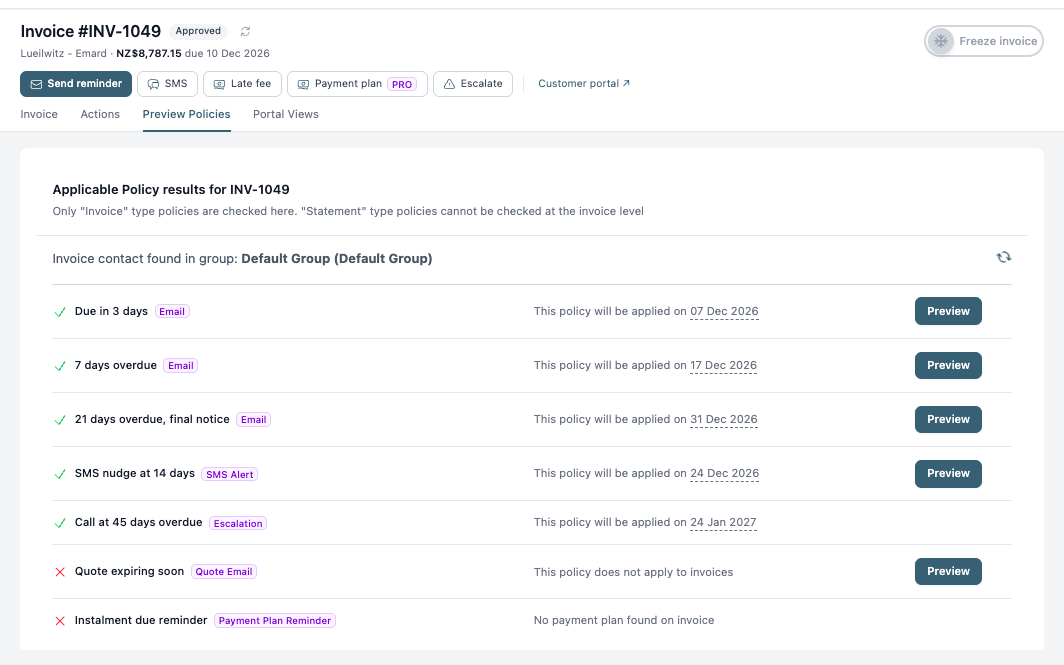
- Open an invoice and go to its Preview Policies tab to see which policies apply and the date each one will run. The Comms tab on the contact shows what was sent and whether it was opened.
Testing
Use Send a test email on the template to send yourself a copy. On the policy, the Test & Preview tab checks whether it will apply to a particular invoice.