
Help center/Chase/Email reminders
How email reminders work
Send reminders before and after the due date, thank-you emails when invoices are paid, and control who receives them.
Updated 13 November 2026
A reminder policy sends an email template to the customer a set number of days before, on, or after a date on the invoice. Most organizations run a few of them: a friendly nudge before the due date, one on the day, and firmer ones after.
Setting one up
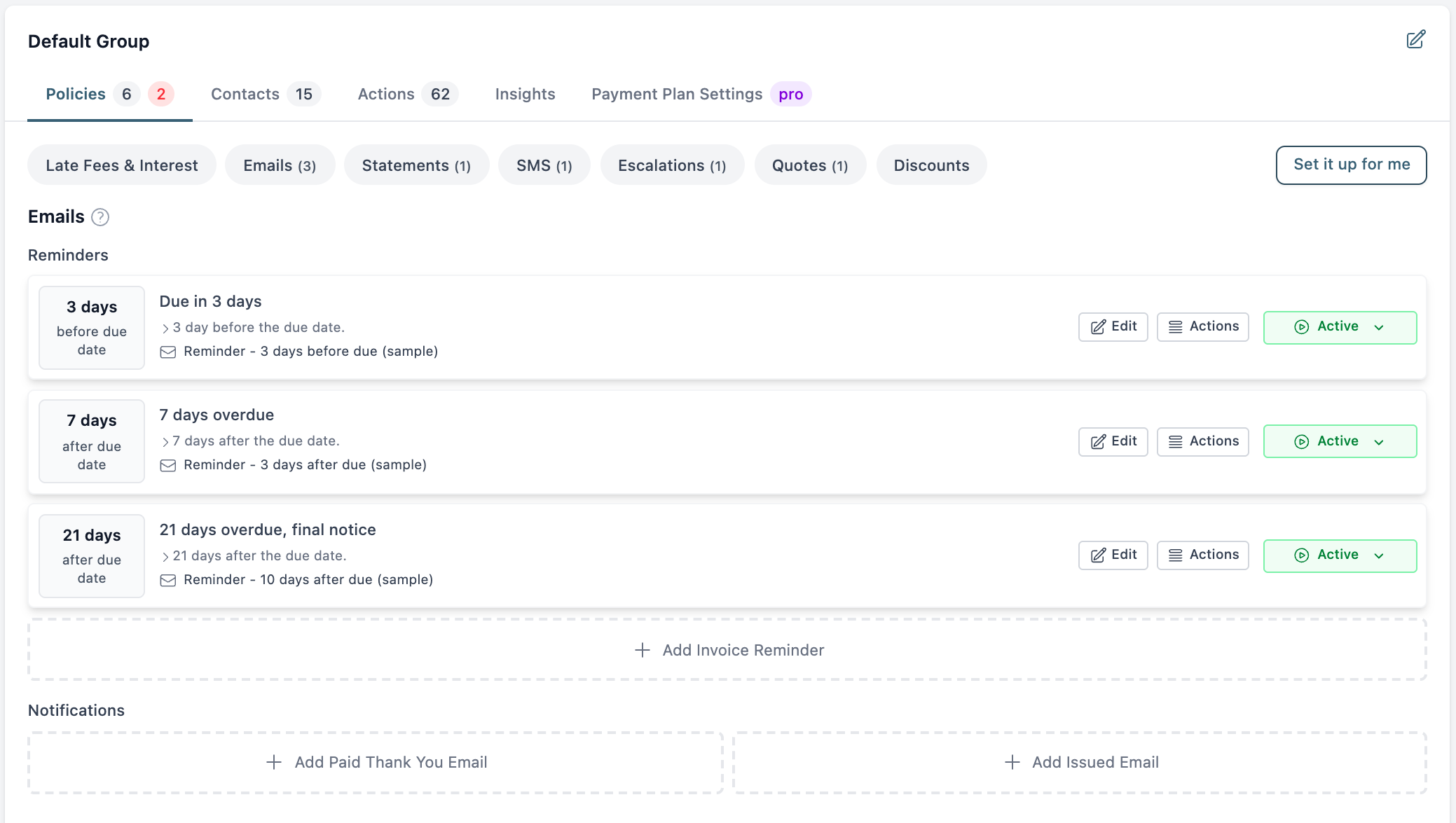
Open a group and stay on its Policies tab. The Emails section lists your reminders in the order they go out. Click Add Invoice Reminder to add one, or Edit on an existing one.
Under Notifications, Add Paid Thank You Email sets up an email that goes once an invoice is paid, and Add Issued Email sets up one that goes when an invoice is issued.
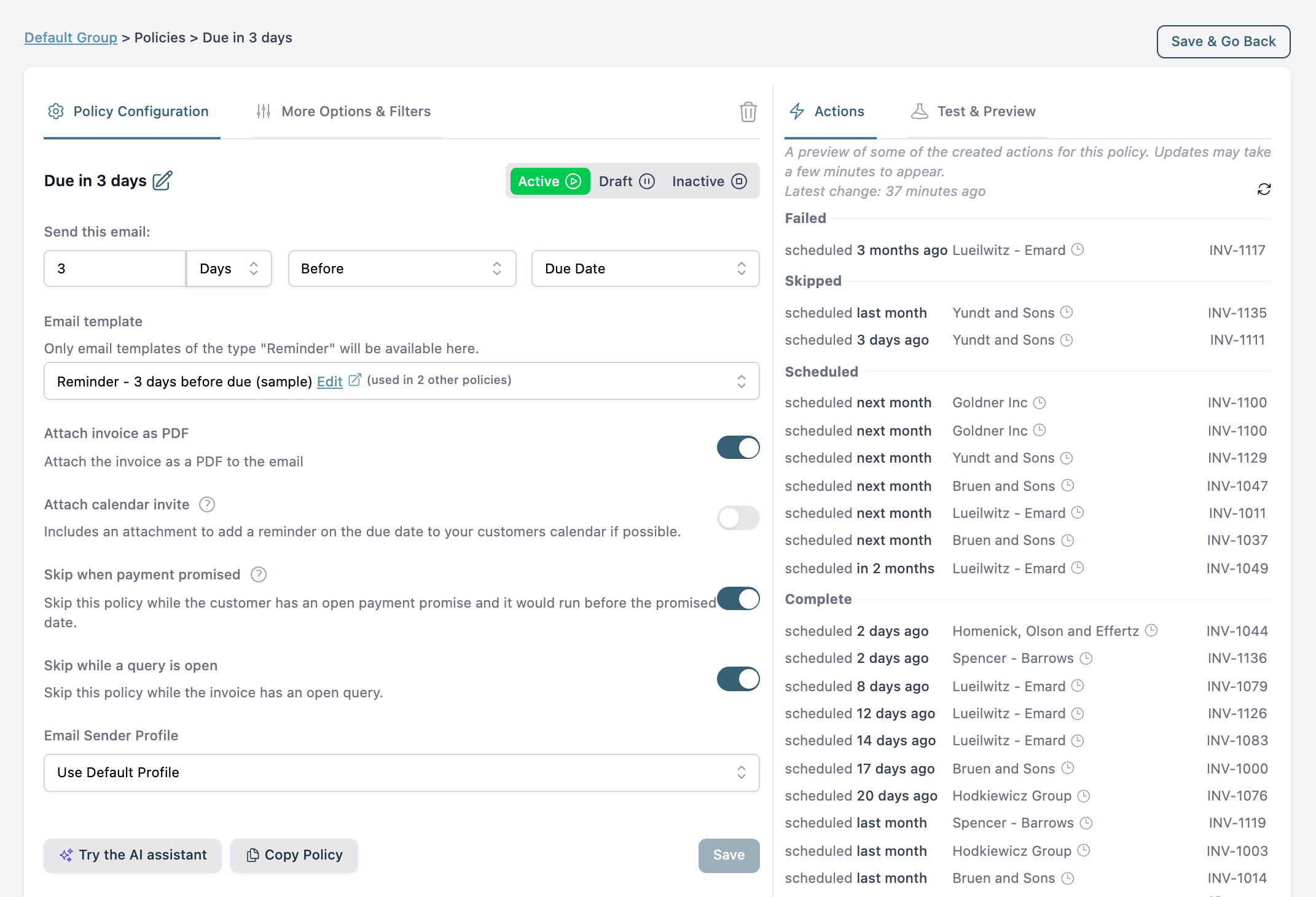
The Policy Configuration tab holds the main settings.
- Send this email: a number, then Days or Weekdays, then Before, After or On The, then the date it counts from. The date can be the Due Date, Issue Date, Date Marked Paid (for thank-you emails, the day Paidnice first saw the invoice become fully paid, which can be later than the payment date in your accounting system) or Amount Updated, which sends again whenever the invoice total changes.
- Email template: only Invoice Reminder templates show here. Click Edit next to the template to change the wording, or find all your templates under Email Templates in the sidebar.
- Attach invoice as PDF: on by default.
- Include invoice attachments: also attaches any other files on the invoice in your accounting system. It only shows when Paidnice has permission to read files from your accounting system.
- Attach calendar invite: adds a reminder for the due date that the customer can save to their calendar.
- Skip when payment promised: holds the reminder while the customer has an open payment promise, if it would otherwise go before the promised date.
- Skip while a query is open: holds the reminder while the invoice has an open query.
- Email Sender Profile: which name and address the email comes from. Leave it on Use Default Profile unless you have set up others under Organisation Settings, Emails.
Set the status at the top to Active when you are ready for it to send, then click Save.
The More Options & Filters tab adds anything else from the Choose an option list. The ones people use most are:
- Apply only to invoices due from and Apply only to invoices due before, to limit it to a range of due dates.
- Minimum Due Amount and Maximum Due Amount.
- Contact Tags, to include or leave out tagged contacts.
- Contact Person Tags, to email only some of the people on a contact. Choose Only email people with tags or Do not email people with tags, then pick the tags. See Who receives it.
- Include Invoices with Reference.
- Action Time: the hour of day to send, in your organization’s timezone. Without it, emails go at midday.
- Only send to primary contact (not available for QuickBooks) and Override Destination Email, to change who gets it.
- Mark as sent in accounting system: after the email goes, marks the invoice as sent in Xero or QuickBooks (in QuickBooks it sets the invoice’s email status to sent). It does nothing if the invoice is already marked as sent. If the update fails the email still goes and a note is added to the action.
Who receives it
The primary contact does, unless the policy’s Contact Person Tags filter leaves them out. Other contact people get it when Include in notifications is turned on for them. See Contact people and owners. To check, open the contact and look at the Contact people card, where each included person shows “Included in emails”. Click Edit on the card to change it.
Contact Person Tags narrows that list using the tags on each contact person. With Only email people with tags, only people who carry at least one of the selected tags get the reminder. With Do not email people with tags, anyone who carries one of them is left out. The primary contact is treated like everyone else, so a reminder can go to your customer’s accounts payable person and skip the primary contact. A person with Include in notifications off still doesn’t get it, even with a matching tag. If nobody on the contact matches, the policy sends that customer nothing. The filter only affects email. SMS always goes to the primary contact’s mobile number.
With Only send to primary contact on, in the policy or under Settings, Advanced, Default Behaviour, only the primary contact is emailed. If they have no email address nothing is sent to anyone else, and the action fails with “Contact has no email address”. If the policy also uses Contact Person Tags, both rules apply, so the primary contact has to pass the tag filter too or nobody gets the reminder.
With Override Destination Email set, the reminder goes only to that address and the tag filter is not used.
Each person gets their own email unless Include all contact persons in same email is on under Organisation Settings, Emails. With it on, everyone goes in the “To” line of one email and the primary contact’s name is used in the greeting.
Things to know
- Emails are not sent late. If the send date has already passed when the invoice arrives, the policy does not apply. Pick Days (or later) or Weekdays (or later) if you want it sent anyway, up to 30 days late.
- Triggers off the Issue Date get two days of slack, because invoices are often entered a day or two after their issue date. A reminder is still created if its send date was up to 2 days ago. With Days (or later) or Weekdays (or later) it is up to 30 days.
- The policy is checked again at send time. If the invoice has been paid or changed, the action fails with “Policy no longer applies”.
- Each person gets a given reminder once per invoice.
- The Actions list on the right of the policy shows what it has sent, skipped and has scheduled.
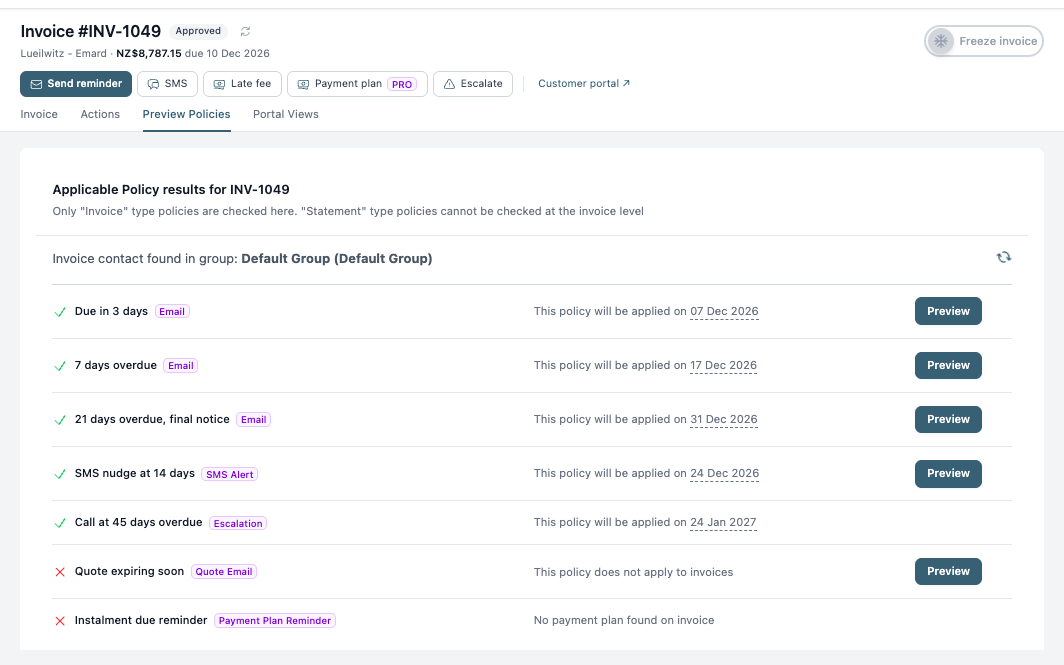
- Open an invoice and go to its Preview Policies tab to see which policies apply and the date each one will run. The Comms tab on the contact shows what was sent and whether it was opened.
Testing
Use Send a test email on the template to send yourself a copy. On the policy, the Test & Preview tab checks whether it will apply to a particular invoice.