
Help center/Customers and answers/Contacts
Contact people, who gets emails, and owners
How the primary and additional contact people on a customer decide who is emailed or texted, how they sync with Xero and QuickBooks, and how owners get notified.
Updated 5 November 2026
Every customer has one primary contact person and can have more people alongside them. Which of those people are emailed or texted depends on a few switches, covered below. A separate idea, the owner, is the member of your team responsible for a customer or invoice. Owners decide who gets notified internally.
Primary and additional contacts
Open a contact and look at the Contact people card. The first person listed is the primary contact. Click Show N more to see the additional contacts. Each person shows whether they are “Included in emails”, and a bounced address shows its error in orange.
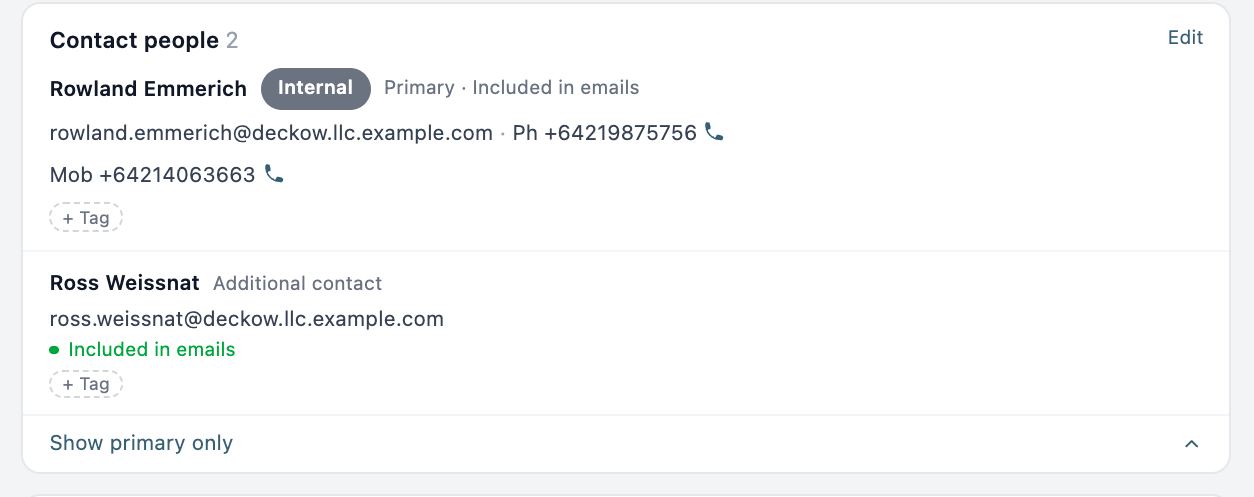
Click Edit on the card to change people. The primary contact has First Name, Last Name, Email, Mobile Country Code, Mobile Number, Phone Country Code and Phone Number. Additional contacts have the name and email fields plus an Include in notifications toggle, and you add more with Add contact person.
Who gets an email
- The primary contact always gets emails.
- An additional contact gets emails only when Include in notifications is on for them. In the edit dialog that shows as Included In Emails or Excluded From Emails.
- Each person gets their own copy of the email, unless Include all contact persons in same email is on under Organisation Settings, Email Preferences. With it on, everyone goes in the “To” line of one email and the primary contact’s name is used in the greeting. This applies to reminders and statements.
- If the primary contact has no email address, nothing is sent to them. The action fails with “Contact has no email address”. Additional contacts who are included still get their copy, unless one of the “primary only” options below is on.
Sending only to the primary contact
There are two ways to stop emails going to additional contacts.
- Only send to primary contact under Organisation Settings, Advanced, Default Behaviour. This applies to every email in the organization. A person who is switched on in your accounting system but is held back by this setting shows a warning on their edit form.
- Only send to primary contact on a single policy, under More Options & Filters. It is available on reminder and statement policies. It is not offered if you are connected to QuickBooks. If the organization setting is on, the policy option shows a warning that it will have no effect.
With either option on, if the primary contact has no email address, nothing is sent, even when other people have one.
Sending to a different address
Override Destination Email on a reminder, statement or quote email policy sends that policy only to the address you enter, using the primary contact’s name. Nobody else on the contact receives it. It is under More Options & Filters on the policy.
Texts
SMS goes to the primary contact’s mobile number only. Additional contacts are never texted. See How SMS alerts work.
To find numbers that texts cannot be sent to, go to the Contacts page and click Check all mobile numbers. The same button is under Organisation Settings, Advanced, Default Behaviour, next to Check mobile numbers. It checks the format of every contact person’s mobile number and flags the ones SMS cannot use. Flagged numbers show an Invalid badge, and the Invalid mobile quick filter on the Contacts page lists the customers they belong to.
Xero and QuickBooks
In Xero, the primary contact person is the Xero contact itself. Additional contacts are Xero contact persons. Changes you make in Paidnice are written back to Xero, up to 5 additional people. If you add more than that, the extra people are saved in Paidnice only and labeled Paidnice Only. When you add a new additional contact you choose between Paidnice Only and Sync to Xero.
In QuickBooks, only the primary contact person syncs. Additional contacts are always Paidnice Only, and Paidnice shows a notice on the edit form saying they are not sent back to QuickBooks.
Names, emails and phone numbers that come from your accounting system are overwritten on every sync. Paidnice Only people are kept. See How syncing works.
Bounced addresses
When an email to an address bounces or is dropped, Paidnice flags that address in orange on the contact page and in the Contacts table. The flag applies to every contact person in the organization with the same email address. It clears when a later email to that address is delivered, opened or clicked.
Tags on contact people
You can tag a contact person on the Contact people card. These tags are for display and filtering, and they show in contact exports. Policies only look at the tags on the contact, not on the person. See When to use groups or tags.
Owners
Both contacts and invoices can have an owner, who is one of your users.
- Contact owner: set with the Owner dropdown in the contact page header. In the Contacts table it is the Assignee column. To set many at once, tick customers and use Assign contacts, where Unassign clears them. The Assigned to me quick filter shows your own.
- Invoice owner: set with Owner in the invoice page details.
The owner is used in three places. In each, the invoice owner wins, and the contact owner is used when the invoice has none.
- Broken promises and queries. When a payment promise is broken, or a customer opens a query or one passes its due date, the owner is notified in the app. They get an email too if the matching option is on in My Account (Broken Payment Promise or Invoice Queries). If there is no owner, everyone with that option on is notified. See Follow up on broken promises and How queries work.
- Copying the owner on emails. A sender profile’s Include assignee can be set to CC or BCC, so the owner gets a copy of what the customer receives. See Sender profiles and BCC.
- Escalations. An escalation policy can be assigned to Invoice or Contact Owner rather than to one named user. If that person is no longer in the organization, the escalation is left unassigned. See How escalations work.
For how reminders pick their recipients end to end, see How email reminders work.