
Help centre/Enforce your terms/Escalations
How escalations work
Create a task for your team when an invoice needs a person, not another email.
Updated 7 October 2026
An escalation is a task for someone on your side. Nothing is sent to the customer. Use it when automatic reminders have run their course and a call, a credit hold or a legal letter is the next step.
Creating escalations automatically
Open a group, go to its Policies tab and choose Add Escalation.
- Type: escalate to call, stop credit, legal letter, or other.
- When: days after the due date, or after a broken payment promise.
- Scope: per invoice, or once per customer based on their total overdue balance.
- Assign to: a user in your organisation. You can also email up to five internal addresses when the escalation is created.
- Instructions: free text that appears on the task.
You can also raise one by hand with Escalate on an invoice page, Raise escalation on a contact page, or Raise Escalation at the top of the Escalations page. Escalations can also be triggered by a broken payment promise. See Follow up when a promise is broken.
Working the queue
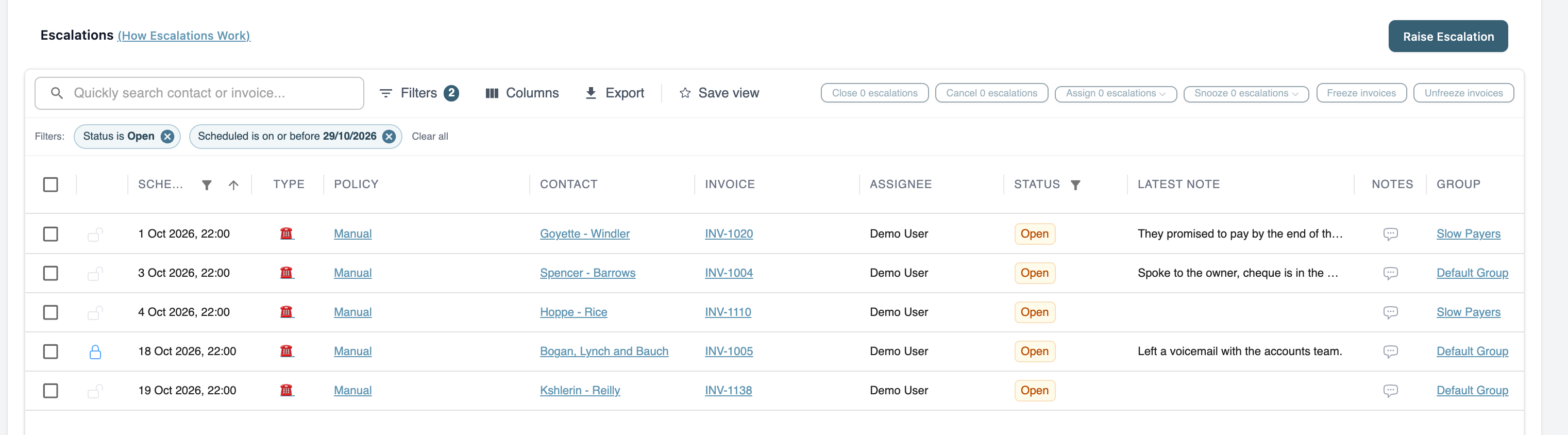
The Escalations page lists open escalations with the scheduled date, type, policy, customer, invoice, assignee, status and latest note. It opens filtered to open escalations due today or earlier. Tick several to close, cancel, assign, snooze, freeze or unfreeze them together. Open one to see the invoice, the customer’s other invoices, their tags, their credit score and the communications sent so far.
From an escalation you can:
- Call: ring the customer from Paidnice and keep a transcript. See How calls work.
- Record Activity: log a call or other contact with an outcome such as no response, left a message or spoke to customer.
- Customer promised to pay: record a payment promise, which pauses chasing until the promised date.
- Customer raised a query: open an invoice query, which pauses chasing until it is resolved.
- Set an expected payment date, send a reminder email or statement, freeze the invoice, or write a note.
- Snooze until tomorrow, next week, next month, the expected payment date or a date you choose.
- Close Escalation when it is dealt with. Closed escalations can be reopened.
Notifications
The assigned user is emailed when an escalation is assigned to them. Escalation events can also be sent to a webhook (Pro plan) under Settings, Advanced. To pull escalations into your own system instead, see Use the Paidnice public API.