
Help centre/Get paid/Invoice queries
How invoice queries work
Record why a customer queries an invoice, who owns it and what happens next, and pause chasing until it is resolved.
Updated 29 October 2026
A query records that a customer has a problem with an invoice, such as the price, the quantity, or something that never arrived. While the query is open, Paidnice stops chasing that invoice, and the person who owns it gets told if it is not sorted out by the date you set.
Queries are switched on per organisation, together with payment promises. If you cannot see them, ask support to enable the feature for your account.
Opening a query
There are four ways a query gets opened.
From the invoice page. Open the invoice and find the Query row in the details panel. Click Open query, pick a reason (pricing, quantity, quality, not received, duplicate or other), describe the problem, and optionally add a next action and a date it should be resolved by. A description is required when the reason is Other.
From an escalation. On an escalation for an invoice, use Customer raised a query. This opens the query and adds a note to the escalation with the outcome “Customer raised a query”.
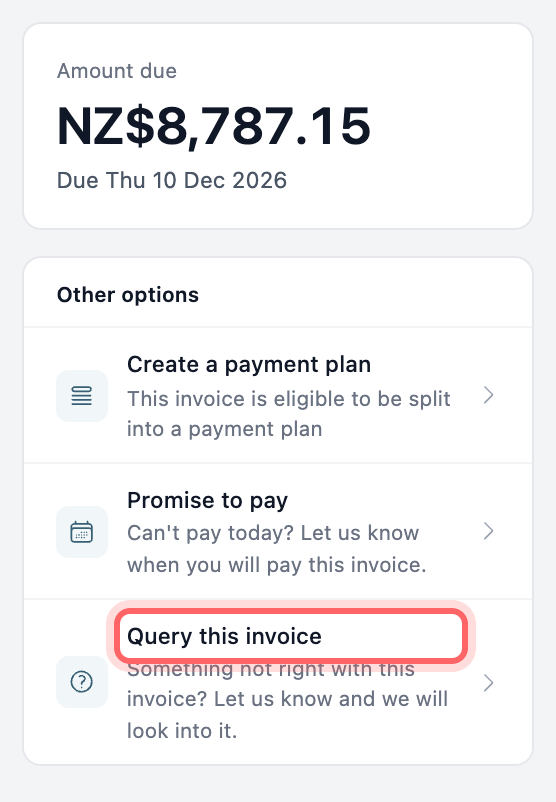
From the customer portal. If you allow it, customers can use Query this invoice under Other options on an unpaid invoice in the portal. They choose a reason and describe the problem. See Let customers query invoices from the portal.
From the AI agent. When a customer replies to say an invoice is wrong, the AI agent opens a query with the reason and a short summary, then hands the conversation to your team. It does not argue with the customer or offer a credit.
An invoice can only have one open query at a time. Once it is resolved, a new one can be opened.
Owner, next action and due date
The owner of a query is the user assigned to the invoice. You can set it from the Owner row on the invoice page.
The next action and due date are for your team only and are never shown to the customer. Use Edit on the query to change them as things move along. If the due date passes and the query is still open, Paidnice writes it to the invoice timeline and notifies the owner once. Changing the due date resets this, so the owner is told again if the new date passes too.
Evidence such as emails, photos or credit note drafts goes in the invoice notes, where you can attach files.
What happens while a query is open
Every policy has a setting called Skip while a query is open, which is on by default. While the invoice has an open query, a policy with this setting on does not run for that invoice at all. Reminders, SMS alerts, escalations, late fees and discounts all respect this setting.
Statements still include invoices with an open query, so the customer sees their full balance.
The invoice list shows an icon next to any invoice with an open query, and you can filter the list by Query to see them all. Save that filter as a view if you want a standing list of open queries.
Resolving a query
Click Resolve on the query and choose how it ended: paid, credit note issued, invoice voided, withdrawn by the customer, or written off. Policies that were skipped start again straight away if the invoice is still unpaid. For a standing list of open queries and how to work through them, see Working through open queries.
Paidnice also checks open queries every hour. If the invoice has been paid, the query is resolved as paid. If the invoice has been voided or deleted in your accounting system, it is resolved as voided. Credit notes are not detected automatically, so resolve those by hand.
Who gets notified
When a customer opens a query in the portal, or the AI agent opens one, and when an open query passes its due date, Paidnice notifies the user assigned to the invoice. If nobody is assigned to the invoice, it notifies the user assigned to the contact. If nobody is assigned there either, it notifies everyone in the organisation who has the Invoice Queries email notification turned on (under My Account).
Queries you open yourself in the app do not send a notification.
Settings
Under Settings, Portal:
- Allow customers to query invoices. Shows a Query this invoice button on unpaid invoices in the customer portal.
- Require verification for queries. Customers must verify their email address before they can raise a query, even if secure portal mode is off for everything else.