
Help center/Set up/Integrations
How syncing with Xero and QuickBooks works
What Paidnice imports from your accounting system, how often it checks for changes, and how to force an update.
Updated 5 November 2026
Your accounting system is the source of truth. Paidnice keeps a copy of your invoices, contacts and payments, and updates that copy as things change. Most changes show up within a minute or two. The rest are picked up by regular catch-up syncs.
What gets imported
Xero
- Sales invoices. Bills are ignored.
- Payments on those invoices.
- Contacts.
- Quotes.
- Receivable credit notes.
- Prepayments and overpayments.
Invoices with no due date are skipped by the regular sync. An invoice that is Draft or Deleted when Paidnice first sees it is not imported. Once it is approved, the next sync picks it up.
QuickBooks
- Invoices.
- Customers.
- Estimates.
- Credit memos.
- Payments.
QuickBooks has no prepayments or overpayments. A payment that has not been applied to an invoice is treated as a credit.
When you first connect, and again when you reconnect, Paidnice does a full import of all time before it calculates any actions. See How to connect Xero or QuickBooks.
What stays in Paidnice
Contact details are overwritten from your accounting system on every sync: name, address, currency, tax details, Xero contact groups or QuickBooks customer type, and the contact people that come from the accounting system. Change them in your accounting system.
Things that only exist in Paidnice are kept: the group, tags, owner, frozen status, and contact people marked Paidnice only. See Contact people and owners.
On Xero, the Expected payment date on an invoice is read on every sync. See Expected payment dates.
When it runs
- Near real time: Xero tells Paidnice when an invoice or contact changes. QuickBooks does the same for invoices, customers and payments. These changes usually arrive within a minute or two.
- Every 4 hours: quotes (estimates on QuickBooks), prepayments, overpayments and QuickBooks credit memos.
- Twice a day: a catch-up of payments.
- About once a day: a catch-up of contacts and invoices, and of Xero credit notes, in case a notification was missed. Paidnice splits organizations into two halves and catches up one half in each twice-daily run.
Whenever a change comes in this way, Paidnice recalculates that customer’s pending actions. Actions are also rebuilt for every organization several times a day.
Force an update
- Invoices page and Contacts page: click Check for updates. It reads Checking for updates… while it runs.
- Quotes page: click Sync Now.
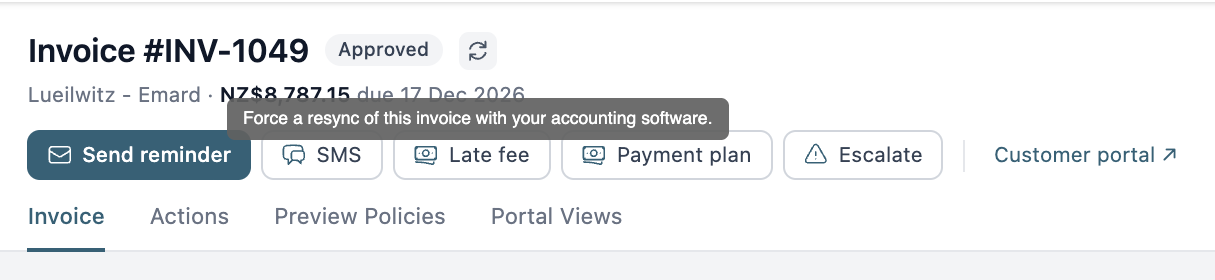
- One invoice: opening an invoice re-syncs it from your accounting system. You can do it again with the circular arrows icon in the invoice header (the tooltip says “Force a resync of this invoice with your accounting software.”). The invoice’s contact is re-synced too. When a customer opens an invoice in the customer portal, that invoice is re-synced as well.

Invoice statuses
Paidnice shows the status it reads from your accounting system:
- Paid
- Approved, which customers see as “Not Paid” in the portal
- Voided
- Deleted
- Draft
- Submitted
Only Approved invoices that still have a balance are chased. QuickBooks invoices only ever show as Approved, Paid or Voided. If someone fully deletes a QuickBooks invoice, Paidnice marks it as deleted the next time it looks the invoice up.
If an invoice goes from Paid back to unpaid, usually because a payment was reversed, Autofreeze invoices freezes it so an old invoice does not suddenly get a late fee. See How freezing works.
Active and archived contacts
A contact is either Active or Archived. Archived contacts never get policies applied.
- Xero archived contacts are Archived.
- QuickBooks inactive customers are Archived.
- If a QuickBooks customer is deleted, Paidnice archives the contact and adds “ (DELETED)” to its name.
QuickBooks wording
Paidnice uses QuickBooks’ own words when the organization is on QuickBooks.
| Paidnice (Xero wording) | QuickBooks |
|---|---|
| Contact | Customer |
| Quote | Estimate |
| Credit Note | Credit Memo |
| Xero Group(s) | Customer Types |
| Fee Income Account | Fee item |
| Discount Account | Discount item |
| reference | memo |
Timezone
Xero organizations take their timezone from Xero, and it cannot be changed in Paidnice. QuickBooks organizations start with a default based on the country, and you can change it under Settings, General.
Things to know
- Changes made in your accounting system do not appear instantly everywhere. If something looks out of date, use Check for updates or open the invoice before assuming Paidnice has it wrong.
- If Paidnice loses access to Xero or QuickBooks, syncing stops until someone reconnects. See How to connect Xero or QuickBooks.