
Help center/Get paid/Payment promises
Expected payment date
Record the date a customer says they will pay an invoice, where it is stored, and how it can hold off chasing.
Updated 5 November 2026
The expected payment date is a single date on an invoice. On its own it only records what the customer told you. It does not pause anything unless you turn on Freeze until expected payment date (see below).
It is separate from a payment promise. A promise has an amount, an outcome (kept or broken) and can trigger follow ups. The expected payment date is just a date, with no outcome.
Setting it
You set it one invoice at a time. There is no bulk option.
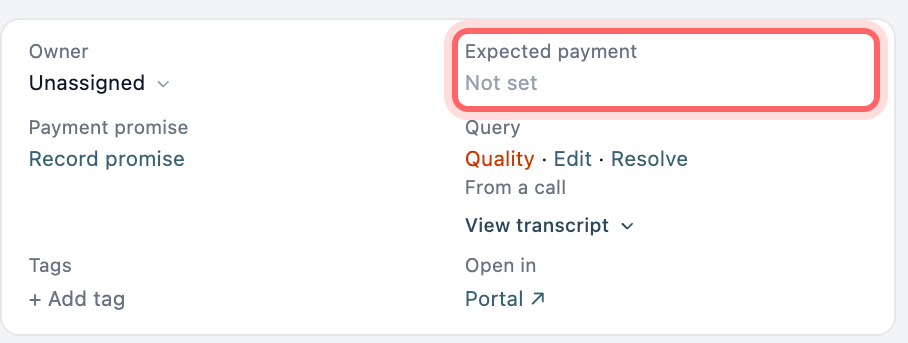
- From the invoice page. In the details panel, click the date next to Expected payment (it reads Not set if there is none), pick a date and click Save. Paidnice also adds a note to the invoice saying the date was set, and posts the note to your accounting system.
- From an escalation. On the escalation, use the Expected payment row. This also writes a note on the escalation.
- With a payment promise. Tick Also set the expected payment date when you record a promise. The box starts ticked if Payment promises set the expected payment date is on under Settings, Advanced, Default Behaviour. That setting alone decides it for promises customers submit in the portal.
Every change is written to the invoice timeline.
There is no way to clear the date from Paidnice. You can only replace it with another date, and canceling a promise does not remove the date it set.
Where it is stored
On Xero, the date is written to the invoice as its expected payment date. If someone sets or changes the expected payment date in Xero, Paidnice picks it up the next time the invoice syncs.
On QuickBooks, there is no expected payment date field, so the date lives in Paidnice only. Nothing is sent to QuickBooks.
Holding off chasing
Under Settings, Advanced, Default Behaviour, turn on Freeze until expected payment date. It is off by default.
With it on, an invoice with an expected payment date in the future has no policies applied to it that would run before that date. Chasing starts again after the date without you doing anything. Statement interest charges also leave the invoice out until the date has passed. The freeze switch on the invoice stays off, and anything you send by hand still goes. See How freezing works.
With it off, the date is only information.
Using the date
- Snooze an escalation. The snooze menu on an escalation has Until expected payment date when the invoice has a date in the future.
- Invoices list. The Expected Payment Date column is hidden by default. Show it from Columns, and filter it with on or after and on or before.
- Escalations page. The Expected Payment column is also hidden by default.