
Help center/Set up/Configuring Paidnice
Set up sender profiles and BCC your CRM
Choose who each email comes from, where replies go and who gets a copy, including a copy logged in your CRM.
Updated 5 November 2026
A sender profile decides how a Paidnice email looks to your customer: the From name, where replies go, who is copied in, the logo and the signature. Every organization has a default profile. You can add more and pick a different one on each policy.
When to use more than one
One profile is enough for many businesses. A second or third profile lets the sender change as an invoice gets later, so the customer can see the matter has moved up. For example:
- Early and due date reminders from your accounts team (accounts@).
- Reminders after 7 to 14 days overdue from a named credit controller.
- The final notice or late fee email from a director.
You can also keep one profile that BCCs your CRM and one that does not, so only the emails you choose are logged there.
Create or edit a profile
Go to Organisation Settings, Email Preferences. The profiles are under Email Sender Profiles. Click Edit on a profile to change it.
Create Sender Profile adds a new profile straight away, named New Email Profile with the same details as your default. Click Edit on it to set it up. The fields in the form are:
- Profile Name: for you only. Customers never see it. Name it after its use, for example “Credit controller” or “BCC to HubSpot”.
- Send replies to Paidnice shared mailbox: when on, customer replies go to your Paidnice inbox and show against the contact. When off, a Reply To Address (Required) field appears and replies go to that address instead.
- BCC Address: up to 3 addresses, separated by commas. The customer can’t see these. This is where a CRM logging address goes.
- CC Address: up to 3 addresses, separated by commas. The customer sees these.
- Include assignee: Don’t include, CC or BCC. Sends a copy to the invoice’s assignee, or to the contact’s assignee when the invoice has none.
- From Address: the From name your customer sees, then the address. Without a custom domain the address is fixed to no-reply@mail.paidnice.com and you can only change the name.
- Send without a logo: leaves the logo off every email from this profile.
- Logo Override: replaces the organization logo on emails from this profile. PNG, JPG or JPEG, up to about 550 x 150px.
- Email Signature: added to the bottom of every email sent from this profile.
Click Save Profile when you’re done.
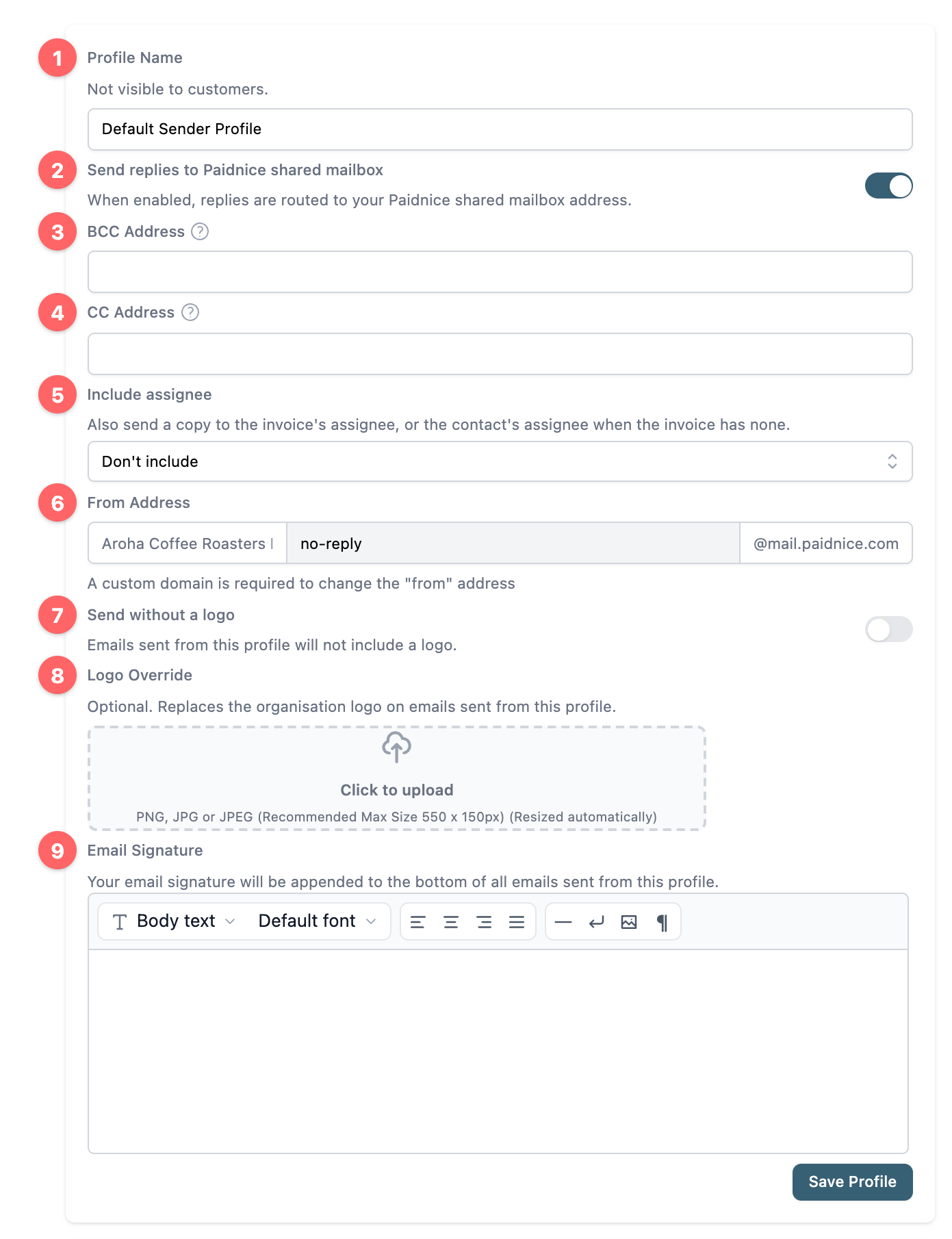
The profile marked Default is used by every policy that doesn’t pick another one.
Choose a profile on a policy
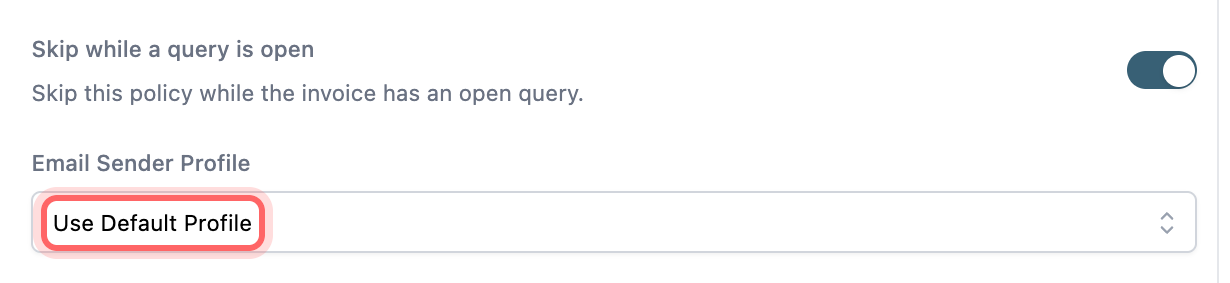
Open a reminder policy. Below the email options on the Policy Configuration tab is Email Sender Profile. It starts on Use Default Profile. Pick another profile from the list and save the policy. See How email reminders work.
Delete a profile
Click Edit on the profile, then Delete Profile at the bottom of the form. The profile is deleted straight away, without a confirmation step.
- The default profile can’t be deleted, so its form has no Delete Profile button.
- A profile that a policy still uses can’t be deleted. Paidnice shows a message naming the policies: “This sender profile is used by: {policy names}. Change their sender profile before deleting it.” Open each of those policies, set Email Sender Profile to another profile or Use Default Profile, and save it. Then delete the profile.
- Deleted policies don’t block it.
Send from your own domain
To send from your own address, such as accounts@yourcompany.com, verify a custom domain on the same tab. Custom domains need a Pro plan. See General settings, sender profiles and custom domains.
BCC your CRM
Most CRMs give you a logging address. Email that is sent or BCC’d to it is saved against the matching contact. Put that address in BCC Address on a sender profile, then use that profile on the policies whose emails you want logged.
- Copy your CRM’s logging address (see below).
- In Organisation Settings, Email Preferences, edit a profile and paste the address into BCC Address.
- Click Save Profile.
- Pick that profile in Email Sender Profile on each policy you want logged.
Where to find the logging address:
- HubSpot: your BCC logging address is in your HubSpot settings. See Log email in your CRM with the BCC or forwarding address.
- Pipedrive: use your Smart BCC address. See Smart Email BCC.
- Salesforce: use your Email to Salesforce address. See Email to Salesforce.
Other CRMs that log email by BCC work the same way. Your CRM matches the email to a record by the customer’s email address, so the address on the contact in your accounting system should match the one in your CRM.
Things to know
- Paidnice only sends the copy. It doesn’t create notes, tasks or deals in your CRM.
- Copies sent to your CC, BCC or assignee addresses aren’t counted in Email Performance, so CRM logging doesn’t change your open or click rates.
- To stop logging, remove the address from BCC Address or switch the policies to a profile without it.