
Help centre/Set up/Configuring Paidnice
General settings, sender profiles and custom domains
Where the settings that affect every email live, and how to send from your own domain.
Updated 7 October 2026
Organisation Settings in the sidebar opens a page with six tabs: General, Email Preferences, Statement Settings, Portal Settings, Advanced and Payment Providers. This article covers General, Email Preferences and Advanced. For the others see How auto statements work, How the customer portal works and How payments work.
Settings, General
- Safe Mode: while on, Paidnice creates actions but never runs them automatically. The switch is also in the header of every page.
- Organisation Details: legal and display names, company and tax numbers, contact details and address. These appear on statements and in the portal. Use display name puts the display name on everything customers see.
- Statement & Invoice Footer: free text printed at the bottom of statements. Preview Statement shows it in place.
- Timezone and Default Currency: taken from your accounting system. Changing the timezone here only changes Paidnice, and it decides when “midday” is for your policies.
- Billing Managed By: who owns the subscription. See Plans and billing.
- Logo: shown in emails, statements and the portal.
- Invoice Tags and Contact Tags: contact tags can include or exclude contacts in policies, invoice tags are for organising only. See When to use groups or tags.
Users are managed on their own page. See Users and access.
Sender profiles
Under Settings, Email Preferences, Email Sender Profiles. The default profile is used by every policy unless the policy picks another. You can have up to 10.
A profile sets the From name, the Reply To address (or the Paidnice shared mailbox, so replies land in your Paidnice inbox), up to 3 CC and 3 BCC addresses, whether the invoice or contact assignee is copied in, the logo and the signature.
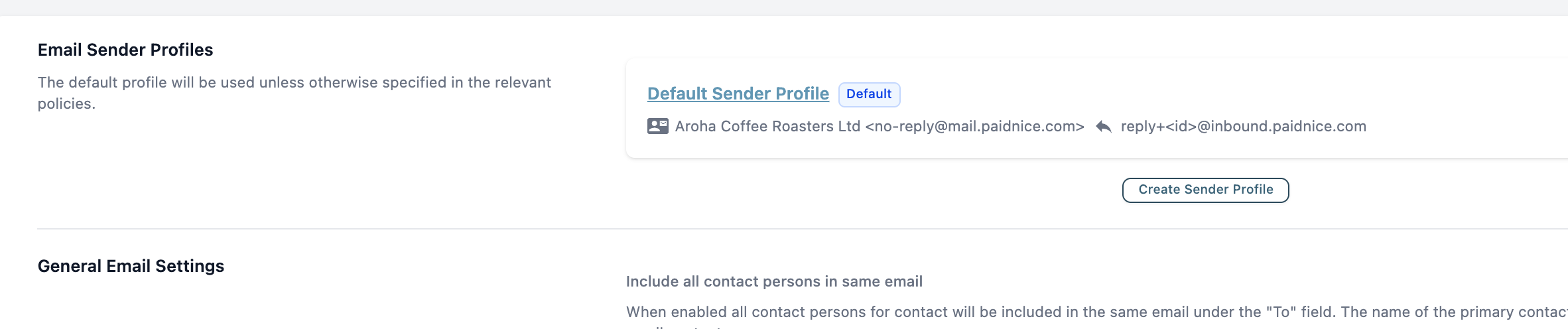
Include all contact persons in same email, on the same tab, puts everyone who should get a reminder on one email instead of sending each person their own. See How email reminders work.
Custom domain
Without a custom domain, emails come from a Paidnice address with your From name. With a verified domain they come from your own address.
- Under Settings, Email Preferences, add your domain.
- Add the DNS records shown. You can email them to whoever manages your DNS.
- Click Verify Domain. Verification can take a little while after the records are added.
A domain verified in one of your organisations can be linked to another without new DNS records. Custom domains need a Pro plan.
Settings, Advanced
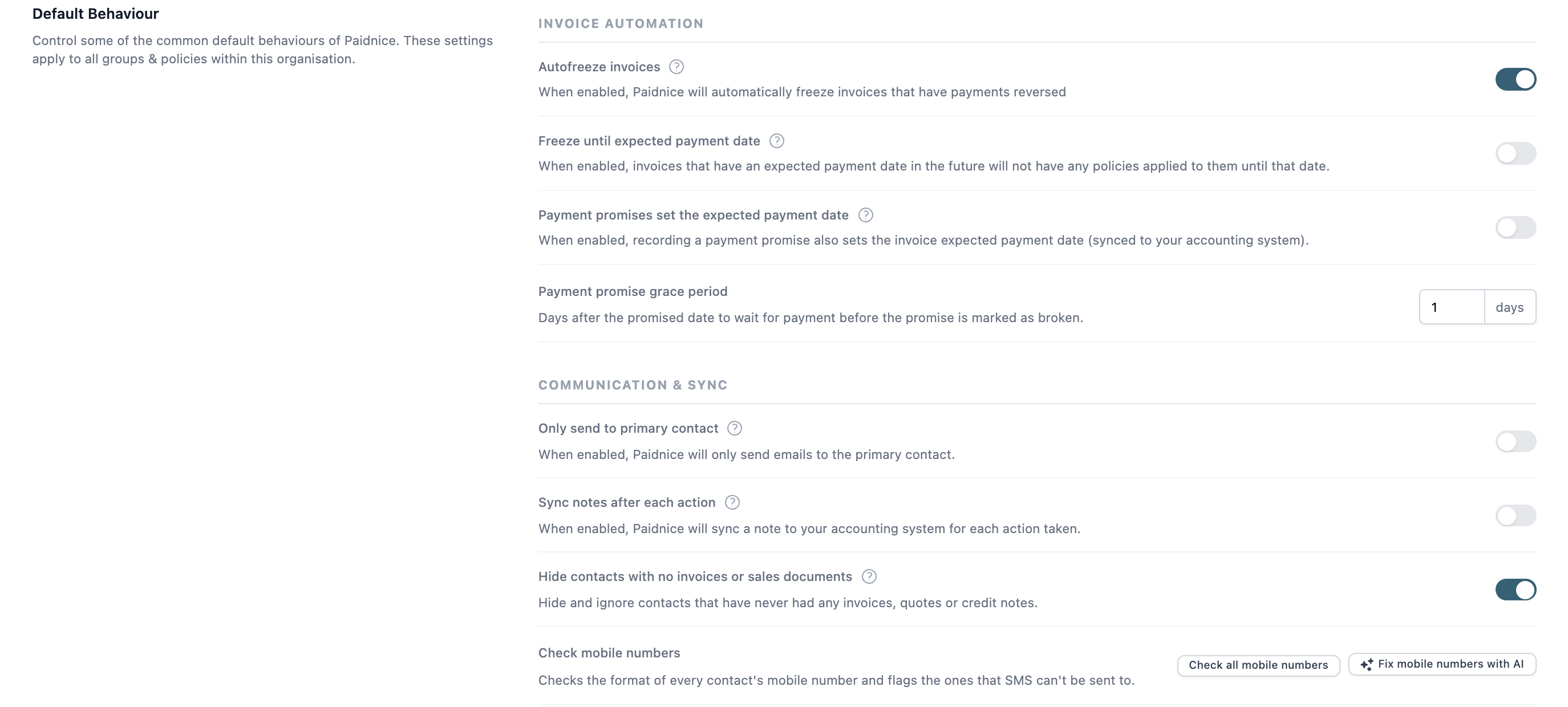
The Default Behaviour tab holds the switches that change how policies behave across the whole organisation. Leave these alone unless you know you need them.
- Autofreeze invoices and Freeze until expected payment date. See How freezing works.
- Payment promises set the expected payment date and Payment promise grace period. See How payment promises work.
- Only send to primary contact, Sync notes after each action and Hide contacts with no invoices or sales documents.
- Check mobile numbers, which flags numbers that SMS cannot reach. See How SMS alerts work.
- Credit Note Behaviour and the overpayment and prepayment settings, which decide how credits appear on reminders and statements.
The other tabs under Advanced are Webhooks, Payment Plans (see Set up payment plans for a group), Scheduled Exports, API & MCP (see Use the Paidnice public API), Credit Score (see How contact credit scores work) and Connection (see How to connect Xero or QuickBooks).