Help centre/Get paid/Customer portal
How the customer portal works
What customers see when they click a link in an email or statement, and what you can let them do.
Updated 29 October 2026
Every reminder and statement can link to the customer portal. There is no login. The link opens the right page for that customer or invoice.
What customers see
- Invoice page: one invoice with Save as PDF, Print and Attachments buttons, the amount due, a pay button if a payment provider is connected, and any payment plan. Under Other options the customer can create a payment plan if the invoice is eligible, promise to pay or query the invoice, depending on your settings.
- Customer portal: the Outstanding Statement, Quotes and Paid Invoices tabs, the total outstanding split into overdue and not yet due, and an aged debt breakdown. Customers can pick several invoices in one currency and pay them together.
- Quote page: a quote they can accept or decline.
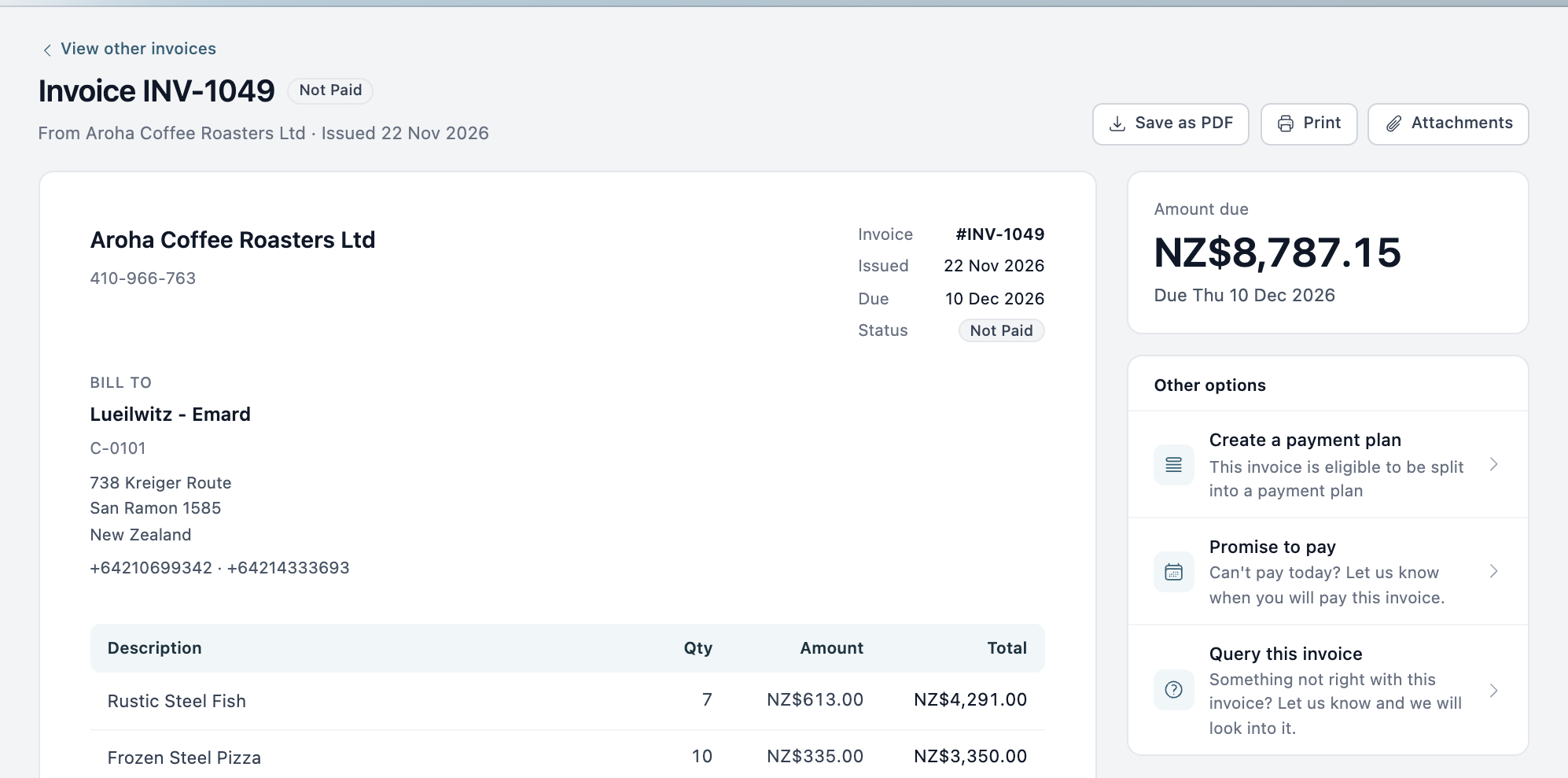
View other invoices on an invoice page takes the customer to their customer portal, if you allow it.
The Download menu on the outstanding statement offers Outstanding Statement (PDF) and All as CSV. When the customer ticks invoices in the list, it also offers to download just those invoices.
Customers who have received a text see an SMS Communications switch on their customer portal page and can turn SMS off there.
Portal settings
Go to Organisation Settings, Portal Settings.
- Secure Portal Mode?: customers must verify their email address by a link before they can see anything. Off by default.
- Allowed to view all invoices, estimates & quotes? and Allowed to view all paid invoices?: turn off to limit a link to the one invoice it was sent for.
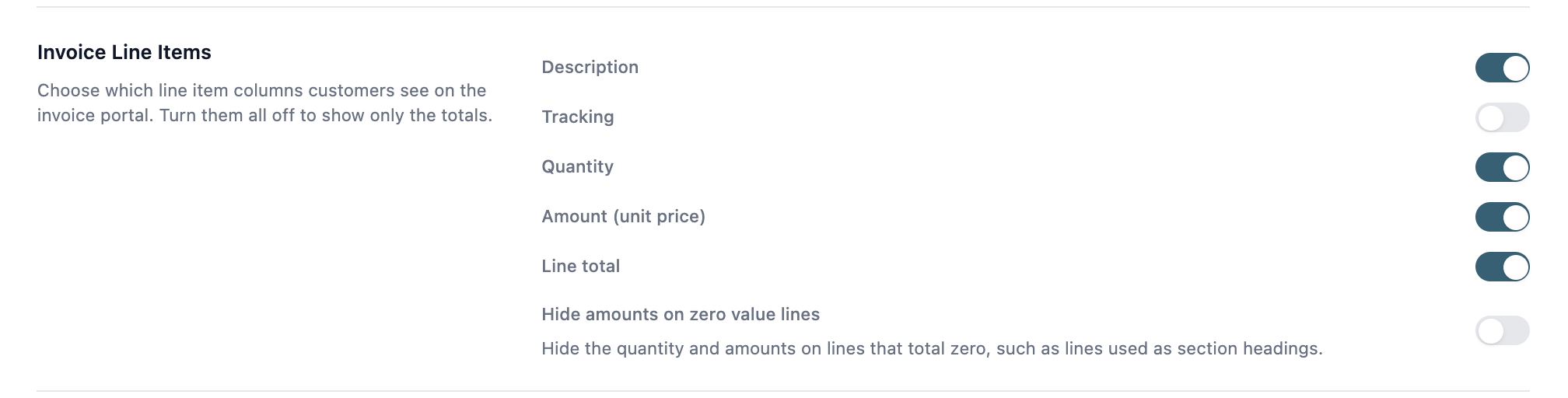
- Invoice Line Items: choose which columns customers see in the line items on the invoice page: Description, Tracking, Quantity, Amount (unit price) and Line total. Turn them all off to show only the totals. Hide amounts on zero value lines hides the quantity and amounts on lines that total zero, such as lines you use as section headings.
- Allow customers to submit payment promises and Allow customers to query invoices: add Promise to pay and Query this invoice to unpaid invoices. Require verification for payment promises and Require verification for queries make the customer verify their email address first, even when secure portal mode is off.
- Branding Color: the main colour in the portal.
- Allowed to view quotes?, Enable PO number and Enable PO Document Upload: let customers see quotes, and ask for a PO number or PO document when they accept one.
Your logo, payment terms and footer come from Organisation Settings, General.
Payments
Connect Stripe, Pinch, RPS or a custom payment link under Organisation Settings, Payment Providers. Stripe payments taken in the portal are recorded against the invoice in your accounting system, with fees booked separately. You can pass a processing fee on to the customer where that is legal, and allow partial payments. The setup is in How payments work, and the questions that come up afterwards, such as double payments and payments that will not sync, are in Payments in practice.
The other things a customer can do from the invoice page have their own articles: create a payment plan, promise to pay, query the invoice and accept a quote.
Things to know
- To see when a customer opened an invoice in the portal, open the invoice in Paidnice and go to the Portal Views tab. View tracking is new, so older invoices may show no history.
- The portal keeps working for 7 days after you disconnect Xero or QuickBooks. After that customers are told to contact you directly.