
Help centre/Set up/Configuring Paidnice
Users and access
Invite colleagues, give them viewer or editor access, understand connected users, and what happens to your setup when someone reconnects Xero or QuickBooks.
Updated 29 October 2026
There are two kinds of user in a Paidnice organisation, and the difference explains most questions about access.
- A connected user connected the Xero organisation or QuickBooks company themselves, with their own accounting login. The Users page shows them as Connected. They can do everything, including inviting and removing people and disconnecting the organisation.
- An invited user was added by email from the Users page. They use the connected user’s accounting access behind the scenes and never need their own Xero or QuickBooks login. Their access to settings is either viewer or editor.
Both kinds can be on as many organisations as you like, and switch between them with the organisation switcher at the top of the page.
Inviting someone
Open Users in the sidebar. The header shows how many seats you are using, for example “1 / 5 users”.
- Click Invite User. Only connected users see this button.
- Enter the person’s Name and Email.
- Under Permissions, choose their Settings access:
- editor: Can view and edit all settings, including policies & groups. This is the default.
- viewer: Can view all settings but not make changes.
- Click Invite.
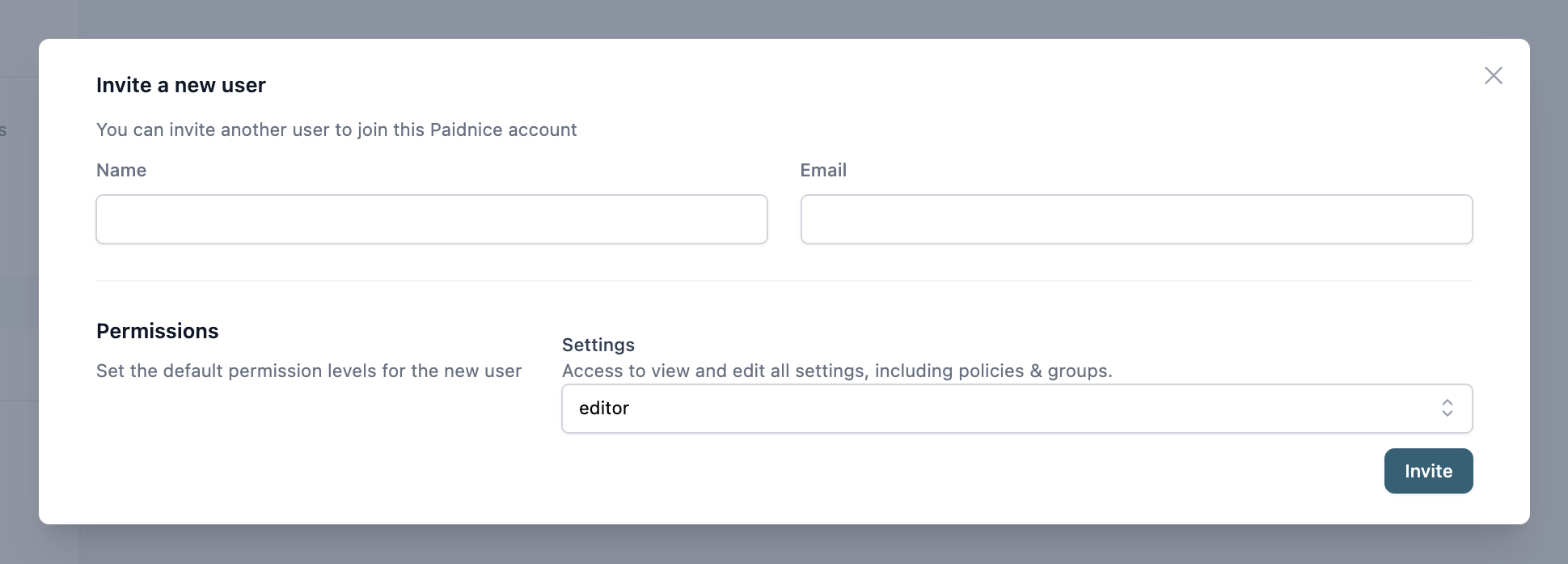
The person gets an email titled “You have been invited to a Paidnice account” and appears under Pending Invites with the date it was sent. If they lose the email, invite the same address again and Paidnice resends it without using another seat. You can do that once every 2 minutes. Invites expire after 14 days. Cancel Invite removes one.
Pending invites and current users both count towards your plan’s user limit. If you are at the limit, you will see “Your plan includes N users. Remove a user or pending invite, or upgrade your plan to invite more users.” See Plans and billing.
Accepting an invite
The invited person signs in to Paidnice, or signs up, with the email address the invite went to. The invitation appears in a Pending Invitations card on the dashboard and under Invitations in My Account, with an Accept invitation button.
The button stays disabled until their email address is verified. Signing in with Xero or QuickBooks verifies it automatically. Signing up with an email and password sends a verification link first.
Changing or removing access
On the Users page, each invited user has Edit Permissions and Remove User. Connected users can use both. An invited user can take themselves off an organisation with Leave Organisation.
A connected user cannot be removed from the Users page. Their access ends when they disconnect, or when their own Xero or QuickBooks access to the organisation is taken away, at which point they show as Disconnected.
Inviting Paidnice Support
Invite Paidnice Support gives the Paidnice support team editor access to the organisation so they can look at a problem with you. It does not use a seat and does not expire on its own. Click Remove Paidnice Support when you are done.
Connecting the same organisation twice
If a colleague has already connected your organisation and you connect the same Xero organisation or QuickBooks company from your own login, Paidnice matches it to the existing setup and makes you a second connected user. Nothing is duplicated. The dashboard says as much when you have no organisations yet: “If someone else has already connected your organisation to Paidnice, you just need to connect the same organisation yourself to gain access.”
An invited user who later connects the organisation themselves becomes a connected user with editor access.
Reconnecting does not reset anything
Reconnecting an organisation, whether after a token problem, a disconnect or a change of accounting login, keeps everything:
- Groups, policies, email templates, sender profiles and all organisation settings.
- Invoice and contact history in Paidnice, including notes, timelines and freezes.
- Your subscription. It stays with the person who manages billing.
Two things do happen on a reconnect. Scheduled actions that have not run yet are cleared and recalculated from the current policies, and a full sync runs so Paidnice catches up on anything that changed while it was disconnected.
To reconnect, use the button in the organisation switcher or under Settings, General, Advanced, Connection. See How to connect Xero or QuickBooks.
Billing and users
The Billing Managed By field under Settings, General shows who owns the subscription. Only that person can change the plan. Another connected user can take billing over from the Billing page, which creates a new subscription for them to put a card on. See Plans and billing.
Things to know
- Permissions in Paidnice are about settings. Everyone in the organisation can see invoices and contacts, send reminders by hand and work escalations.
- Each user chooses their own email notifications per organisation under My Account, Email Notifications. New users should check these, or they will get every notification.
- API tokens and MCP connections belong to the user who created them. See Use the Paidnice public API.