
Help center/Chase/Email reminders
Edit email templates, merge tags and attachments
Change the wording of the emails Paidnice sends, add merge tags, variations and attached files, and test a template before it goes out.
Updated 5 November 2026
Every email Paidnice sends to a customer comes from a template. A policy picks the template, and the template sets the subject, the body, the buttons and any files attached.
Find your templates
Click Email Templates under Settings in the sidebar. The list shows every template with its type, when it was last updated, and a Used in 1 policy (or Used in 2 policies) label when a policy sends it. The Template Types panel on the left filters the list by type.
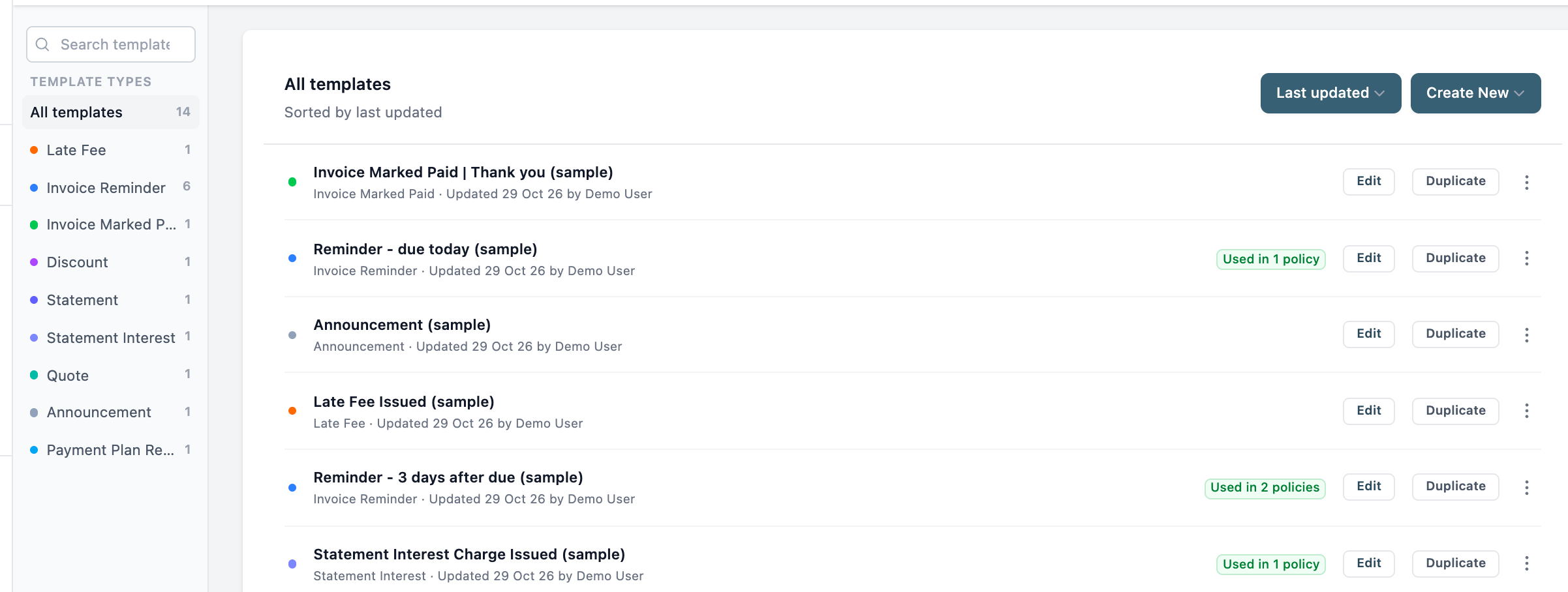
New organizations start with a sample of each type, marked “(sample)”. You can edit a sample directly, or click Duplicate to keep the sample and work on a copy.
To start from scratch, click Create New and pick the type:
- Invoice Reminder Email: reminders before, on and after the due date, and the issued email.
- Invoice Marked Paid Email: the thank-you email once an invoice is paid.
- Late Fee Email: the notice sent with a late fee.
- Discount Email: prompt payment discount offers.
- Statement Email: statement emails.
- Statement Interest Charge Email: the notice sent with an interest charge on a statement balance.
- Announcement Email: one-off messages to your contacts.
- Quote Email: quote reminders.
- Payment Plan Reminder: installment reminders.
A policy only offers templates of its own type. A thank-you template won’t show on a reminder policy, for example. Give each template a name you will recognize when you pick it on a policy. Click the name at the top of the editor to change it.
Write the subject and body
Click Edit on a template. The editor is on the left and the Live Preview on the right, with Desktop and Mobile views and a sender profile picker that shows how the email looks from each profile.
- Subject: up to 235 characters. The counter on the right shows how many you have used. Merge tags work here too.
- Body: Body text sets the text style, then font, alignment, links and dividers.
- Button: adds a button, such as “Pay now”. Select it and use the link control to set where it goes.
- Line break adds a break, and Show line breaks (the ¶ control) shows where they are.
- Sender Logo and Sender Signature are blocks in the body, shown as
{{{Logo}}}and{{{Signature}}}. Move them to where you want them in the email. The logo, signature, from name and reply address come from your sender profile. See Sender profiles, signature and BCC.
Click Save Template when you are done. The editor shows the last saved time and a version number underneath.
Merge tags
Merge tags fill in details from the invoice, contact or statement when the email sends. Click Insert field to add one at the cursor. Each tag shows in the editor in triple braces, like {{{InvoiceNumber}}}.
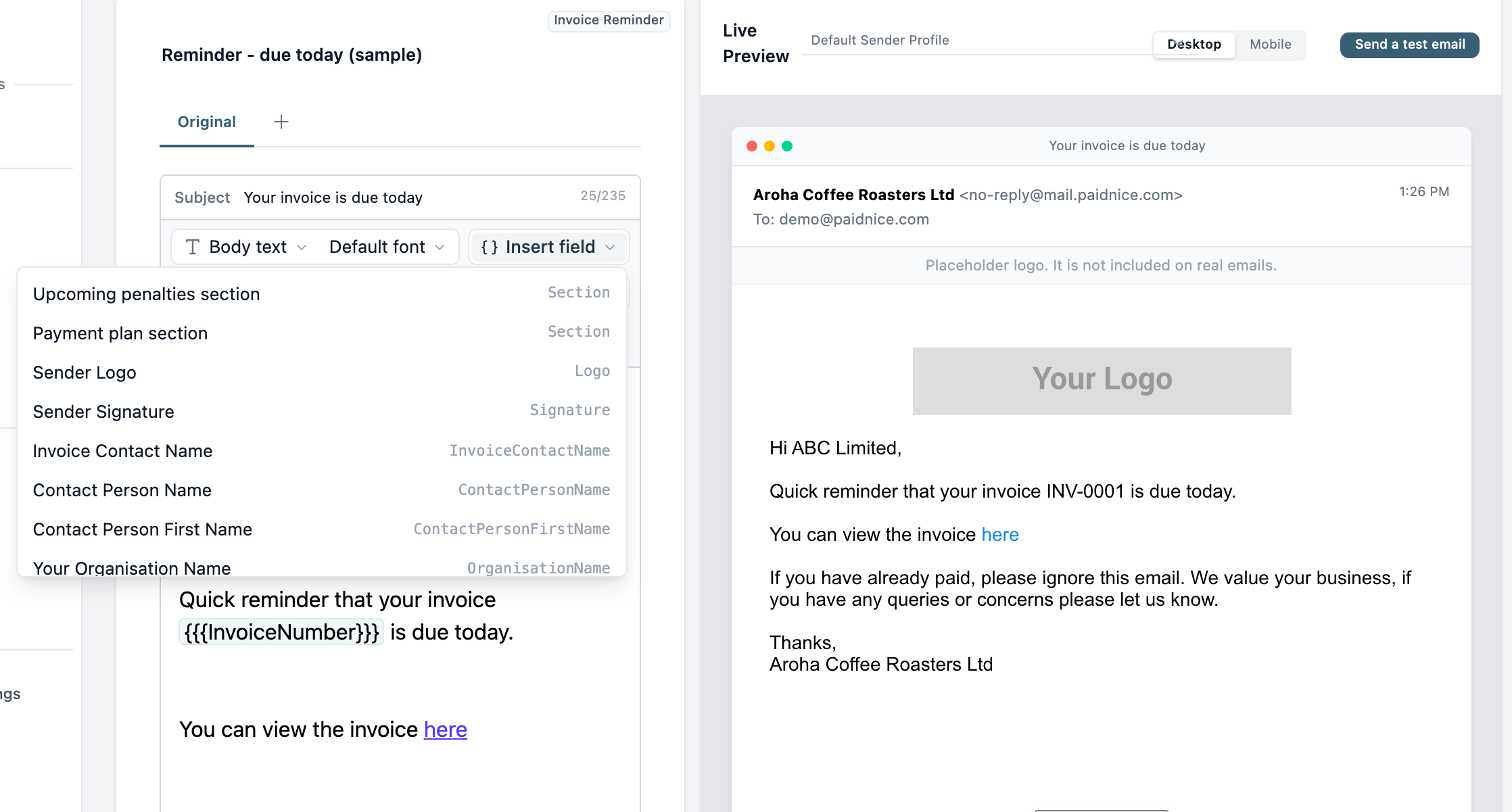
The list changes with the template type. It can also change with your accounting system and the payment providers you have connected, so payment link tags only appear once a provider is set up. If a template has a tag that doesn’t belong to its type, Paidnice won’t save it. There are no tags for payment promises or queries.
These tags are in every template type:
| Field | Tag |
|---|---|
| Sender Logo | {{{Logo}}} |
| Sender Signature | {{{Signature}}} |
| Contact Person Name | {{{ContactPersonName}}} |
| Contact Person First Name | {{{ContactPersonFirstName}}} |
| Your Organisation Name | {{{OrganisationName}}} |
| Organisation Contact Number | {{{OrganisationContactNumber}}} |
The rest depend on the type.
Invoice Reminder
| Field | Tag |
|---|---|
| Invoice Contact Name | {{{InvoiceContactName}}} |
| Invoice Number | {{{InvoiceNumber}}} |
| Due Date | {{{DueDate}}} |
| Invoice Date | {{{InvoiceDate}}} |
| Invoice Portal Link | {{{InvoicePortalLink}}} |
| Invoice Total Amount | {{{InvoiceTotalAmount}}} |
| Invoice Total Amount (No Currency) | {{{InvoiceTotalAmountNoCurrency}}} |
| Due Amount | {{{DueAmount}}} |
| Due Amount (No Currency) | {{{DueAmountNoCurrency}}} |
| Days Until Due | {{{DaysUntilDue}}} |
| Days After Due | {{{DaysAfterDue}}} |
| Discount Amount | {{{DiscountAmount}}} |
| Outstanding Balance (Statement) | {{{OutstandingBalance}}} |
| Overdue Balance (Statement) | {{{OverdueBalance}}} |
| Total Unpaid Invoice Count (Statement) | {{{TotalUnpaidInvoiceCount}}} |
| Total Overdue Invoice Count (Statement) | {{{TotalOverdueInvoiceCount}}} |
| Balance Due This Month | {{{BalanceDueThisMonth}}} |
| Invoices Due This Month Or Earlier | {{{DueThisMonthOrEarlierList}}} |
| Online Statement Link | {{{StatementPortalLink}}} |
The tags marked (Statement) give the contact’s whole account, so one reminder can mention the total owed across all their invoices.
Invoice Marked Paid
The same invoice and account tags as Invoice Reminder, without Due Amount, Days Until Due, Days After Due and Discount Amount. It adds Marked Paid Date, {{{MarkedPaidDate}}}.
Late Fee
| Field | Tag |
|---|---|
| Invoice Contact Name | {{{InvoiceContactName}}} |
| Penalty Amount | {{{PenaltyAmount}}} |
| Penalty Invoice Number | {{{PenaltyInvoiceNumber}}} |
| Original Invoice Number | {{{OriginalInvoiceNumber}}} |
| Due Date | {{{DueDate}}} |
| Invoice Portal Link | {{{InvoicePortalLink}}} |
| Outstanding Balance (Statement) | {{{OutstandingBalance}}} |
| Overdue Balance (Statement) | {{{OverdueBalance}}} |
The two (Statement) tags give the contact’s whole account, not just the invoice the fee was charged on. A contact who owes you in more than one currency gets one amount per currency, separated by commas. Outstanding Balance already includes the late fee just added, so you can use it to tell the customer their new total, for example “You now owe {{{OutstandingBalance}}}”.
Discount
| Field | Tag |
|---|---|
| Invoice Contact Name | {{{InvoiceContactName}}} |
| Invoice Number | {{{InvoiceNumber}}} |
| Due Date | {{{DueDate}}} |
| Invoice Date | {{{InvoiceDate}}} |
| Days Until Due | {{{DaysUntilDue}}} |
| Date when the discount will be removed | {{{DiscountRemoveDate}}} |
| Prompt payment discount amount | {{{DiscountAmount}}} |
| Original Invoice Total | {{{OriginalTotal}}} |
| Total After Discount | {{{DiscountedTotal}}} |
| Invoice Portal Link | {{{InvoicePortalLink}}} |
Statement
| Field | Tag |
|---|---|
| Contact Name | {{{ContactName}}} |
| Outstanding Balance (Statement) | {{{OutstandingBalance}}} |
| Overdue Balance (Statement) | {{{OverdueBalance}}} |
| Total Unpaid Invoice Count (Statement) | {{{TotalUnpaidInvoiceCount}}} |
| Total Overdue Invoice Count (Statement) | {{{TotalOverdueInvoiceCount}}} |
| Statement Date | {{{StatementDate}}} |
| Oldest Due Date | {{{OldestDueDate}}} |
| Most Recent Due Date | {{{MostRecentDueDate}}} |
| All Overdue Invoices | {{{OverdueListAll}}} |
| Overdue Invoices (0-30 days) | {{{OverdueList30}}} |
| Overdue Invoices (31-60 days) | {{{OverdueList60}}} |
| Overdue Invoices (61-90 days) | {{{OverdueList90}}} |
| Overdue Invoices (90+ days) | {{{OverdueList90Plus}}} |
| Outstanding But Not Overdue Invoices | {{{OutstandingButNotOverdue}}} |
| Invoices Due This Month Or Earlier | {{{DueThisMonthOrEarlierList}}} |
| Balance Due This Month | {{{BalanceDueThisMonth}}} |
| Online Statement Link | {{{StatementPortalLink}}} |
The list tags put a table of invoices in the email.
Statement Interest Charge
| Field | Tag |
|---|---|
| Contact Name | {{{ContactName}}} |
| Interest Amount | {{{InterestAmount}}} |
| New Outstanding Balance | {{{NewOutstandingBalance}}} |
| New Overdue Balance | {{{NewOverdueBalance}}} |
| Original Overdue Balance | {{{OriginalOverdueBalance}}} |
| Online Statement Link | {{{StatementPortalLink}}} |
| Interest Invoice Link | {{{InterestInvoiceLink}}} |
Quote
| Field | Tag |
|---|---|
| Contact Name | {{{ContactName}}} |
| Quote Number | {{{QuoteNumber}}} |
| Issue Date | {{{IssueDate}}} |
| Expiry Date | {{{ExpiryDate}}} |
| Online Quote Link | {{{QuotePortalLink}}} |
| Online Statement Link | {{{StatementPortalLink}}} |
Payment Plan Reminder
| Field | Tag |
|---|---|
| Installment Number | {{{InstalmentNumber}}} |
| Installment Due Date | {{{InstalmentDueDate}}} |
| Installment Due Amount | {{{InstalmentDueAmount}}} |
| Installment Paid Amount | {{{InstalmentPaidAmount}}} |
| Installment Total Amount | {{{InstalmentTotalAmount}}} |
| Invoice Contact Name | {{{InvoiceContactName}}} |
| Invoice Number | {{{InvoiceNumber}}} |
| Due Date | {{{InvoiceDueDate}}} |
| Invoice Date | {{{InvoiceDate}}} |
| Invoice Due Amount | {{{DueAmount}}} |
| Invoice Due Amount (No Currency) | {{{DueAmountNoCurrency}}} |
| Invoice Total Amount | {{{InvoiceTotalAmount}}} |
| Invoice Total Amount (No Currency) | {{{InvoiceTotalAmountNoCurrency}}} |
| Invoice Portal Link | {{{InvoicePortalLink}}} |
Announcement
Only the shared tags, plus Contact Name ({{{ContactName}}}) and Online Statement Link ({{{StatementPortalLink}}}).
Upcoming penalties and Payment plan sections
Invoice Reminder templates have two extra items at the top of the Insert field list. Each adds a section to the body that only shows when it applies to the invoice.
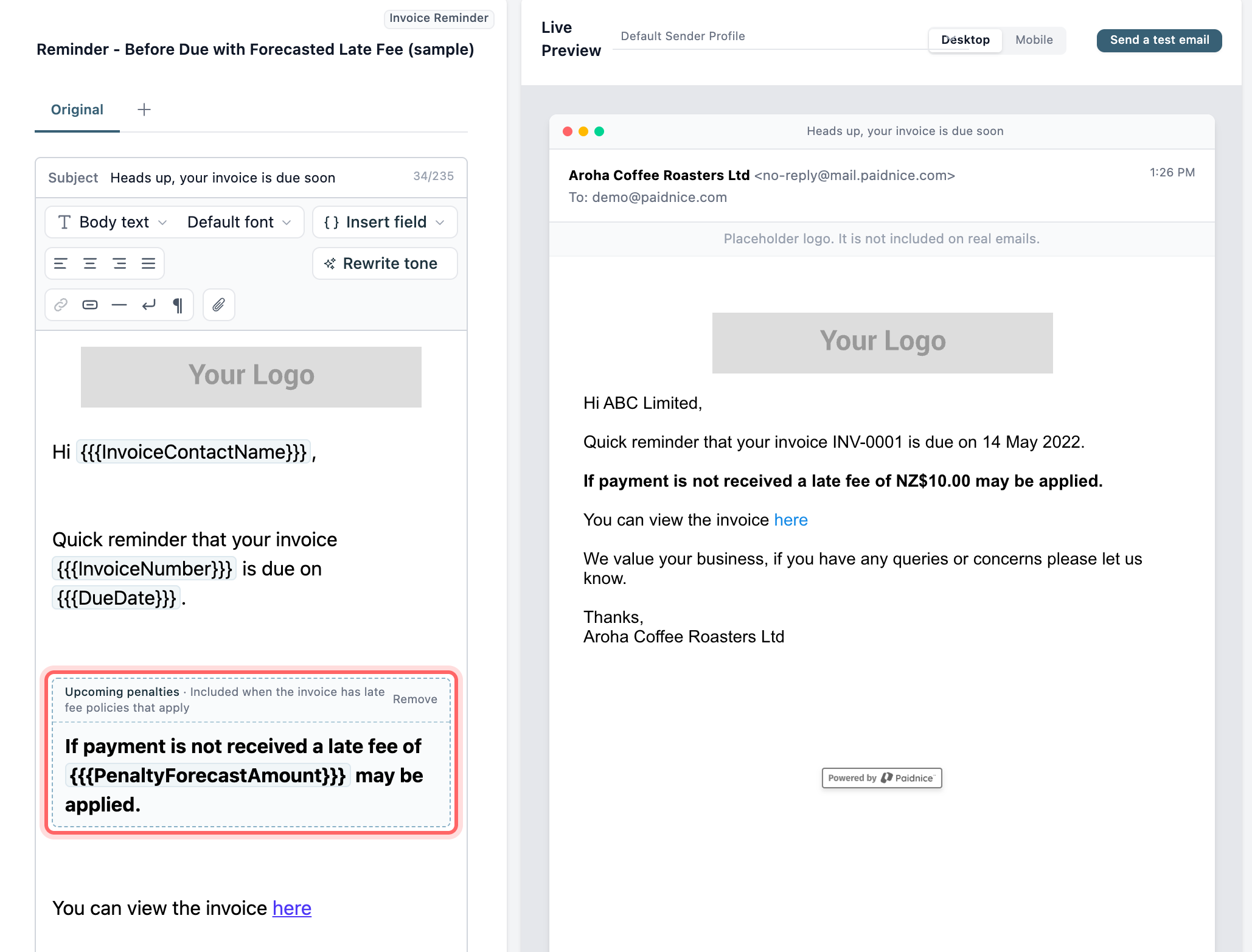
- Upcoming penalties section: “Included when the invoice has late fee policies that apply”. Use
{{{PenaltyForecastAmount}}}inside it to show the late fee that will be added if the invoice isn’t paid. - Payment plan section: “Included when the invoice is eligible for a payment plan”. Write the text you want, such as an invitation to set up a plan in the portal.
Click Remove on a section to take it out. The sample “Reminder - Before Due with Forecasted Late Fee” shows an Upcoming penalties section in use.
Variations
A template can hold up to 10 versions of its wording. Click + next to the Original tab and pick Create variation manually or Create variation with AI. One variation is picked at random each time the template is sent. Variations only change the subject and body, everything else comes from the original.
Attach files
Files attached to a template go with every email it sends, such as your terms of trade.
- Upload the file under Settings, Files, with Upload File. Paidnice takes png, jpeg, pdf, txt and csv files, up to 10MB each and 50MB in total.
- In the template editor, click the paperclip (Attached files) and pick the file. You can also click Upload new file there.
- Click Done, then Save Template.
These files are sent in addition to any invoice or statement PDFs. The PDFs are set on the policy, with options like Attach invoice as PDF. See How email reminders work.
Rewrite tone
Rewrite tone rewrites the template in a tone you describe. Read the result before you save it.
Test a template
Click Send a test email above the preview. It goes to your own email address with “[TEST]” in the subject, using real data if possible. Check the merge tags filled in correctly and the attachments came through.
Things to know
- A template that a policy uses can’t be deleted. Change the policy to another template first.
- The preview fills merge tags with sample data. When it shows “Placeholder logo. It is not included on real emails.”, the gray logo box is not sent.
- Email Performance in the sidebar shows open, click and spam rates for each template.