
Help centre/Set up/Integrations
Connect an AI agent to Paidnice (MCP)
Let Claude, ChatGPT or another AI agent read and update your Paidnice data through the MCP server, with one connection covering all your organisations.
Updated 16 October 2026
Paidnice has an MCP server. MCP (Model Context Protocol) is the standard that AI agents such as Claude (claude.ai and Claude Desktop) and ChatGPT use to talk to other apps. Once connected, the agent can read and update your Paidnice data for you, without you copying anything in and out of Paidnice.
Before you start
The public API, which includes MCP, has to be enabled for an organisation. If none of your organisations have it, the consent page tells you so. Ask your Paidnice contact to enable it.
Connect an agent
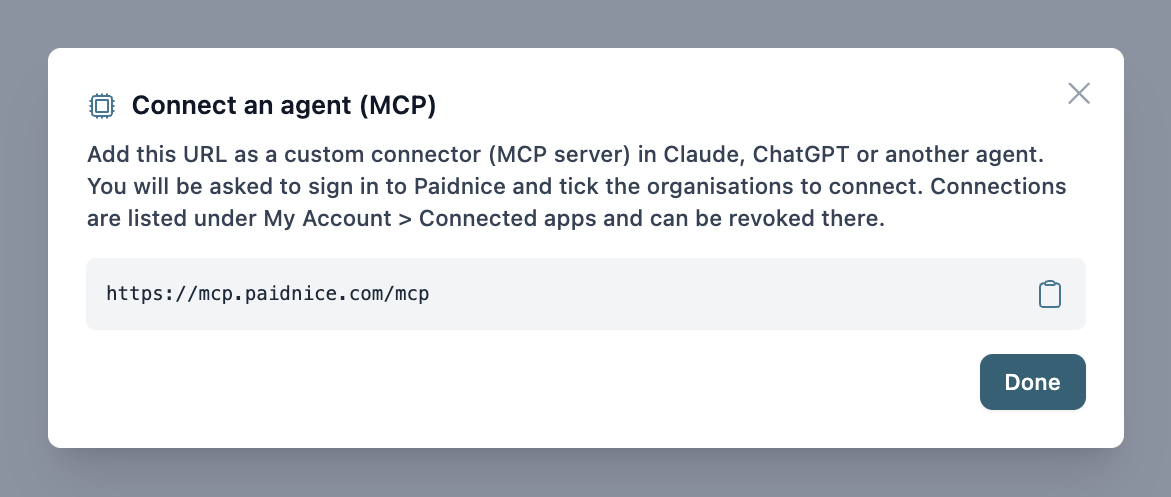
- In Paidnice go to Settings, General, Advanced, API Tokens and click Connect an agent (MCP). It shows the MCP server URL with a copy button.
- In your agent, add that URL as a custom connector or MCP server. Where this lives depends on the agent.
- The agent opens a Paidnice sign in and consent page. Sign in if asked.
- On the consent page you see the app’s name and the address Paidnice will send you back to. Check that you recognise it.
- Tick the organisations you want the agent to reach. Every organisation you belong to that has the public API enabled is listed. If there is only one it is already ticked.
- Choose the access. Read access is always included. Untick Write to make the connection read only.
- Click Allow. You are sent back to the agent and it is connected.
If you would rather write your own integration than use an agent, the same tab issues tokens for the REST API. See Use the Paidnice public API.
Using it
One connection covers every organisation you ticked. The agent can see which organisations it has and names the organisation on each request, so you can ask in plain language. “Show overdue invoices for Acme” is enough for the agent to pick the right organisation.
Read tools work for any member of an organisation. Write tools only work in organisations where you have settings editor access (see Users and access). Access is checked on every request. If you are removed from an organisation or your permission changes, the agent’s access changes straight away.
Every call the agent makes appears in the organisation’s request log under Settings, General, Advanced, API Tokens, Request Log, with the app name and the user who connected it.
Managing connections
Open My Account (the menu at the top right) and go to Connected apps. Each connected app is listed with the organisations it can reach, its access (Read only or Read and write) and the date it was connected. Click the bin icon to revoke it. Revoking stops the agent immediately. To grant access again, reconnect from the agent.
Connections do not expire on their own, so revoke any you no longer use.
Connections are per user. Other people in your organisation connect their own agents and see only what their own permissions allow.
Something went wrong
- None of your organisations have the public API enabled: ask Paidnice to enable the public API for the organisation.
- The agent says it is not authorised, or asks to reconnect: the connection was revoked or your account was blocked. Reconnect from the agent.
- Organisation not found: the organisation was not ticked at consent, you are no longer a member, or the public API was turned off for it. Revoke the connection and reconnect, ticking the organisation.
- Write tools need settings editor access: ask an organisation admin to give you editor access to settings, or use the connection read only.