
Help center/Set up/Configuring Paidnice
Exports, reports and email performance
Which pages can export a CSV, how to email a saved view on a schedule, and what the Reports, Email Performance and Audit Logs pages show.
Updated 5 November 2026
Most lists in Paidnice can be exported to CSV, but they do it in two different ways, and a few pages have no export at all.
Pages that email the export
On Contacts, Invoices, Actions and Escalations, the Export button in the table toolbar opens an “Export all” dialog. Everything that matches your current filters is exported, across all pages. Ticking rows does not narrow it down.
- Set the filters you want and choose which columns to show. The CSV uses the visible columns in the same order as the table.
- Click Export. Add a File name (optional) if you want one.
- Click Email export. Paidnice emails the CSV to the address on your account. Large exports can take a few minutes.
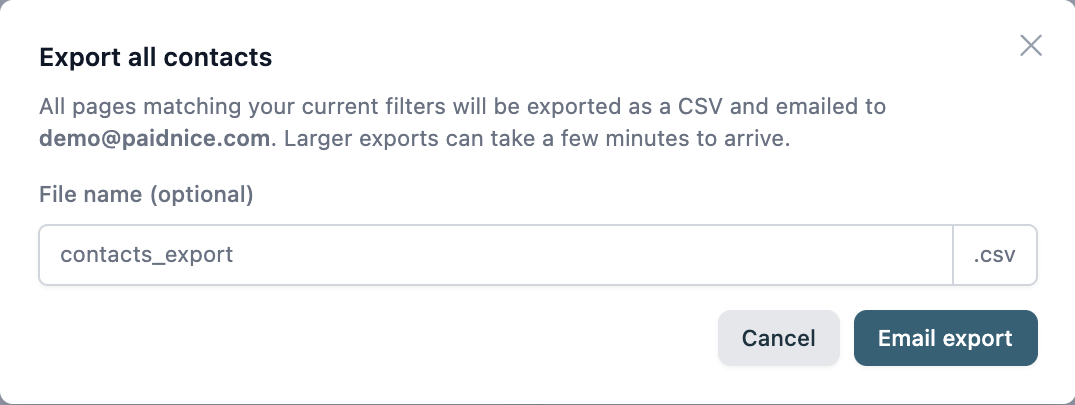
The export stops at 20,000 rows. If your filters match more, the dialog warns you and only the first 20,000 are sent.
Recent exports are listed under Exports in the left-hand panel of that page, below the quick filters and saved views. You can download them from there for 14 days.
Scheduled exports
A saved view of Contacts, Invoices or Actions can be emailed as a CSV every week or month. Escalations cannot be scheduled.
- Filter the table, click Save view and open Scheduled email. For a view that is already saved, hover over it under Saved Filters and click the cog.
- Set Email me this view to Weekly or Monthly. No email, or Turn off scheduled emails on a saved view, stops it.
- Pick the day under On (a weekday, or a day of the month), the hour under At (in your organization’s timezone), and who it goes to under Send to. You can choose up to 10 users of the organization.
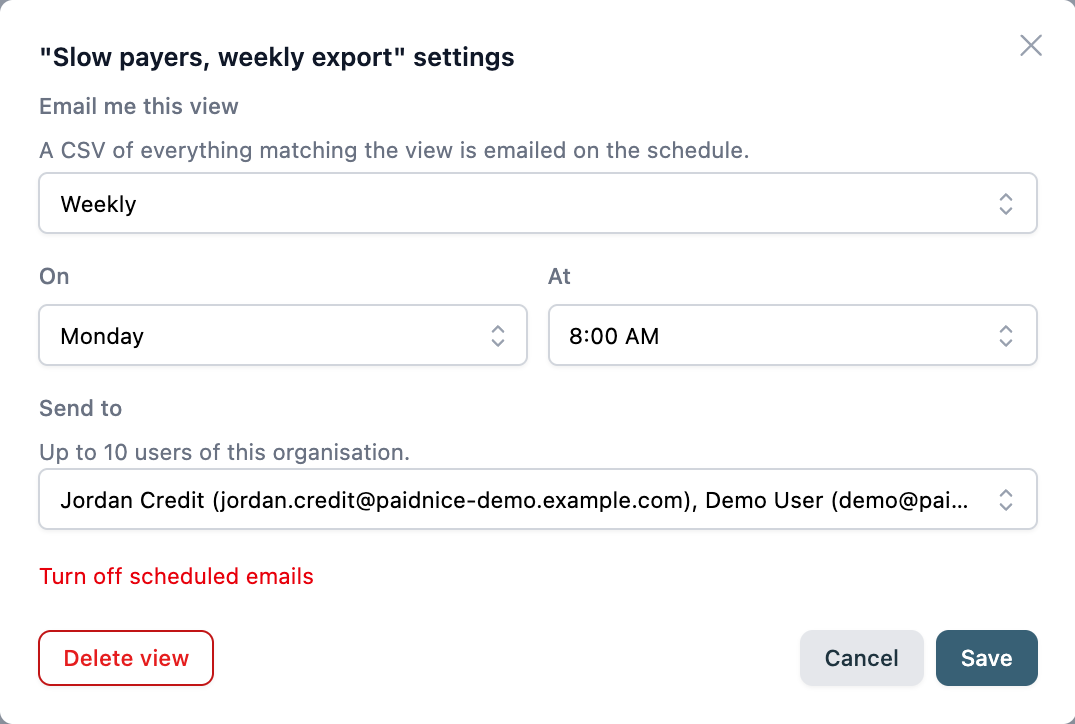
Each email holds everything matching the view at the time it runs. The page at Settings, Advanced, Scheduled Exports lists every scheduled view with its schedule, recipients and Next email, followed by a History of past sends with a download link until the file expires.
Quotes
The Quotes page has its own Export button. It downloads straight to your computer instead of emailing, and it only covers the page of quotes currently loaded. If you tick rows, only those rows are exported. The columns are Issue Date, Number, Expiry Date, Contact, Value, P.O. No. and Completed Actions.
Reports
Reports in the left menu has a tab for each report: Aged Receivables By Contact, Late Fees & Interest Charges, Emails and, if payment plans are on for you, Payment Plans. They can cover several organizations at once, chosen with the Entities filter. Each tab has a download icon at the right of its toolbar that saves the report as a CSV, using your current filters. You can save a set of filters with Save view. Report views belong to you and can’t be scheduled.
The Emails report lists emails sent to customers, with Entity Name, Contact Name, To, Subject, Sent and Latest Status. Filter it by contact name, status or entity, or click Failed emails to see only the ones that didn’t arrive. The CSV holds the rows on the page you are looking at, so set the page size to 100 first if you want more in one file. It doesn’t include SMS, customer replies or notes.
Email Performance
Email Performance in the left menu shows how your templates do, for the last 30, 90 (the default), 180 or 365 days. Each figure is compared with the previous period of the same length.
- Emails sent, Open rate, Click rate, Spam rate, Paid within 7 days and Collected after email at the top.
- A table by template, that expands to show each template’s variations.
- Open rate by send time, a heatmap of open rate by when emails were sent, and Most common open times.
Open and click figures are approximate. They rely on a tracking pixel and rewritten links, and some mail apps and security scanners block the pixel or open links automatically, so the numbers can come out too low or too high. Sent, delivery and payment figures aren’t affected. Copies that go to your own CC, BCC or assignee addresses aren’t counted.
Export CSV downloads the template and variation table for the period you’ve selected: sent, delivered, opened, clicked, failed, spam reports, paid within 7, 14 and 30 days, median days to pay and the amount collected. It’s disabled until at least one email has been sent in the period.
Weekly Report email
The weekly summary email goes to Paidnice users who have it switched on. Each user turns it on or off for themselves under My Account, Email Notifications. See Users and access.
- Add someone: only Paidnice users can receive it. Invite them and ask them to switch on Weekly Report, or set up an auto-forward in your own email system. An invited user takes a seat on your plan.
- Move it to another address: it goes to the email address of the user. Sign up or get invited with the new address, switch it on there, and switch it off on the old login.
- Change what it shows: you cannot edit its content. For a report you control, schedule a saved view instead. See Scheduled exports.
Opening a CSV in Excel
Every CSV from Paidnice is saved as UTF-8. Excel on Windows sometimes opens a UTF-8 file as if it were an older encoding, so symbols and accented letters come out garbled: £ instead of £, € instead of €, or é in a name instead of é. The file itself is fine. Import it instead of double clicking it.
- Open a blank workbook in Excel.
- Go to Data, Get Data, From File, From Text/CSV, pick the file and click Import.
- In the preview, set File origin to 65001: Unicode (UTF-8) and Delimiter to Comma.
- Click Load.
If your version of Excel has no File origin option there, use the older import wizard:
- Go to File, Options, Data and tick From Text (Legacy) under Show legacy data import wizards.
- Go to Data, Get Data, Legacy Wizards, From Text (Legacy) and pick the file.
- In step 1, set File origin to 65001: Unicode (UTF-8) and choose Delimited.
- In step 2, tick Comma, then click Finish.
The emailed Contacts and Invoices exports have amounts as plain numbers, with the currency in its own column, so there are no symbols in them to garble. Symbols do appear in the Reports downloads and the Quotes export. On Aged Receivables By Contact, click the $ button in the toolbar (“Click to remove currency symbols from report”) before you download.
Why a total differs from Xero or QuickBooks
The outstanding total on the dashboard or in a report can differ from the aged receivables report in your accounting system. These are the usual causes:
- Unallocated credits: credit notes that are not yet allocated to an invoice can be counted differently.
- Timing: an aged report run at a different time, or a change that has not synced yet. See How syncing works.
- Old invoices: Paidnice reads your whole accounting file, including old invoices you no longer chase. You cannot leave them out of the import, but you can keep them out of chasing with a tag or a freeze.
If you cannot explain the difference, run the report in your accounting system and send it to support.
Audit Logs
Audit Logs in the left menu lists the last 100 changes to policies and settings, with Date Changed, Log Type, User, Message and Change Detail. It has no export.
Pages with no export
The Comms tab on a contact, Payments, the Inbox and Audit Logs have no export. The nearest thing for emails is the Emails report above.