
Help center/Get paid/Customer portal
Let customers send remittance advice from the portal
Let customers tell you which invoices a payment covers, with the amount, date, reference and a copy of their remittance, from the customer portal.
Updated 17 November 2026
Customers who pay by bank transfer often email a remittance to someone who never passes it on. With remittance advice turned on, they can send it from the portal instead. The details and their files land on the contact, and the people who look after that customer get an email.
Remittance advice only tells you about a payment. It does not record a payment, mark an invoice paid or pause chasing. The invoice stays unpaid until the payment is applied in Xero or QuickBooks and syncs back to Paidnice.
Turning it on
Go to Organisation Settings, Portal. Under Promises, Queries & Remittances:
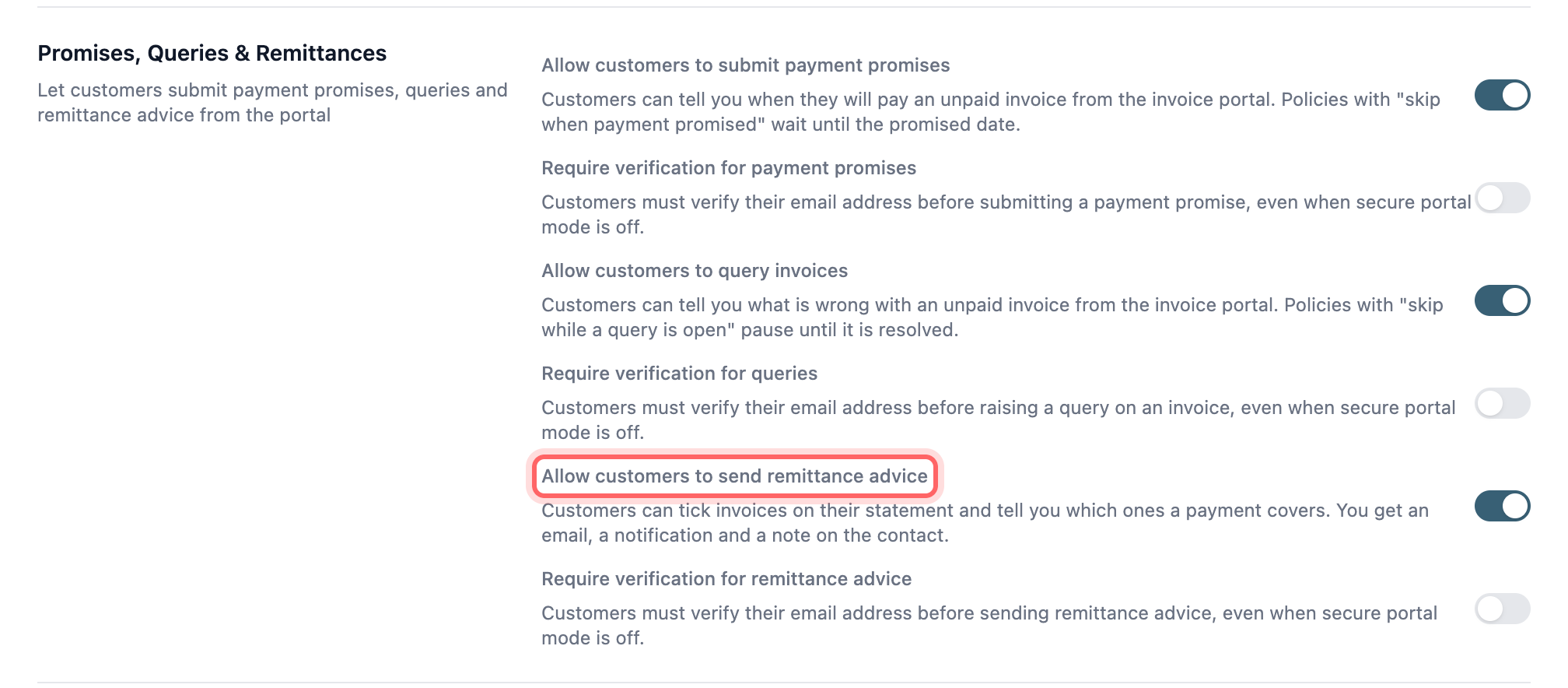
- Allow customers to send remittance advice adds an Already paid? option to unpaid invoices and to the Outstanding Statement. Off by default.
- Require verification for remittance advice makes the customer verify their email address by a link before they can send, even when secure portal mode is off.
What the customer sees
There are two ways in.
- From an invoice. Under Other options on an unpaid invoice, the customer clicks Already paid?. The advice covers that one invoice.
- From the statement. On the Outstanding Statement tab, the customer ticks the invoices the payment covers, then clicks Send remittance advice in the Already paid? box. The button shows how many invoices are ticked. The statement shows one currency at a time, so all the invoices on an advice are in the same currency. On a parent contact’s portal the statement also lists the invoices of every contact beneath it, at any depth, and the customer can tick any of them for the same advice.
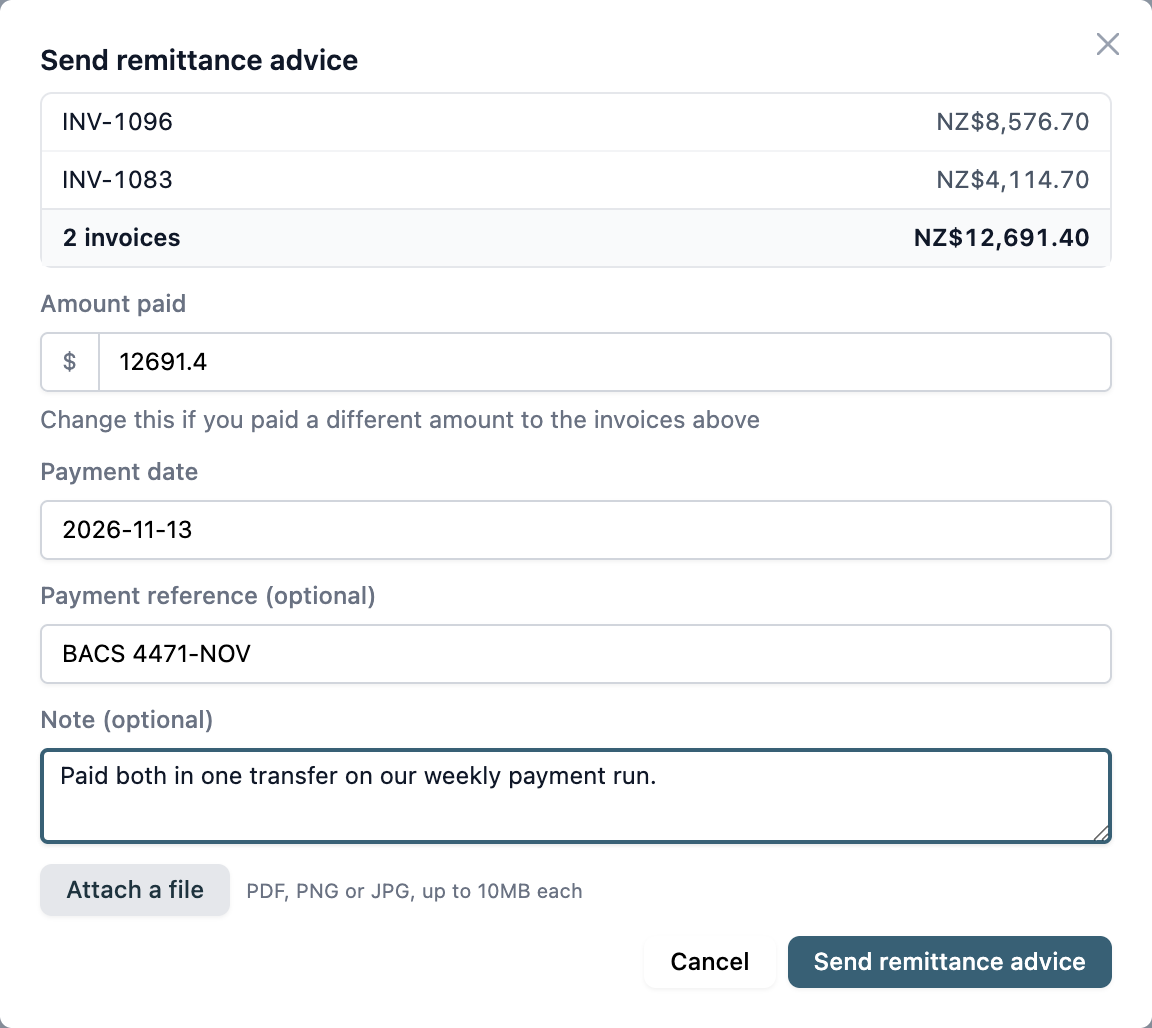
Either way, a Send remittance advice form opens listing the invoices and what is due on each. The customer fills in:
- Amount paid: starts at the total due on those invoices. They can change it if they paid more or less.
- Payment date: starts at today.
- Payment reference (optional): up to 200 characters.
- Note (optional): up to 2,000 characters.
- Attach a file: up to 5 files, each a PDF, PNG or JPG of up to 10 MB.
If verification is needed, the customer is asked to verify their email address first and can send once they have. On a parent contact’s portal, a contact person on the parent or on any contact beneath it can verify.
After sending, the invoice page shows Remittance advice sent and tells the customer the invoice will show as paid once the payment is applied. On the statement, those invoices get a Remittance sent badge. Already paid? stays available, so a customer can send advice again for the same invoice, for example after a second part payment. They cannot change or withdraw advice once it is sent.
What happens on your side
- A note on the contact. It lists the amount paid, payment date, reference, each invoice with what was due on it, and the customer’s note. The customer’s files are attached to the note. If the amount paid is different from the total due, the note says so. If the customer verified their email address, the note shows it. The note stays in Paidnice and is not sent to your accounting system.
- An event on each invoice. Every invoice on the advice gets a timeline event that starts “Remittance advice received”, with the amount, payment date and reference.
- An icon on the invoice list. A small purple icon next to the invoice number marks any invoice a customer has sent remittance advice for. To list them, open Filters, pick the Has remittance column and choose Has remittance. The Aging Buckets view has the same icon on its cards and a Has remittance filter. The icon stays after the invoice is paid.
- A notification and an email. The notification links to the note with View Contact Notes. The email subject is “A customer sent a remittance advice on Paidnice”. The user assigned to the contact and the user assigned to each invoice on the advice always get both, whatever their email settings. Everyone else gets them if they have Queries and Remittance Advice on under My Account, Email Notifications. See Users and access.

Reminders, statements and late fees carry on as normal after a customer sends advice. If you want to hold off while you check the payment, freeze the invoice.
Things to know
- There is no list of all remittance advice and no way to mark one as applied. Use the Has remittance filter, or the notes on the contact.
- Customers can also promise to pay or query an invoice from the same Other options panel. See How the customer portal works for the other portal settings.