
Help center/Chase/Quote emails
How quote emails work
Follow up on quotes and estimates before they expire, and let customers accept online.
Updated 10 November 2026
A quote email policy follows up on quotes (estimates in QuickBooks) that are still in Sent status. You pick how many days before, on or after the quote’s expiry date or issue date the email goes out. Customers often miss a quote in their inbox, and Xero and QuickBooks do not remind them for you.
Setting one up
Open a group (Groups in the sidebar). In the Quotes section, click Add Quote Reminder. Give the policy a clear name with the pencil icon, such as “Quote expiring soon”, so you can find it on the group page later.
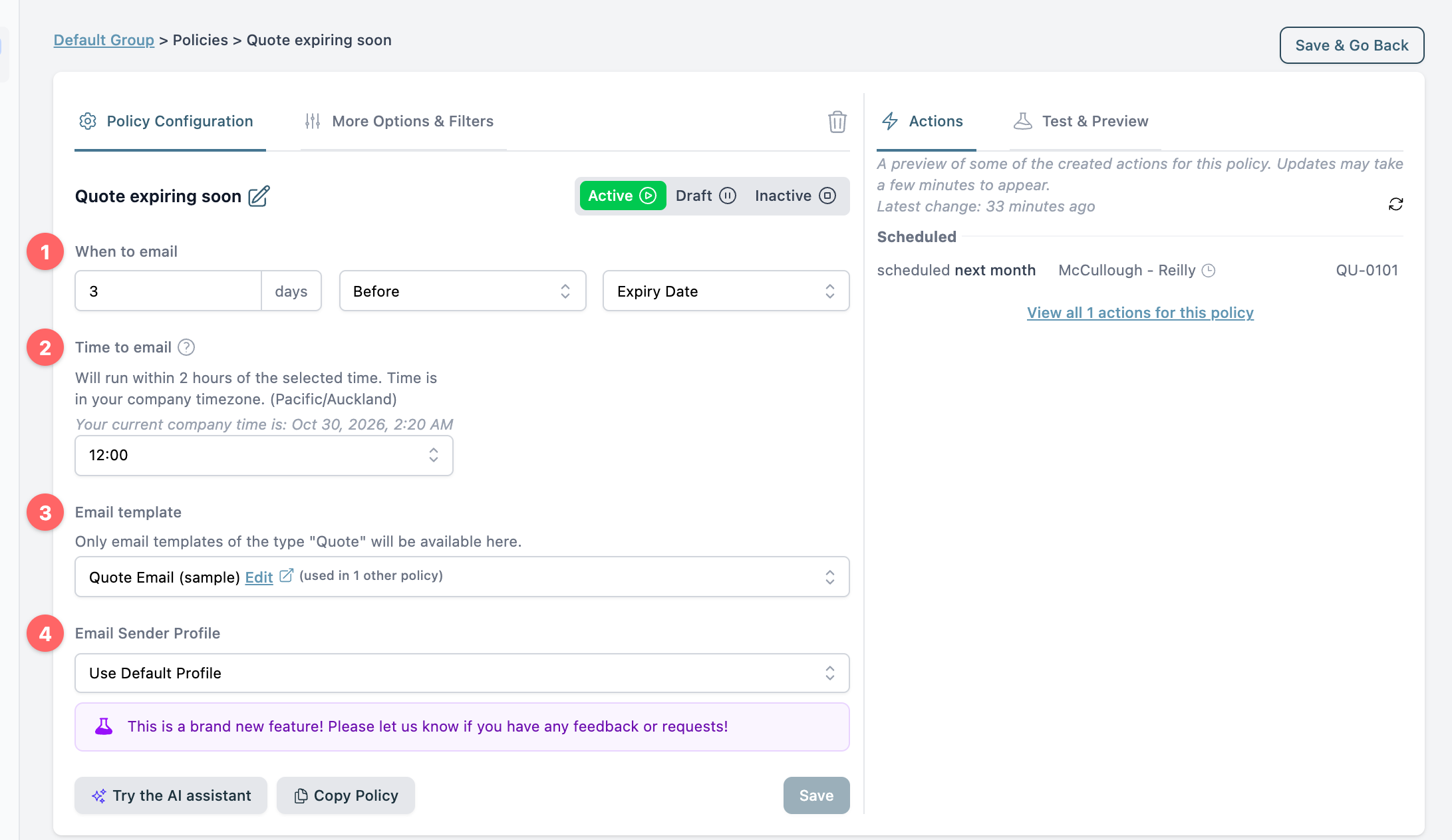
- When to email: a number of days, then Before, After or On The, then Expiry Date or Issue Date. Use Before with Expiry Date to remind customers while the quote can still be accepted.
- Time to email: the hour the email goes out, in your company timezone. The default is 12:00, and the email goes out within 2 hours of that time.
- Email template: only templates of the type Quote are listed. Click Edit next to the template to change it.
- Email Sender Profile: Use Default Profile, or pick another sender profile from Organisation Settings, Emails.
The switch at the top sets the policy to Active, Draft or Inactive. Active policies send on their own. Draft creates the actions but waits for you to approve each one. Inactive creates nothing. Click Save when you are done.
Under More Options & Filters you can add Override Destination Email, Contact Tags and Contact Address. Use these to send to a different address, or to limit the policy to some contacts.
Which quotes get an email
A quote gets an email when all of these are true:
- Its status in Xero or QuickBooks is Sent. Draft quotes get nothing.
- It has an expiry date, if the policy times from Expiry Date. Set the expiry date on the quote in Xero, or on the estimate in QuickBooks.
- The send date has not passed. Paidnice does not send emails for dates that are already behind you.
- The contact is not frozen.
- The contact is in the group the policy belongs to. A policy only applies to contacts in its own group.
Quotes that are accepted, declined, invoiced or deleted in your accounting system stop getting follow ups. You can’t trigger an email on a quote being accepted or declined. The policy can only time from the expiry date or issue date.
Paidnice syncs quotes from Xero or QuickBooks every 4 hours, even though the Quotes page says “(updates every hour)”. To pull in a new quote sooner, open Quotes in the sidebar and click Sync Now. Paidnice then creates quote email actions every 6 hours, so a new quote or a new policy can take a few hours to show an action on the Actions page.
Quotes don’t count toward your plan’s invoice limit. Quote emails do count toward your email usage.
An example sequence
You can add more than one quote email policy to a group. This is one way to set them up, not a rule:
| Policy | When to email |
|---|---|
| Quote expires in a week | 7 days Before Expiry Date |
| Quote expires soon | 3 days Before Expiry Date |
| Quote expires today | On The Expiry Date |
Give each policy its own template, so the wording changes as the expiry date gets closer.
The email template
Quote templates live under Email Templates in the sidebar, with the type Quote. New organizations get a sample called Quote Email (sample). Merge tags can add the contact name, quote number, issue date, expiry date and a link to the quote.
Paidnice does not attach a quote PDF. The only files that go out are the ones attached to the template. To attach files to every quote email, such as your terms of engagement, click the paperclip in the template toolbar. The Attached files window lets you pick files or click Upload new file. Use Send a test email on the template to see the email in your own inbox.
Accepting online
The link in the email opens the quote in the customer portal. Customers can accept or decline a quote that is still in Sent status and not expired. The result is written back to Xero or QuickBooks, and users with the Quote Response notification turned on (My Account) are emailed.
Under Settings, Portal you can require a PO number or a PO document when a customer accepts. See How the customer portal works.
Testing
On the policy page, the panel on the right has two tabs. Actions lists the emails the policy has scheduled. Test & Preview checks one quote against the policy.
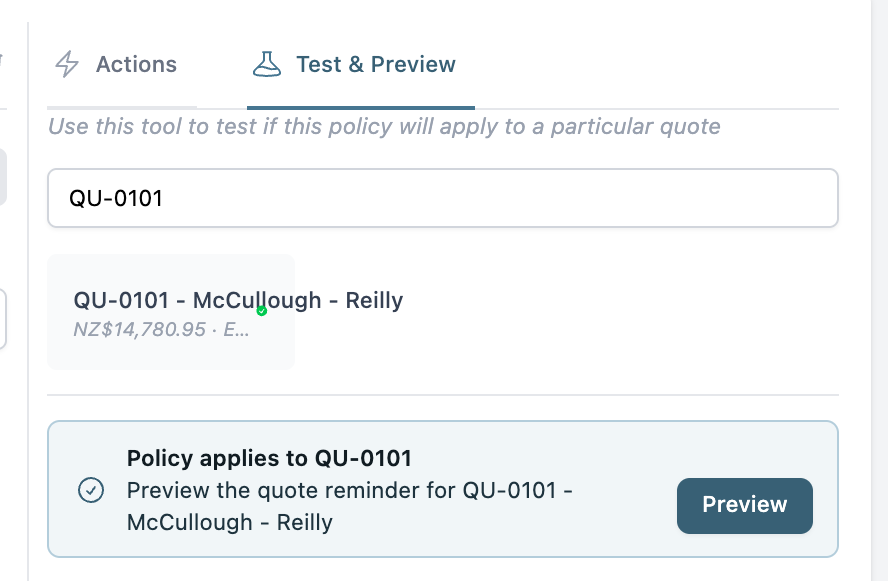
Search for a quote by its number and click it. Paidnice says whether the policy applies. Click Preview to see the email that quote would get, with the subject, sender and recipient filled in. Save your changes before you test.
To send one quote email straight away, open its action on the Actions page and click Run now. It sends even when Safe mode is on, but it still fails if the quote no longer qualifies, for example because it was accepted.
If no email went out
Check these in order:
- The quote’s status is Sent in Xero or QuickBooks, not Draft.
- The quote has an expiry date, if the policy times from Expiry Date.
- The send date has not already passed. A policy added today does not send for quotes whose date is already behind you.
- The contact is not frozen.
- The contact is in the group that has the policy.
- Enough time has passed. A new quote can take up to 4 hours to sync, and actions are created every 6 hours.
- Safe mode is off. Safe mode (Settings, General) creates actions but never sends them.
- The policy is Active. A Draft policy waits for you to approve each email.
The Actions page shows every scheduled, waiting and sent email. See Work with the Actions page and Why was nothing sent?.