
Help center/Set up/Getting started
Work with the Actions page
See what Paidnice is about to do, approve drafts, run or skip one action, and fix the ones that failed.
Updated 3 November 2026
Every reminder, fee, statement and escalation Paidnice sends starts as an action. The Actions page lists all of them, so it is the place to check what is coming up, approve anything waiting on you and sort out anything that went wrong. Open it from Actions in the left menu.
The tabs
Each tab shows actions in one state, with a count next to it.
- Scheduled: waiting for their date. They run on their own unless Safe mode is on. A scheduled action can show Deferred, which means Paidnice held it back and will try again later, either because it was making too many calls to Xero or QuickBooks or because the first attempt hit an error. The action panel shows Deferred until with the time of the next try.
- Draft: created by a policy in Draft. They never run until someone approves them.
- Complete: done. The label can say what happened, for example Sent or Issued. Two labels mean it ran but had nothing to do: Not Sent on a Send Outstanding Statement action (no statement went out, for example because the contact has no balance) and No Interest Issued on a Check Statement Interest action (no interest was charged).
- Reverted: undone after they ran, for example a late fee that was removed.
- Failed: tried and could not finish. See Fixing failed actions.
- Suspended: held back because the organization reached its monthly SMS limit.
- Skipped: stopped by someone before they ran.
- All: everything.
Under Quick filters on the left, Scheduled now shows what is due to run next and Recently complete shows what just ran. Use the search box, Filters and Columns to narrow the list, Export to get it as a CSV, and Save view to keep a filtered list for later. Export emails the CSV to your account email address, and you can also download it from Exports in the panel on the left of the page, below the quick filters and saved views. See Exports, reports and email performance.
When Safe mode is on, the page shows “Safe mode is enabled. Scheduled actions will be not run.” Actions keep being created but nothing runs by itself. See How Paidnice works.
Opening an action
Click an action’s type to open it in a panel on the right. The panel shows when it is Scheduled for, when it last ran, who it goes To, which policy Triggered by it and the invoice it belongs to. Scheduled and draft reminder, quote, statement and statement interest actions show a preview of what will go out.
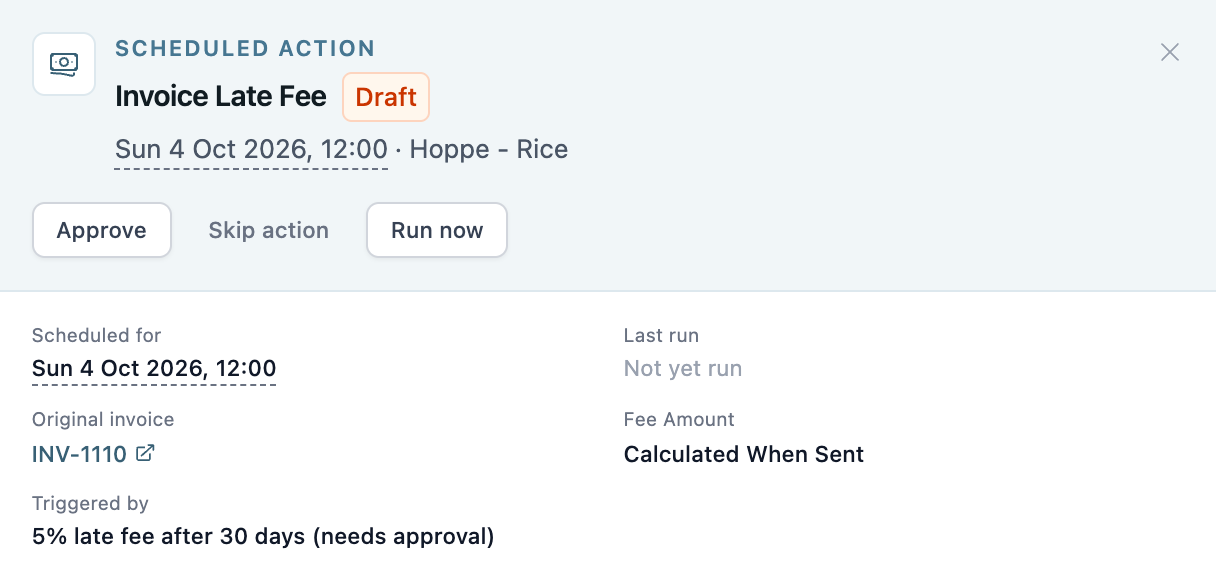
The buttons at the top depend on the action’s state and type. Not every type has every button.
- Approve (drafts only): the action runs at its scheduled time, as long as the policy still applies then.
- Revert approvals (approved actions from a Draft policy): sends the action back to Draft.
- Skip action: the action is stopped and Paidnice does not create it again. Only some action types can be skipped.
- Run now: runs this one action straight away. It does not wait for approval and it runs even when Safe mode is on, so check the preview first.
Approving drafts in bulk
On the Draft tab, tick the actions you want and use the buttons above the list. Each button shows how many actions are ticked, for example Approve 2 actions.
- Approve 2 actions runs each one at its scheduled time.
- Approve 2 actions and run now sends them on the next pass. Safe mode still holds them if it is on.
- Skip 2 actions stops them.
On the Scheduled tab the same place has Skip and Undo Approval buttons, which also count the ticked actions, for example Undo Approval 2 actions. Undo Approval sends an approved action back to Draft, and works while its policy is still in Draft.
If you trust a policy and want its actions to stop waiting on you, switch the policy from Draft to Active. Its drafts become scheduled the next time Paidnice recalculates.
There is no notification when new drafts arrive. Check the Draft tab, or the Upcoming Actions card on the dashboard.
Fixing failed actions
Open a failed action to see why it failed under Errors. Common reasons:
- Contact has no email address
- Phone number is invalid
- Invoice is frozen
- The policy has no account code chosen
- Total fee amount was calculated as 0
- Invoice has payments or credit notes applied so could not update
- Invoice is in a locked period so could not be updated
- Invoice has another failed late fee for this policy. Delete this failed action to retry
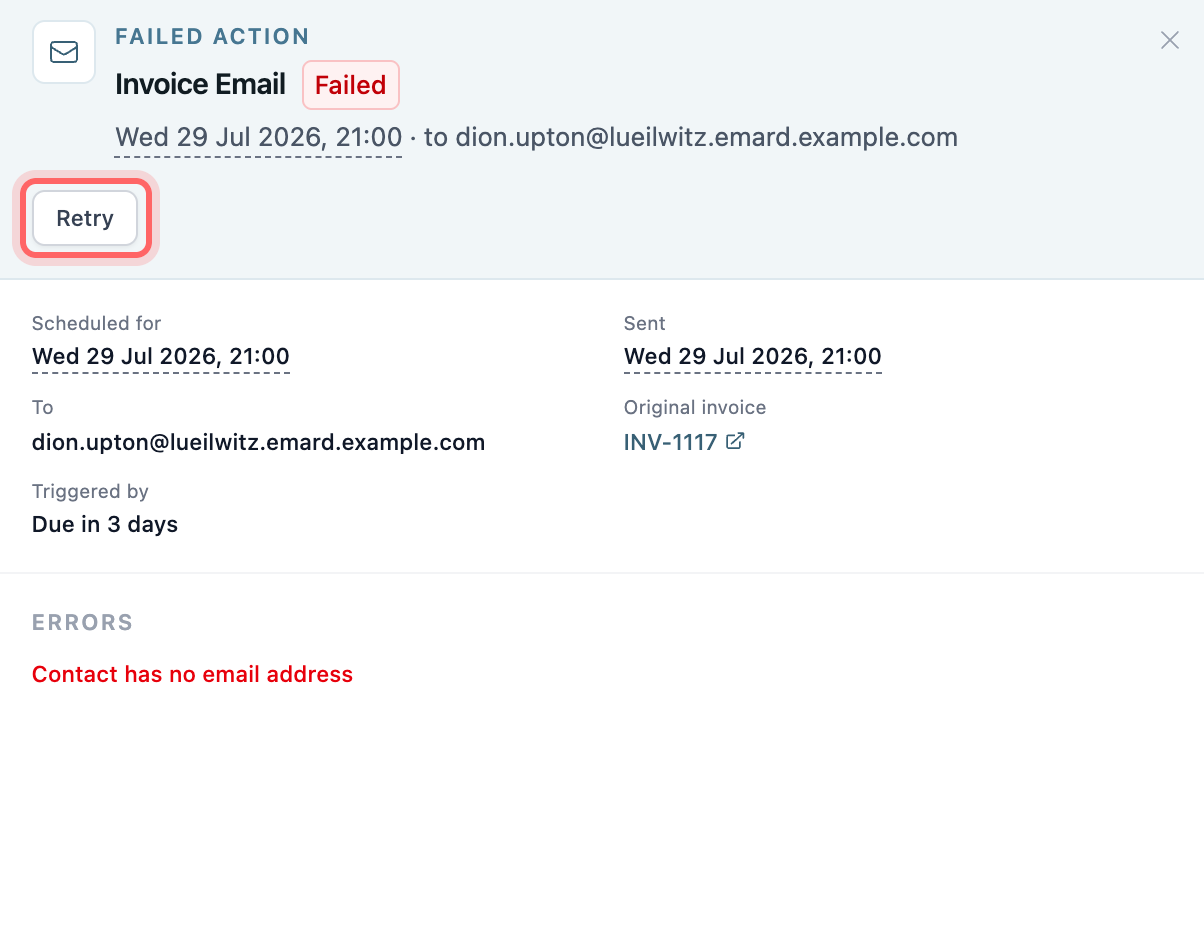
Fix the cause first, for example add the email address in Xero or QuickBooks, then click Retry. Retry only shows for some action types, and not once part of the action has already gone through.
Some failed actions also have Delete action. Deleting one lets Paidnice create it again the next time it recalculates, if the policy still applies. Failed reminder emails, late fee emails, discount actions, statement interest emails and announcements can’t be deleted.
A late fee that failed blocks any further late fee from that policy on the same invoice until the failed action is deleted, which is what the last error above is telling you.
A skipped action also has Delete action. Deleting it removes the skip, so Paidnice can create the action again if the policy still applies.
To clear every failed action at once, use Manual Operations, Remove all failed actions at the top right of the page.
When actions change by themselves
Paidnice recalculates actions several times a day and whenever an invoice or contact changes. A pending action is removed if it no longer applies, for example because the invoice was paid, voided or frozen, the contact moved group, the policy was edited, or a payment promise or query was recorded while the policy has Skip when payment promised or Skip while a query is open turned on. Reminders and SMS also check again just before they send, and fail with “Policy no longer applies” if something changed.
Saving a policy recalculates its actions shortly afterwards. Queued actions that no longer match the policy are removed and new ones are created.
When a hold on an invoice ends, such as a payment promise passing, a query closing, a freeze being lifted or the expected payment date arriving, Paidnice recalculates and what comes back depends on the type. Late fees and escalations that were held come back and run. Reminders and SMS whose send date has already passed do not, because those are never sent late. The exception is a policy set to Days (or later) or Weekdays (or later), which still sends up to 30 days after its date. Reminders and SMS with a send date still ahead of them are scheduled as normal.
An action that has already completed, failed, been reverted, suspended or skipped is not created a second time for the same policy, invoice, date and person.
To recalculate one invoice now, open it and click the circular arrows next to Activity (the tooltip reads Recalculate Actions). This also clears that invoice’s failed and suspended actions and rebuilds them. For the whole organization, Manual Operations has Force recalculate all scheduled actions and Remove scheduled manual actions.
Undoing a completed action
Some completed actions have buttons for reversing or repeating what they did.
- Remove Late Fee on a completed late fee. See How late fees work.
- Ignore Late Fee, in the Late Fee Ignored row of a completed or reverted late fee. This lets Paidnice calculate and apply the fee again. Use it after a removal if you want the fee back.
- Resend Late Fee Email(s) on a completed late fee. It is grayed out when none of the late fee’s policies has an email template, or when they are all set to send only to your reply-to address.
- Remove Interest Charge(s) on a completed Check Statement Interest action that charged interest. It voids the interest invoice and leaves it out of future calculations.
- Re-apply discount on a completed Remove Discount action. It tries to put the discount back.
Sending something one off
To send something outside the schedule, open the invoice and use the buttons under its number: Send reminder, SMS, Late fee, Payment plan or Escalate. A one-off action goes out even when Safe mode is on, the group’s policies don’t cover it, or the invoice is frozen. The invoice’s Actions tab lists every action for that one invoice.
If you expected something to go out and it didn’t, see Why did Paidnice not send a reminder or charge a fee?