
Help centre/Enforce your terms/Invoice late fees
How invoice late fees work
Charge a fixed amount, a percentage or interest on overdue invoices, as a new invoice or a line on the original.
Updated 7 October 2026
A late fee policy charges a fee once an unpaid invoice is past its due date plus the grace period you set. Paidnice creates the fee in Xero or QuickBooks and can email the customer.
Setting one up
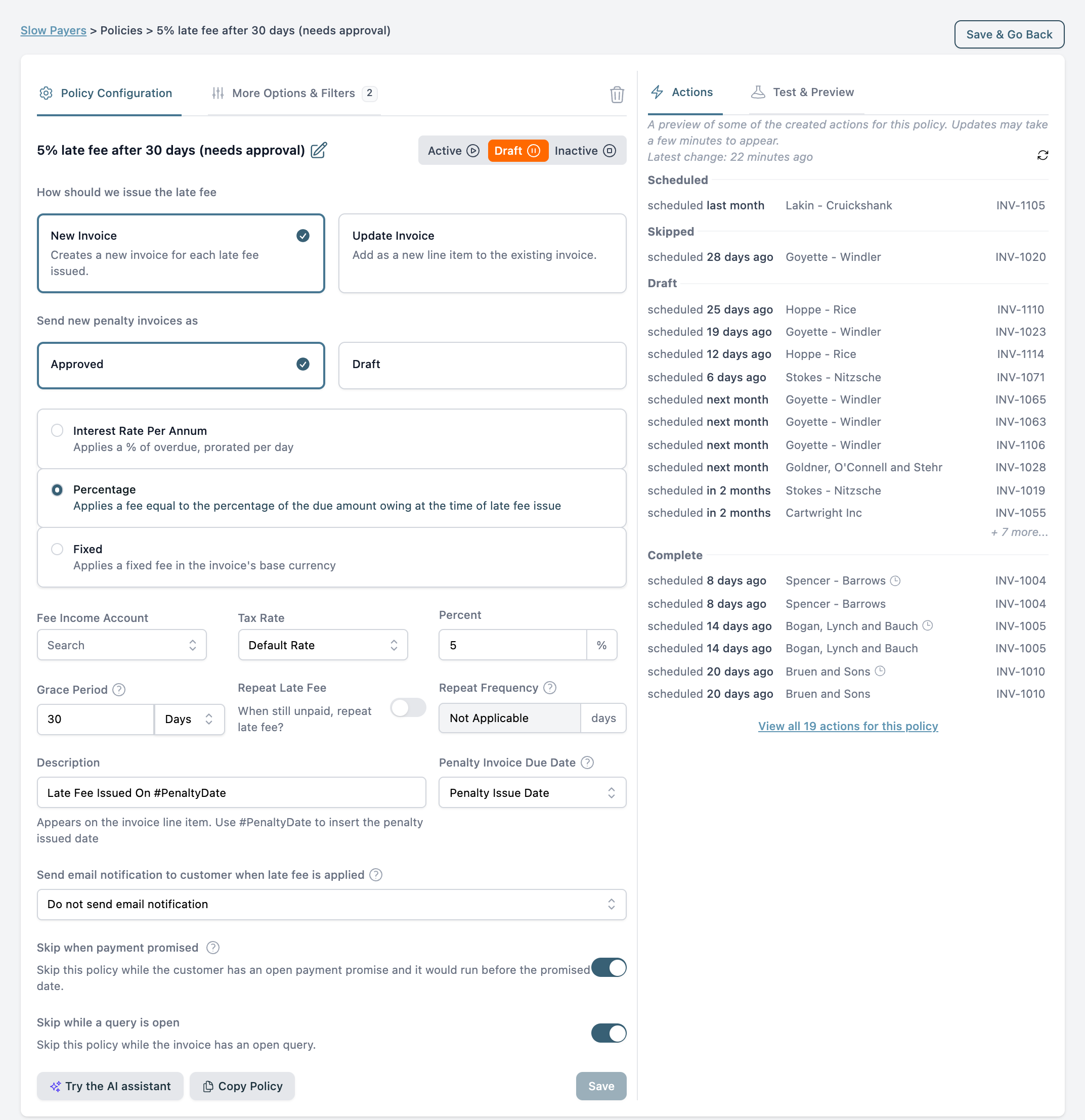
Open a group, go to its Policies tab and add a late fee policy. The main choices:
- When: how many days (or weekdays) after the due date to charge.
- How much: a fixed amount, a percentage of the amount due, or an annual interest rate worked out per day overdue.
- Repeat: charge once, or again every so many days while the invoice stays unpaid. First time only skips invoices that already had a fee.
- How to issue it: as a new invoice (a separate fee invoice referencing the original), or by updating the invoice with an extra line. An invoice with payments or credits applied, or in a locked period, cannot be updated. Choose whether to fall back to a new invoice in that case.
- Account: the income account (QuickBooks: fee item) the fee is coded to. The policy is incomplete until this is set.
- Email: optionally tell the customer, with the original and fee invoices attached.
Leave the policy in Draft if you want to approve each fee on the Actions page before it is created. The group page shows “needs approval” style policies with an Approval badge.
Things to know
- Paidnice never charges a fee on a fee invoice.
- If the invoice is paid before the fee is due, the pending fee disappears.
- Several late fee policies hitting the same invoice on the same day are combined into one fee.
- A failed fee blocks further fees from that policy on that invoice until you delete the failed action.
- Frozen invoices, invoices with an open query or payment promise, and invoices on a payment plan are skipped.
- Use a contact tag to keep a few customers out of a fee policy without moving them to another group. See When to use groups or tags.
- To apply a fee by hand, click Late fee on the invoice, or tick invoices in the list and use Apply late fees.
Removing a fee
On the completed action, click Remove Late Fee. A fee invoice is voided. A fee line is removed from the invoice, or reversed with a credit note if the invoice already has payments against it. The fee is not charged again unless you choose to ignore the removal and let it recalculate.
Late fees and statement interest together
A group with both can charge a customer twice for the same lateness. The group page warns you if this is the case. Pick one. See How statement interest charges work for the other option, and How prompt payment discounts work if you would rather reward early payment than penalise late payment.