
Help centre/Set up/Getting started
How Paidnice works
Groups, policies and actions, and why nothing goes to a customer until you say so.
Updated 7 October 2026
Paidnice reads invoices and contacts from Xero or QuickBooks and chases them for you. Three ideas cover most of it.
Groups
Every customer sits in exactly one group. New customers land in the group marked Default. Use extra groups when some customers need different treatment, for example key accounts that never get late fees. If only one or two policies need an exception, a contact tag is usually the better tool. See When to use groups or tags.
Policies
A policy is attached to a group and says what to do and when. Examples: email a reminder 3 days before the due date, charge a 2% late fee 7 days after, send a statement on the 1st of the month. A customer only gets the policies attached to their own group.
Each policy has a state:
- Active runs by itself.
- Draft creates actions that wait for you to approve them.
- Inactive does nothing.
New organisations start with sample policies in Draft, so nothing is sent until you approve an action or switch a policy to Active.
Actions
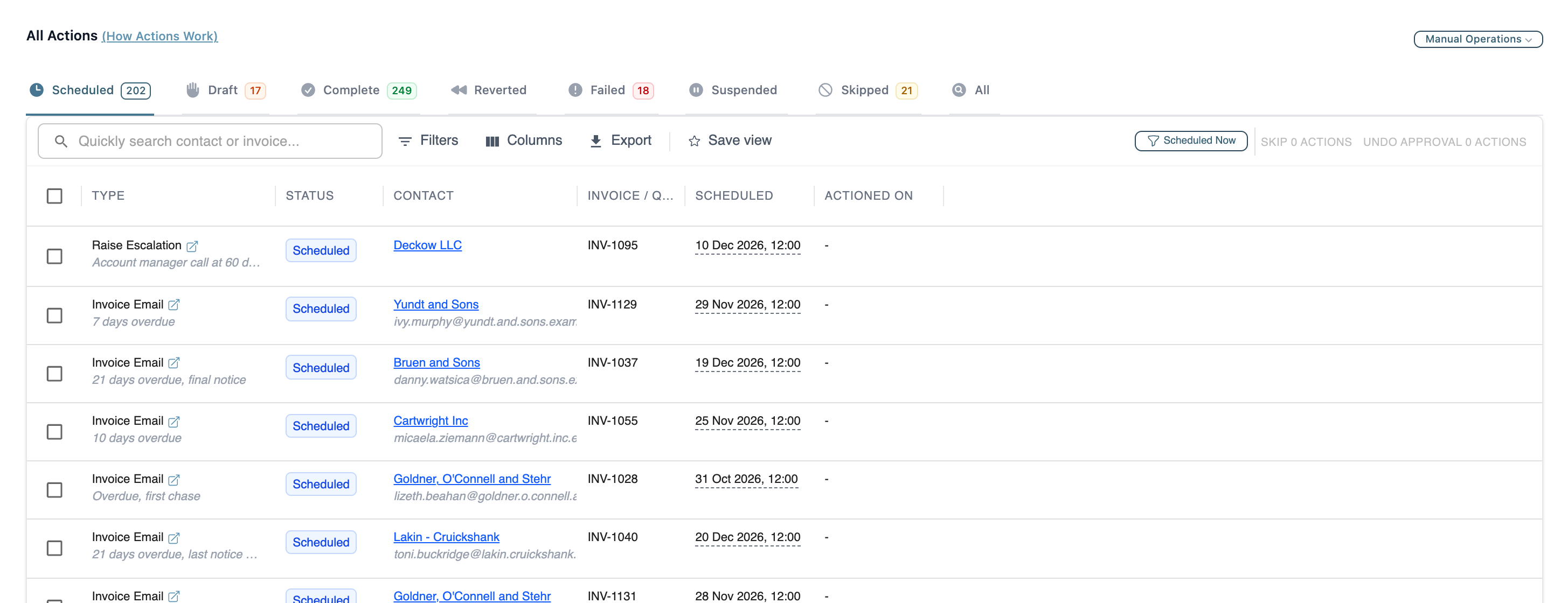
Paidnice checks every policy against every invoice and customer, several times a day and whenever something changes, and creates actions: one thing to do, for one invoice or customer, at one time. See them on the Actions page, the dashboard and each invoice’s timeline.
The Actions page has a tab for each state. Scheduled actions have not run yet, Draft actions are waiting for your approval, and Failed actions have a note saying why. If something you expected did not happen, start with Why did Paidnice not send a reminder or charge a fee?
Testing before you go live
- Open any invoice. The Applicable Policy results table shows every policy with a tick or a cross and the reason.
- Each policy page has a Test & Preview tab to check one invoice or contact.
- Safe mode (Settings, General) keeps creating actions but never runs them. Turn it on if you want to watch for a while first.
Suggested first steps
- Connect Xero or QuickBooks and invite anyone else who needs access.
- Check the sample email templates under Settings and put your own wording in. See General settings, sender profiles and custom domains.
- Open your default group, look at the policies there, and switch the ones you want to Active. Start with email reminders.
- Watch the Actions page for a few days.
- If you want customers to pay from the reminder, connect a payment provider.
To stop chasing one invoice or one customer for a while, see How freezing works.