
Help center/Set up/Getting started
Manage groups
The default group, moving customers between groups, deleting a group, copying policies, and the group page warnings.
Updated 5 November 2026
This covers the day to day of running groups. For when to use a group instead of a tag, see When to use groups or tags.
The default group
One group is always the default. New customers from your accounting system land in it. Paidnice starts you with a group called Default Group, and you can rename it. In the left-hand menu the default group has a star beside it.
The default group cannot be deleted. To make a different group the default, open that group, click the three dot menu at the top right and choose Make Default. The old default stops being the default and can then be deleted.
Move customers between groups
- On the Contacts page, tick the customers and click Move N contacts to group, then pick the group.
- On a contact’s page, use the Group dropdown in the header.
The change takes effect straight away. Paidnice recalculates the customer’s pending actions, so actions from the old group’s policies are removed and the new group’s policies are applied.
Moving customers, editing or deleting a group, and applying contact tags all need Editor access. Viewers can see groups but not change them.
Delete a group
Open the group, click the three dot menu and choose Delete Group. Every customer in it moves to the default group, and pending actions are recalculated. Policies that were only in the deleted group stop applying to anyone.
What you see on a group page
A group page has these tabs:
- Policies: the policies attached to the group. This is the default view.
- Contacts: the customers in the group.
- Actions: pending actions for the group.
- Insights: figures for the group’s customers.
- Payment Plan Settings: payment plans for the group. It shows a pro badge if your plan does not include them. See Set up payment plans for a group.
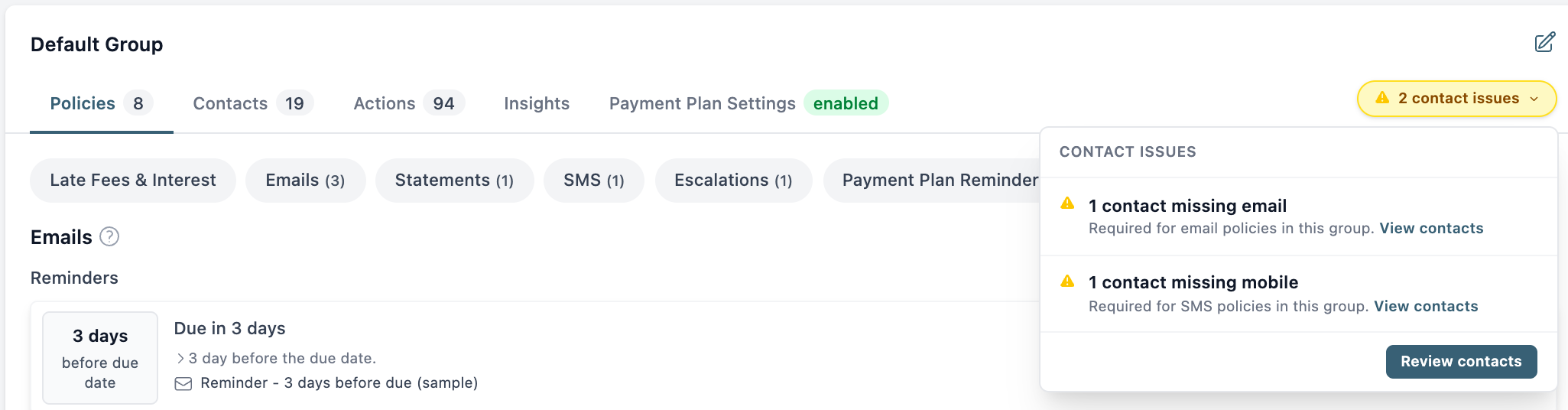
A group with no policies shows a warning that its contacts will not have any actions taken on them.
Beside the tabs you may see a yellow pill such as “1 contact issue”. Click it for the details: how many customers in the group have a primary contact with no email address, and how many have no mobile number. It only lists email problems if the group has a policy that sends email, and mobile problems if it has an SMS policy. Only active customers who have an invoice, credit note or quote are counted. View contacts filters the Contacts page to them. See Contact people, who gets emails, and owners.
Copy a policy
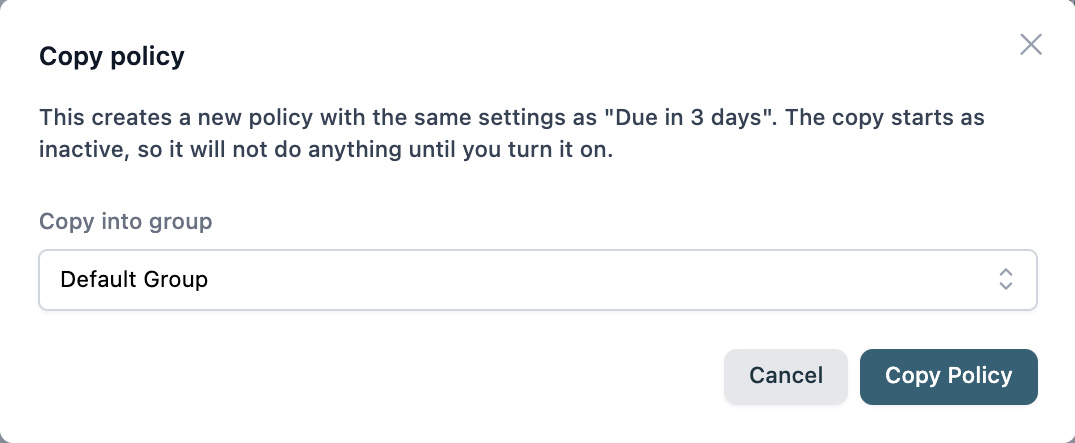
At the bottom of a policy page, click Copy Policy. Choose the group to Copy into group (the current group is selected by default) and confirm. The copy is always Inactive, so it does nothing until you turn it on. Save your changes to the policy first, as the button is disabled while there are unsaved edits.
Older setups can have one policy attached to several groups. If a policy is in more than one group, its page shows an Assigned to Groups field, with a note that policies shared between groups will soon be removed. Prefer a separate copy per group.
Rules that move customers automatically
Organisation Settings, Advanced, Auto-Assign Rules is a legacy feature. The tab only appears if your organization already has rules, and you cannot start using it from scratch. A rule says: when a contact’s Xero contact group (or QuickBooks customer type) is a given value, put them in a given Paidnice group. If a contact matches more than one rule, the first rule wins.
Rules are checked when Paidnice first sees a contact and every time the contact is synced. A matching rule beats the group a customer is in now, so a rule can undo a manual move the next time that customer syncs. A customer who no longer matches any rule stays where they are. If a manual move keeps reverting, delete or reorder the rule.
For new setups, filter policies instead of using rules.
Filter by accounting system group
On Xero, a policy can include or exclude customers by their Xero contact groups. Under More Options & Filters, choose Include only contacts in Xero group(s): or Exclude contacts in Xero group(s): and pick the groups. There is no matching filter for QuickBooks customer type. On QuickBooks, narrow a policy with Paidnice groups or contact tags.
Leave one named customer out of a policy
A policy cannot exclude one named customer directly. Pick one of these:
- Move the customer to a group that does not have the policy.
- Freeze the contact, which stops every policy for them.
- Give the customer a contact tag and set the policy to exclude that tag.