
Help center/Chase/Email reminders
Customer replies and the Inbox
Where customer replies to your emails and texts land, how to answer them, and what the delivery statuses on the Comms tab mean.
Updated 5 November 2026
When a customer replies to a Paidnice email or text, the reply shows up in Paidnice instead of getting lost in a shared mailbox. You can read it, answer it, and see it next to everything else sent to that contact.
Getting replies into Paidnice
For email, the sender profile has to send replies to Paidnice. In Organisation Settings, Email Preferences, open the profile and turn on Send replies to Paidnice shared mailbox. With it off, you set a Reply To Address and replies go to that mailbox, where Paidnice never sees them. See Set up sender profiles and BCC your CRM.
Text replies always come to Paidnice.
Paidnice matches each reply to the email or text it answers, and through that to the contact.
The Inbox
Inbox in the left menu has two tabs.
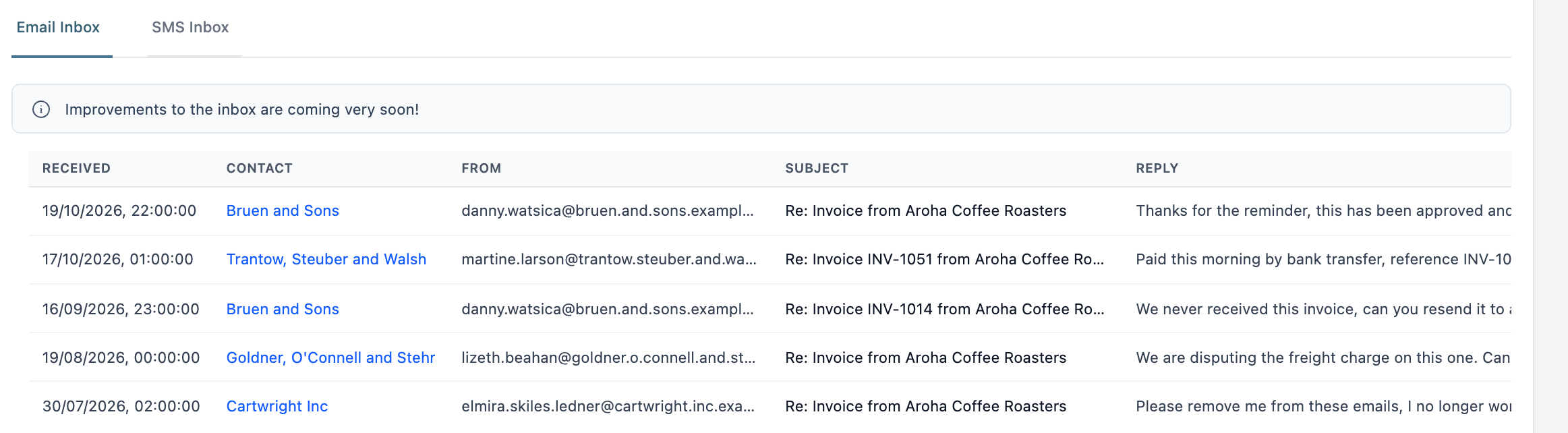
- Email Inbox lists replies with Received, Contact, From, Subject and Reply. Click a row to read the reply text and the earlier email history, and use the contact link to go to the contact.
- SMS Inbox lists texts with Received, Contact, From and Message. Click a row to read the conversation and reply by text.
The Comms tab
Every contact has a Comms tab (called “Recent communications” at the top). It lists the emails Paidnice sent to them, the replies that came back (shown as Email Reply Received) and the texts in both directions, oldest first. Click View original message on a reply to jump to the email it answers. Attachments on a reply can be downloaded from here.
Each email you sent carries a badge with its latest delivery status:
- Processed: accepted for sending.
- Delivered: reached the customer’s mail server.
- Opened and Click: the customer opened the email or clicked a link in it. These are approximate. See Exports, reports and email performance.
- Deferred: the customer’s mail server asked Paidnice to try again later.
- Bounce and Dropped: the email didn’t arrive.
- Spam report: the customer marked it as spam.
When an email to a contact person bounces or is dropped, Paidnice shows a message next to that person on the contact page: The latest email failed with status: “bounce” (or “dropped”). It clears the next time an email to that address is delivered, opened or clicked. The same address is marked on every contact person in the organization that uses it. Fix the address in your accounting system.
Replying
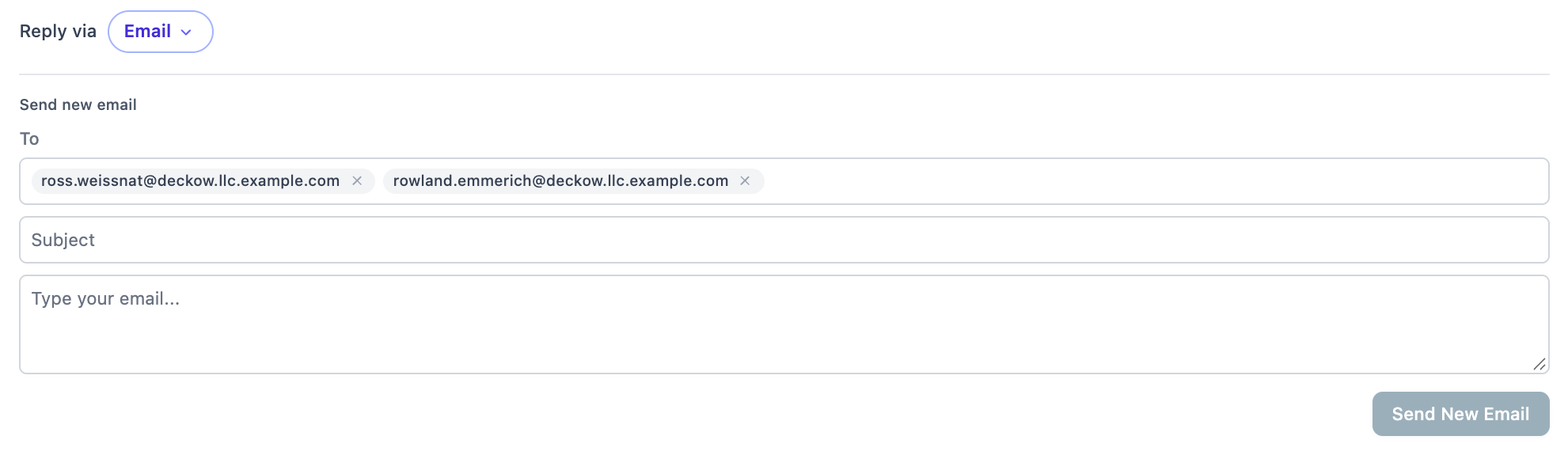
At the bottom of the Comms tab, Reply via switches between Email and SMS.
- To answer a specific reply, click Reply by email on it. The form is titled Reply to this email and starts with the sender and anyone they copied. The subject is filled in as “Re:” and stays in the same thread.
- To start a new message, fill in the Send new email form, click Send New Email, then Confirm & Send. It starts addressed to the contact’s primary person and anyone included in emails.
- For a text, write the message and click Send SMS. The form shows the number of SMS parts and the cost. See How SMS alerts work.
Some rules apply to emails sent this way:
- They can only go to the contact’s people, or to the sender and copied addresses of the reply you are answering. Any other address is refused.
- They are sent from your default sender profile, with its signature, CC and BCC.
- If the contact’s latest email was about an invoice, that invoice’s PDF is attached.
- Paidnice screens the message for spam first. A message it thinks is spam is blocked and Paidnice support is told.
- Each one is recorded as an action on the contact, labeled On Demand Email.
Being told about replies
Each user can choose whether they are emailed when a customer replies to an email or text. It’s the Inbound Messages setting under My Account, Email Notifications, and it applies to both email and text replies. See Users and access.
Automatic reply to texts
When a customer replies to a text, Paidnice texts back once: “This is an automated service - any replies will be forwarded to” your business name. It doesn’t send it again to the same number if it already has in the last 6 months.
The AI agent
If the AI agent is turned on for your organization, it reads incoming replies. It opens an invoice query when a customer says an invoice is wrong (see How queries work). A message that isn’t about invoices or payments, or that tries to change the agent’s instructions, is handed to your team.