
Help center/Chase/Auto statements
How auto statements work
Email customers a statement of what they owe on a schedule, or send one by hand.
Updated 17 November 2026
A statement policy emails each customer a statement on a schedule, attached as a PDF, a spreadsheet (CSV) or both. You can also send one at any time from a contact’s page with Send statement.
Setting one up
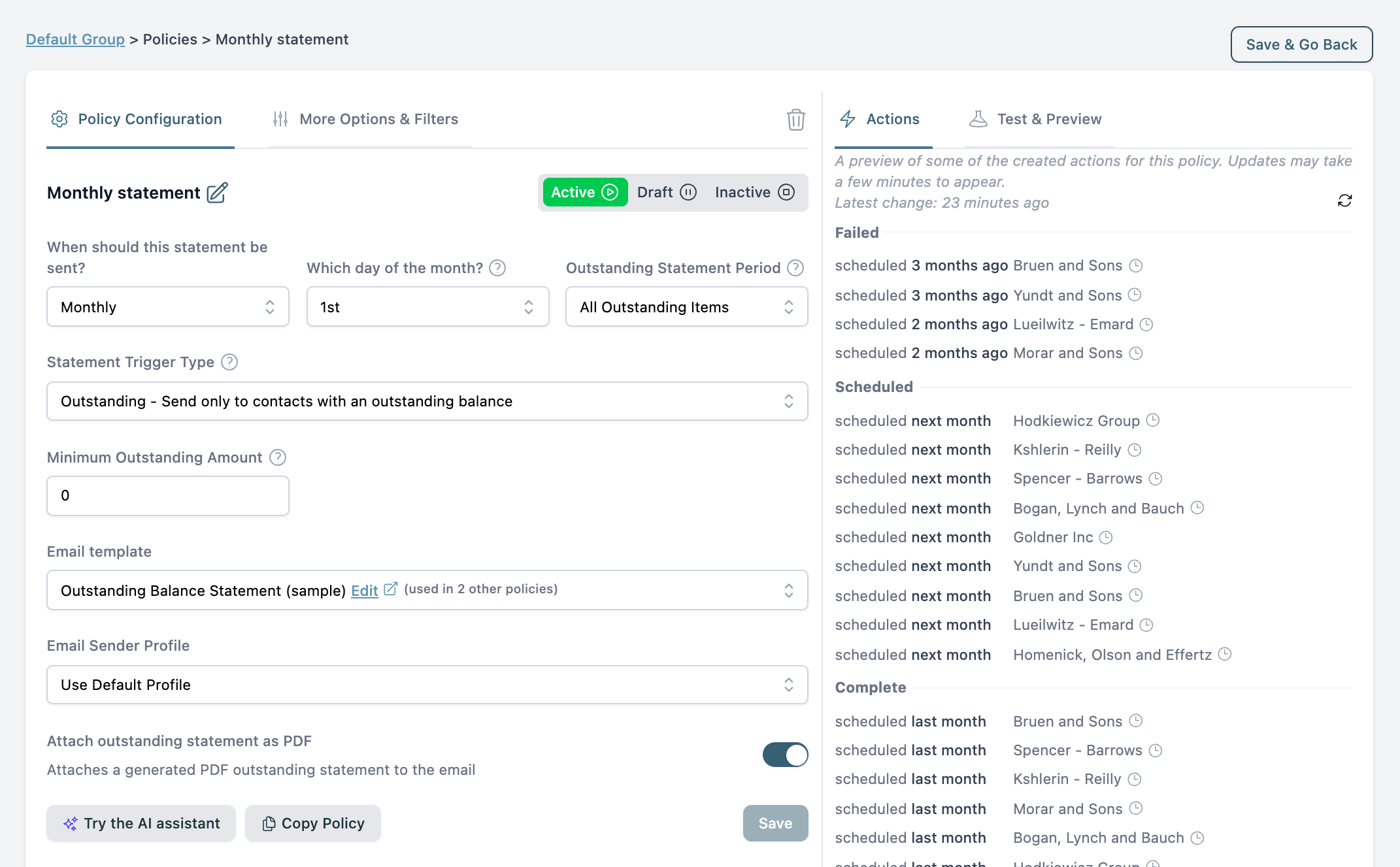
Open a group, go to its Policies tab and add a statement policy.
-
When should this statement be sent?: Monthly, Monthly (Weekdays) (moves to the next business day if the day falls on a weekend or public holiday), or Weekly, then the day.
-
Outstanding Statement Period: which invoices and credits go on the statement, based on issue date. All Outstanding Items is the default. The others are View all outstanding & future (also includes invoices dated in the future), Issued before current month, Issued only in the previous month and Issued only in the current month. “Current month” and “previous month” are worked out on the day the statement is sent. It only applies to outstanding statements.
-
Statement Trigger Type: who gets one. Any currency that meets the rule counts, so a customer with a balance in just one of their currencies still gets a statement.
- Outstanding: only contacts with an outstanding balance.
- Overdue: only contacts with an overdue balance. This adds Minimum Overdue Age and Maximum Overdue Age, which skip the statement if every invoice is overdue by fewer days than the minimum, or any invoice is overdue by more days than the maximum.
- All: every customer, even those with no balance.
- In Credit: contacts with a negative balance.
-
Filters: a minimum amount due (Outstanding and Overdue only), and parent customers only.
-
Email template: a statement type email template. Merge tags can insert the balance and a link to the online statement.
-
Statement attachments: which statements the email attaches. Select as many as you want, and every selected one is attached. A new policy starts with Organisation default selected. The list has:
- Organisation default: the outstanding statement as a PDF, using the default template from Organisation Settings, Statements.
- Your published PDF templates, each marked PDF. The one that is your default has “(default)” after its name. Selecting it together with Organisation default still attaches it only once.
- Activity statement (standard): Xero only, and only if your organization still has the standard activity statement. It attaches the activity statement as a PDF, using the default activity period from the Standard tab of Organisation Settings, Statements.
- Your published spreadsheet templates, each marked Spreadsheet. These are attached as CSV files.
With nothing selected the field reads None, no statement is attached and the email goes out with no statement on it. Only published templates are listed. To create one, including a spreadsheet, see Statement settings and templates.
If nothing qualifies when the time comes, the action completes as Not Sent with the reason. Contacts with no email address are skipped, unless the policy sends everything to one address with Override Destination Email. See Send statements by post. Frozen contacts get no statement.
Sending one by hand
A one-off send does not wait for a schedule and ignores the policy’s filters, such as the minimum amount and the overdue age range. The same balance rule applies as for a scheduled Outstanding statement: if the contact has nothing outstanding, the action completes as Not Sent.
- From a contact: click Send statement in the contact’s header. Pick which contact people get it if there is more than one, then Preview, then Send Now.
- From an escalation: click Send Statement on the escalation.
- To several contacts: tick them on the Contacts page and use Quick Actions, Send N statements, or tick them in the Slowest Payers widget on the Dashboard and click Send statements. See Bulk actions and announcements for how these differ from a single send.
The dialog lets you choose the Email template, the Outstanding Statement Period and the Statement attachments, which work the same way as on a policy. Paidnice remembers what you pick for next time.
Preview shows the email, and Open Statement Preview under it opens the statement PDF that will be attached, with its actual page layout. If the PDF can’t be loaded, you see a warning and an approximate quick preview instead.
After a single send, the result has download links for each currency’s statement. You can also download PDFs at any time from the contact page: open the Statement tab and use Download. Download Outstanding Statement uses your default template. Below it is a Download entry for every other published template, named after the template. On Xero that includes Download Activity statement (standard) if you still have the standard activity statement.
Outstanding and activity statements
An outstanding statement lists what the customer still owes. A customer with more than one currency gets one file per currency for each template you attach.
An activity statement is Xero only. It lists every transaction over a date range, not just what is unpaid, with an opening balance at the top, a running balance down the page and a closing balance at the end. On a contact’s Statement tab, switch between Outstanding and Activity at the top, and pick the dates for an activity statement.
Activity statement PDFs always use the standard activity template, with the default period set on the Standard tab of Organisation Settings, Statements. Organizations without the standard activity statement can’t attach or download an activity PDF. That covers newer organizations, and any that have deleted it. A custom PDF template can show a recent activity section on an outstanding statement instead. On Xero you can also build an activity spreadsheet template, which lists every transaction in its own activity period as a CSV file and doesn’t need the standard activity statement. See Editing a spreadsheet template.
What is on the statement
Outstanding statements list the unpaid invoices that fall in the policy’s period. Frozen invoices and invoices with an open query are still listed, so the customer sees their full balance, though frozen invoices don’t count towards whether a statement is sent. If Statement Trigger Type is All and the customer has nothing to list, they get an empty statement.
A parent contact’s statement also lists the invoices of every contact beneath it, at any depth: its child contacts, their children, and so on. That includes QuickBooks sub-customers (jobs and projects) nested more than one level down, and NetSuite child customers. The credit notes, overpayments, prepayments and unapplied payments of those contacts are included the same way, and so are their payments on an activity statement. On the contact’s Statement tab in Paidnice, the lines of each contact beneath the parent are grouped under that contact’s name.
Credit notes, overpayments, prepayments and QuickBooks unapplied payments appear or are deducted according to these settings under Organisation Settings, Advanced, Default Behaviour, in the Credits & prepayments section:
- Credit Note Behaviour
- Unapplied Payment Behaviour (QuickBooks only)
- Overpayment Behaviour (Xero only)
- Prepayment Behaviour (Xero only)
Each has three choices. Show & Deduct shows the item on statements and takes it off the total balance. Show Only shows it but leaves the total alone. Ignore does neither. New organizations start with Show & Deduct for credit notes, unapplied payments and overpayments and Ignore for prepayments. These settings don’t change activity statements. If a policy uses the In Credit trigger and any of these is set to Ignore, the policy form warns you that those items are set to Ignore. That includes unapplied payments.
An unapplied payment is a payment in QuickBooks, or the part of one, that hasn’t been applied to an invoice yet. Unapplied Payment Behaviour is separate from Credit Note Behaviour, so you can, for example, deduct unapplied payments and show credit memos without deducting them. Before this setting existed, unapplied payments followed Credit Note Behaviour. Organizations set up before then have Unapplied Payment Behaviour set to match their Credit Note Behaviour, so nothing changes until you change it.
When they show, unapplied payments are labeled as their own type rather than as credit notes. On a contact’s Statement tab in Paidnice they’re marked U, and on the online statement in the portal UP. Hover over either to see “Unapplied Payment”. The portal’s All as CSV download puts “Unapplied Payment” in the Type column. On a PDF statement the item’s number starts with “Unapplied Payment #”.
Changing the look
Statement PDFs and spreadsheets are drawn from templates. Under Organisation Settings, Statements, you can:
- pick the Default statement template that outstanding statement PDFs use, and set where invoice links go, on the Common tab.
- design your own PDF templates with the AI builder, and build spreadsheet templates from the columns you pick, on the Custom tab. Every organization has it.
- change the logo position, columns, aged analysis and grouping of the standard statement on the Standard tab, if your organization still has the standard statements.
Statement settings and templates covers all three tabs, including drafts, publishing and deleting the standard statements.
A Pay Now button appears on the statement when a connected payment provider supports paying the full balance. See How payments work. The online statement the links point to is described in How the customer portal works.
To charge interest on the balance the statement shows, add a statement interest policy to the same group. See How statement interest charges work.
If a statement did not send or looks wrong
Open the action on the Actions page first. A statement that ran and found nothing to send finishes as Complete with Not Sent.
- It did not send: the customer’s balance may be below the policy’s minimum, or in credit because of a credit note. Frozen invoices do not count towards whether a statement is sent, so a customer whose only overdue invoice is frozen gets nothing.
- The balance looks too high: the statement can show both the net balance and the gross total outstanding. If credit notes confuse your customers, change Credit Note Behaviour under What is on the statement.
- The balance does not match Xero or QuickBooks: check for credits that have not been allocated, and for payments that have not synced yet. See How syncing works. If it still differs, contact support with the contact’s name.
- It went to the wrong person: see Contact people and owners. The action’s To field shows who received it.
- The test email has two statements: where you have activity statements, a test email shows both the outstanding and the activity statement. Your customer only gets what the policy sends.