
Help center/Customers and answers/Contacts
Bulk actions and announcements
What you can do to many invoices or contacts at once, how bulk sends differ from a single send, and how to email an announcement to a list of contacts.
Updated 5 November 2026
Tick rows on the Invoices page or the Contacts page and a row of buttons lets you act on all of them in one go. Most are quick edits like freezing or tagging. The rest send something, such as reminders, statements, interest or an announcement.
On the Invoices page
Tick one or more invoices. The toolbar shows how many are selected, and the buttons stay grayed out until at least one is ticked. The same toolbar sits above the invoice list on a contact’s page.
- Freeze and Unfreeze: switch the invoice freeze on or off for every selected invoice. See How freezing works.
- Send reminders: sends the reminder email to each selected invoice’s customer, using the settings in the dialog that opens.
- Apply tags: pick an existing tag, Create new tag, or Clear current tags.
- Apply late fees: charges a late fee on each selected invoice, using the settings in the dialog. See How invoice late fees work.
- Export: see Exports and reports.
There is no bulk option for payment promises, expected payment dates, queries or invoice owners. Set those on one invoice at a time.
On the Contacts page
Tick one or more contacts. Everything below except Check all mobile numbers and Export needs at least one ticked.
- Move N contacts to group: pick the group to move them into.
- Apply tags: the same menu as on invoices.
- Assign contacts: pick a user to become the contact owner, or Unassign. See Contact people, who gets emails, and owners.
- Freeze Contacts: Freeze N contacts or Unfreeze N contacts.
- Quick Actions: Send N statements, Charge N contacts interest and Send N announcements. The first two use your statement and statement interest setup.
- Check all mobile numbers: ignores your selection. It runs in the background over every contact person’s mobile number and flags the ones SMS can’t be sent to with an Invalid badge. The same button is under Organisation Settings, Advanced, Default Behaviour.
- Export: see Exports and reports.

The Dashboard has two shortcuts to the same dialogs. The Slowest Payers widget has Send statements and Charge interest buttons for the contacts you tick in it.
If you tick only one row, Send N statements, Charge N contacts interest, Send reminders and Apply late fees open the normal single-send dialog for that invoice or contact instead.
How a bulk send works
Each of these buttons opens a dialog with the settings for that kind of send: the email template, which PDFs to attach, the fee or interest to charge. Change what you need and click Apply Now. Your changes are saved and are the starting point next time.
There is no preview when you send to several at once. The right-hand side then lists:
- The actions that were queued, with the message “The following actions have been queued. They will be run shortly.” and a View on actions page link.
- Anything that could not be created, with the reason against each contact or invoice, for example “Contact is marked as frozen”.
Bulk sends differ from the Send statement, Send reminder and Charge interest buttons on a single contact or invoice:
| One contact or invoice | Several at once | |
|---|---|---|
| When it goes | Straight away, after you preview it and click Send Now | Queued as actions and sent shortly after |
| Safe mode | Goes anyway (“This will apply even in safe mode!”) | Waits until safe mode is off |
| Frozen invoice | Goes anyway | Queued, then fails with “Invoice is frozen” |
| Frozen contact | Blocked (statements and reminders) | Listed as not created |
Group membership and the filters on your scheduled policies (minimum amount, tags and so on) never apply to a send you start yourself, whether it is one contact or many. Whether a customer is actually owed anything still matters. A statement for a contact with nothing outstanding completes as Not Sent, and interest that comes to nothing completes as No Interest Issued.
To stop a bulk send that is waiting on safe mode, or that you queued by mistake, use Actions, Manual Operations, Remove scheduled manual actions. It removes every pending manual action and does not undo ones that already went out. See Work with the Actions page.
Only one at a time
Paidnice refuses a new bulk send while earlier ones of the same type are still waiting, with this message: “You already have N actions pending for this type. Please wait for them to complete or remove them before creating more.”
Waiting means Scheduled or Draft on the Actions page. The types are reminders, late fees, statements and interest. Statements and announcements share one, so a pending bulk statement blocks a bulk announcement and the other way round. If safe mode is on, queued actions can sit there a long time, so you will hit this message on the next attempt. Turn safe mode off, wait for them to finish, or remove them as above.
During a free trial, Apply Now reads Free Action Limit Reached once the trial’s action limit is used up.
Announcements
An announcement is a one-off email to a list of contacts that has nothing to do with their invoices. Use it for a change of bank details, a new portal link, holiday opening hours or a change to your terms. It carries no statement or invoice PDF, and it goes whether or not the contact owes you anything.
- Create the wording under Email Templates by choosing Announcement Email as the type. The merge tags available are listed under Announcement. Files attached to the template go with every email (see Attach files).
- On the Contacts page, tick the contacts, open Quick Actions and click Send N announcements.
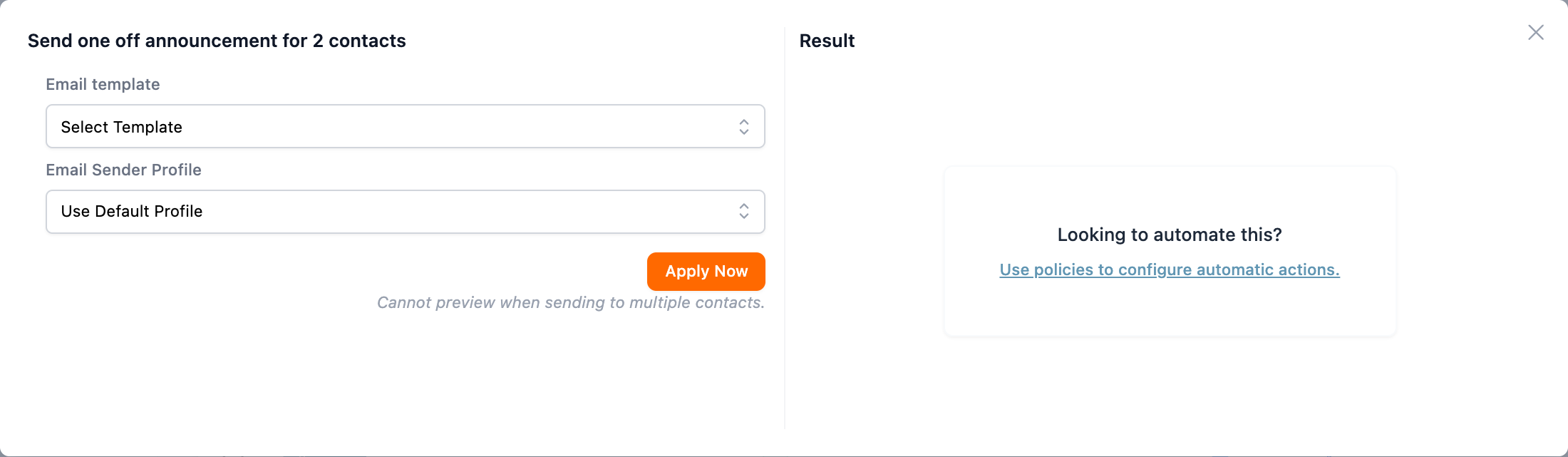
- In the dialog “Send one off announcement for N contacts”, pick the Email template. Only Announcement Email templates are listed. Optionally pick an Email Sender Profile, or leave it on Use Default Profile.
- Click Apply Now.
Each contact’s primary contact person gets the email, along with any other contact people set to be included in emails, as long as they have an email address. Each person gets their own copy, addressed to them by name. You can’t pick individual people in the dialog. See Contact people, who gets emails, and owners to change who is included.
A contact is skipped, and listed as not created, if it is frozen, archived, or its primary contact person has no email address.
Each announcement shows on the Actions page as Announcement Email, with the status Sent once it has gone.