
Help center/Enforce your terms/Invoice late fees
How invoice late fees work
Charge a fixed amount, a percentage or interest on overdue invoices, as a new invoice or a line on the original.
Updated 10 November 2026
A late fee policy charges a fee once an unpaid invoice is past its due date plus the grace period you set. Paidnice creates the fee in Xero or QuickBooks and can email the customer. Each overdue invoice gets its own fee. To charge one fee per customer across all their overdue invoices, use statement interest instead.
Setting one up
Open a group, go to its Policies tab and click Add Invoice Late Fee. The numbers below match the screenshot.
- How should we issue the late fee: New Invoice creates a separate fee invoice for each fee. Update Invoice adds the fee as a new line on the overdue invoice. On Xero, Send new penalty invoices as sets new fee invoices to Approved or Draft.
- How the fee is worked out: Interest Rate Per Annum, Percentage or Fixed. See Calculation types.
- Fee Income Account and Tax Rate: the income account (QuickBooks: fee item) the fee is coded to, and its tax rate. The policy is incomplete until the account is set.
- Grace Period: how many Days or Weekdays after the due date to charge. Choose Weekdays if nobody reconciles payments at the weekend, so a fee is not charged on an invoice that was paid on Friday but not yet marked paid. Weekdays use your organization’s timezone and also skip national public holidays for your organization’s region.
- Repeat Late Fee: off charges once. On charges again every Repeat Frequency days while the invoice stays unpaid. Each repeat fee is worked out on the amount due at that time.
- Penalty Invoice Due Date: the due date of a new fee invoice. Choose Original Invoice Due Date, Penalty Issue Date or 1 Week after Penalty Issued.
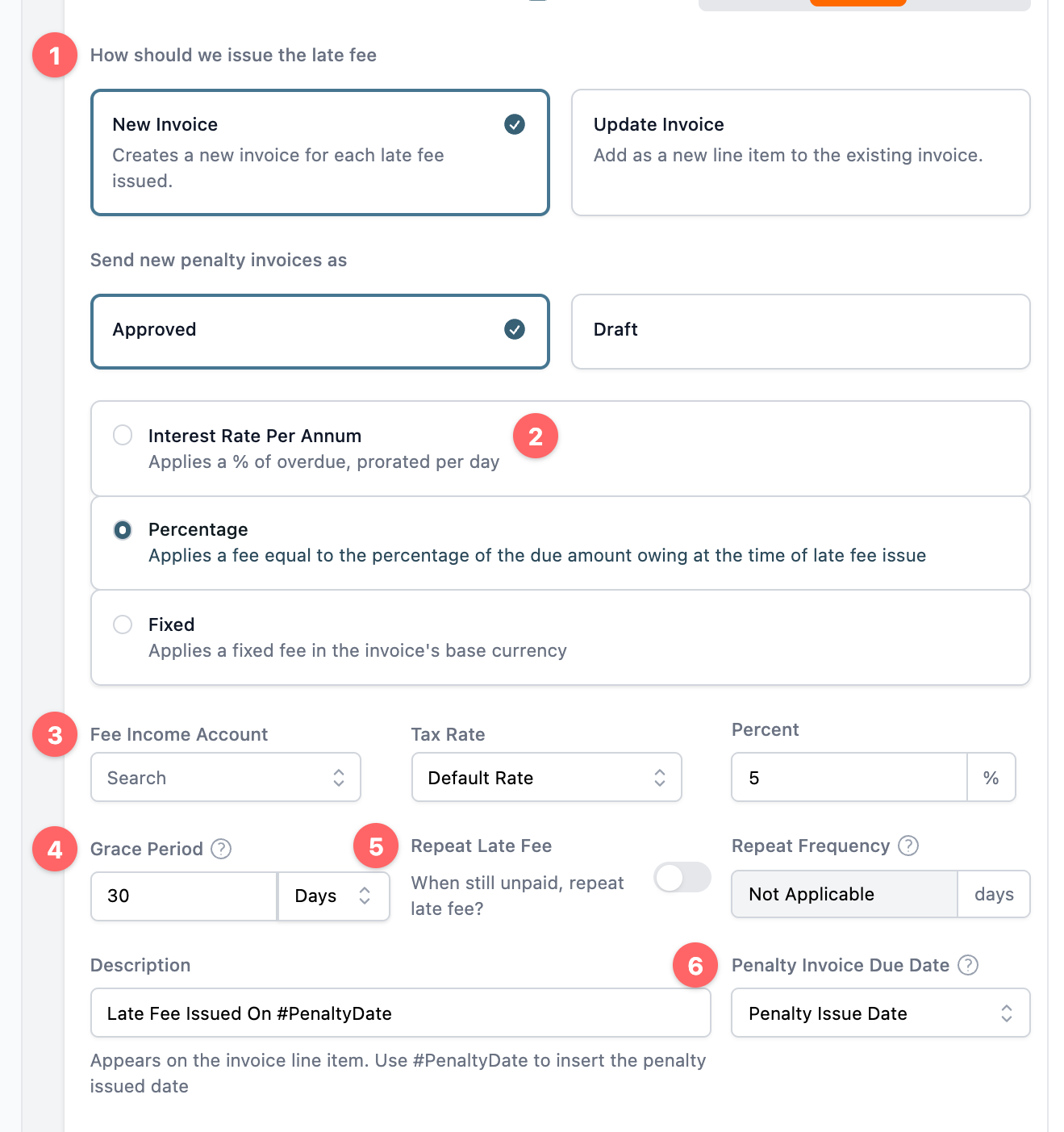
The rest of the form:
- Description: the text on the fee line. The default is “Late Fee Issued On #PenaltyDate”, and #PenaltyDate becomes the date the fee is issued.
- Send email notification to customer when late fee is applied: pick a Late Fee email template, or Do not send email notification. The email attaches the original and fee invoices.
- Skip when payment promised and Skip while a query is open: both on by default. They hold the fee while the invoice has an open payment promise that falls after the fee date, or an open query.
Leave the policy in Draft if you want to approve each fee on the Actions page before it is created. The group page shows these policies with an Approval badge.
Calculation types
Fixed charges the same amount on every overdue invoice, in the invoice’s own currency. A $25 fixed fee is $25 on a $200 invoice and on a $20,000 invoice.
Percentage charges a percentage of the amount still owing (including tax) when the fee is issued. A 5% fee on an invoice with $2,000 owing is $100. If the customer has already paid $500 of it, the fee is 5% of $1,500, so $75.
Interest Rate Per Annum charges an annual rate, pro rata per day overdue, on the amount still owing including tax. The yearly rate is always divided by 365, including in leap years. For example, 12% a year on $1,000 that is 30 days late is about $9.86 ($1,000 x 12% / 365 x 30).
The first interest charge counts from the due date, even with a grace period. It counts from the issue date instead when Use issue date for grace period is on, and Earliest Interest Date can move the start later. A repeat interest charge only covers the days since the last fee.
With interest, set a grace period of at least 1 day and turn on Repeat Late Fee so interest keeps building while the invoice is unpaid.
With Update Invoice, a repeat Percentage fee is worked out on the amount due, which includes the earlier fee lines on that invoice. To leave them out, exclude the Fee Income Account under Exclude/include invoice lines.
More Options & Filters
The More Options & Filters tab on the policy has extra settings. Pick one from Choose an option.. to add it. The ones most used with late fees:
- Applies to invoices due from: invoices due before this date get no fee. A new policy sets it to three months before the day you created it, so older overdue invoices are left out until you change it. This is the most common reason an old invoice gets no fee.
- First time only: “Only apply this late fee if the invoice has no other late fees applied.”
- Earliest Interest Date (Interest Rate Per Annum only): the earliest date interest can be calculated from. Use it to stop interest reaching back before a date, such as when your new terms started.
- Exclude/include invoice lines: leave lines coded to some accounts (QuickBooks: items) out of the calculation, or include only those. For example, on an invoice with Rent $500 and Admin fee $20, excluding the rent account makes a 10% fee $2 instead of $52. Excluded amounts come off the current amount due. If everything is excluded, or the excluded lines add up to more than the amount due, the invoice gets no fee. Exclusions don’t change Fixed fees, and the Bank of England interest calculation ignores them.
- Use Contacts Tax Rate (Xero only): overrides the account’s default tax rate with the contact’s own tax rate.
- Use issue date for grace period: counts the grace period from the issue date instead of the due date.
- Invoice Reference (New Invoice, or Update Invoice with the new invoice fallback on): the reference on a new fee invoice. The default is “Penalty for {{{OriginalInvoiceNumber}}}”.
- Minimum Fee Amount: the least a fee from this policy can be, in the invoice’s currency. When the fee works out below this amount, Paidnice raises it to the minimum and adds a note to the fee line description, such as “(Minimum charge of 25.00 applied)”. It works with Fixed, Percentage and Interest Rate Per Annum. For example, with a minimum of 25, a 2% fee on an invoice with $500 owing is $25 instead of $10. On a repeating policy the minimum applies to each charge.
- Minimum Due Amount and Maximum Due Amount: only charge invoices with an amount due in this range, in the invoice’s currency. The minimum is exclusive and the maximum is inclusive, so a minimum of 100 skips an invoice with exactly $100 due.
Two fees on one invoice
To charge, say, a fixed fee and interest on the same invoice, create two late fee policies and add both to the group.
Late fee policies that hit the same invoice on the same day are combined into one fee only when they share the same invoice status, how the fee is issued (New Invoice or Update Invoice), grace period, Issue a new invoice if unable to update existing? setting and Use issue date for grace period setting. Otherwise each policy creates its own fee. A fixed fee plus interest usually ends up as two fees, because interest needs a grace period of at least 1 day.
When the invoice cannot be updated
Update Invoice cannot change an invoice that has payments or credits applied, or that is in a locked period. Issue a new invoice if unable to update existing? is on by default, and falls back to a new fee invoice in those two cases only. Any other error still fails the fee. With the fallback off, the fee fails in those cases too. If you close periods soon after month end or take many part payments, New Invoice avoids this altogether.
Things to know
- Paidnice never charges a fee on a fee invoice.
- If the invoice is paid before the fee is due, the pending fee disappears.
- An overdue invoice that is in range is not dropped if its fee date has passed. It is charged at the next run.
- A failed fee blocks further fees from that policy on that invoice until you delete the failed action. See Fixing failed actions.
- Frozen invoices, invoices with an open query or payment promise, and invoices on a payment plan are skipped.
- Use a contact tag to keep a few customers out of a fee policy without moving them to another group. See When to use groups or tags.
- To apply a fee manually, click Late fee on the invoice, or tick invoices in the list and use Apply late fees.
When a fee fails
Open the failed action on the Actions page and read Errors. Fix the cause, then delete the failed action so that Paidnice can try again. A failed fee blocks further fees from that policy on that invoice until you do. See Fixing failed actions.
- A QuickBooks sales tax or VAT error: choose a specific Tax Rate on the policy, or fix the default tax rate on the fee item in QuickBooks.
- An account code error: choose a valid Fee Income Account on the policy.
- Invoice has payments or credit notes applied: Update Invoice cannot change it. See When the invoice cannot be updated.
Testing a policy
Save the policy first. Then open the Test & Preview tab in the right-hand sidebar, next to Actions, search for an invoice and pick it. Paidnice says whether the policy applies and on which date, or why not. Click Preview to see the fee line it would create, with the account code and amount, both if applied now and on the scheduled date.
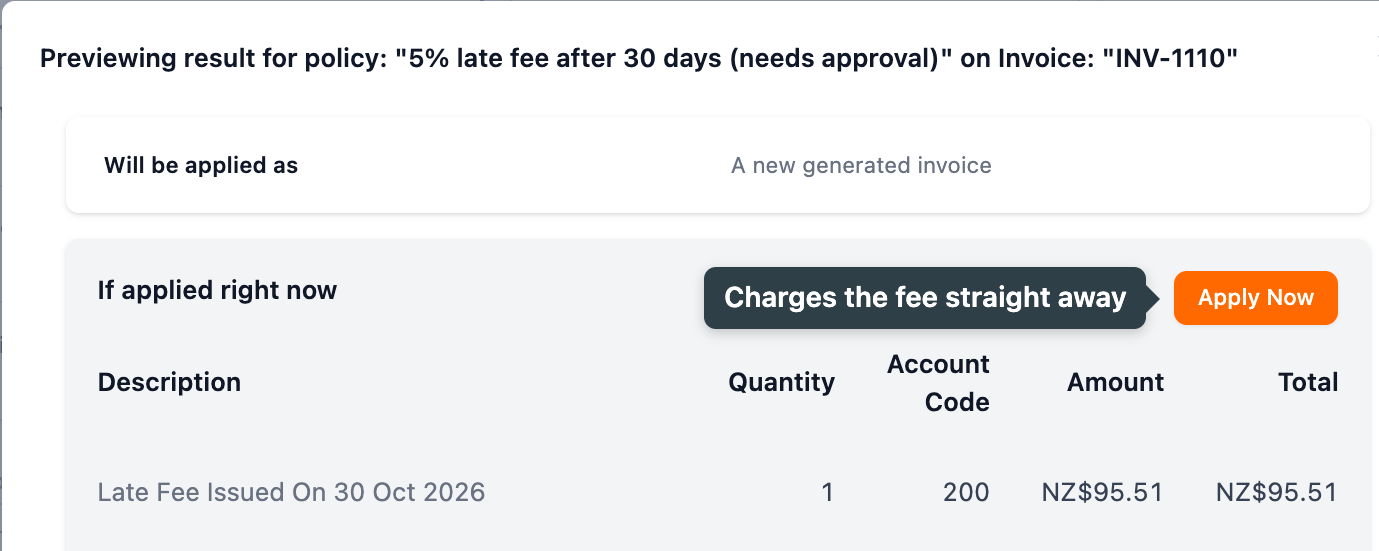
Apply Now in the preview charges the fee straight away. It ignores Safe mode, the grace period, the date filters, Minimum Due Amount and Maximum Due Amount, Draft approval and frozen invoices. Close the preview if you only want to check the numbers.
To check from the invoice side, open the invoice and go to Preview Policies. Applicable Policy results lists every invoice policy in the contact’s group with the date it will run or the reason it will not.
Removing a fee
On the completed action, click Remove Late Fee. A fee invoice is voided. A fee line is removed from the invoice, or reversed with a credit note if the invoice already has payments against it. The fee is not charged again unless you open the action and click Ignore Late Fee, which lets Paidnice calculate and apply it again. Resend Late Fee Email(s) on the same action sends the customer email again. See Work with the Actions page.
Fees are removed one at a time. If a customer was in the wrong group and got many fees, revert each action, or void the fee invoices in your accounting system.
Xero will not void a fee invoice that has a payment on it. Remove the payment from the invoice in Xero first, then remove the fee.
UK businesses
UK organizations can add the Bank of England base rate to an Interest Rate Per Annum fee. For statutory interest and fixed compensation under the late payment law, see UK statutory interest and compensation.
Late fees and statement interest together
A group with both can charge a customer twice for the same lateness. The group page warns you if this is the case. Pick one. See How statement interest charges work for the other option, and How prompt payment discounts work if you would rather reward early payment than penalize late payment.