
Help center/Enforce your terms/Escalations
How escalations work
Create a task for your team when an invoice needs a person, not another email.
Updated 13 November 2026
An escalation is a task for someone on your side. Nothing is sent to the customer. Use it when automatic reminders have run their course and a call, a credit hold or a legal letter is the next step.
Creating escalations automatically
Open a group, go to its Policies tab and choose Add Escalation. The policy is created in Draft, so the escalations it creates wait on the Actions page for someone to approve them. Switch the policy to Active to have them created on their own. See Work with the Actions page.
- Trigger: Invoice Values raises one escalation for each unpaid invoice. Contact Values raises one escalation for the customer, based on their account as a whole.
- Type: Escalate to call, Escalate to stop credit, Escalate template legal letter or Other.
- Raise this escalation: a number of days, then After, On The or Before, then Due Date or Issue Date. Contact Values policies count from Oldest Due Date, the due date of the customer’s oldest unpaid invoice, and only offer After and On The.
- Instructions: free text that appears on the task. On Invoice Values policies you can use merge tags to pull in invoice details.
- Assigned User: a user in your organization, or Invoice or Contact Owner, which uses the invoice’s assignee and falls back to the contact’s assignee. The assigned user gets an in-app notification, and an email if they have Assignment emails turned on under My Account.
- Notify email addresses: up to five internal addresses, separated by commas, emailed when the escalation is created.
A Contact Values policy also has Minimum Overdue Amount and Maximum Overdue Amount. These are checked against the customer’s total overdue balance in your base currency. Paidnice does not raise a second escalation from the same policy for the same set of unpaid invoices. It raises another only when a new overdue invoice appears.
A new Invoice Values policy starts with Applies to invoices due from set to one month before the day you create it, so older overdue invoices are not escalated by surprise. Change the date in the policy form if you want to include them.
You can also raise one by hand with Escalate on an invoice page, Raise escalation on a contact page, or Raise Escalation at the top of the Escalations page. Escalations can also be triggered by a broken payment promise. See Follow up when a promise is broken.
Working the queue
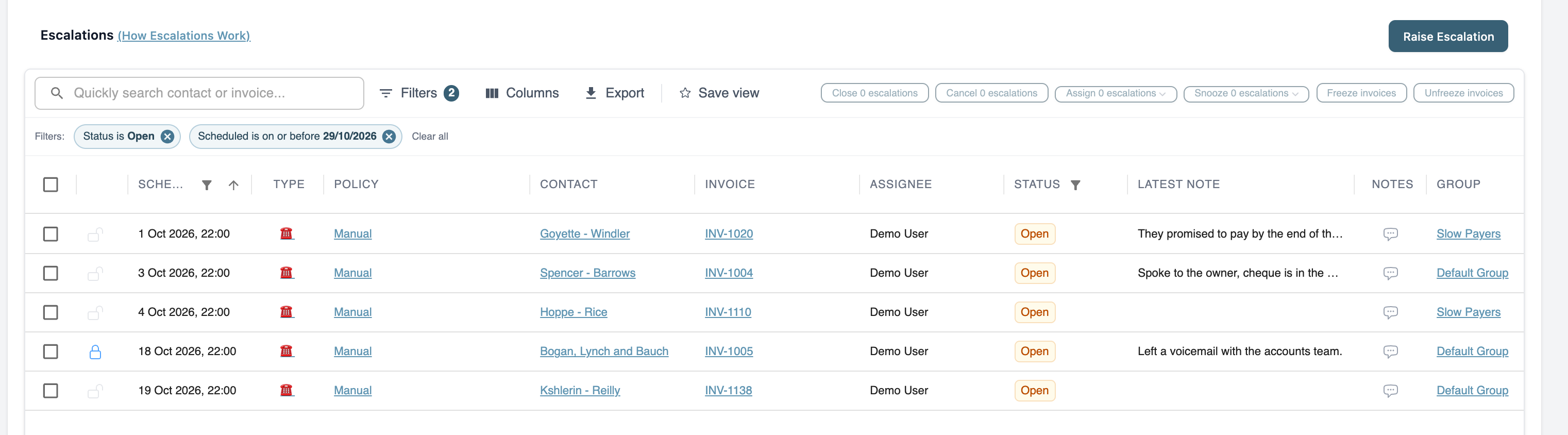
The Escalations page lists open escalations with the scheduled date, type, policy, customer, invoice, assignee, status and latest note. It opens filtered to Open escalations scheduled for today or earlier. Use Filters to narrow the list by status (Open, Closed or Cancelled), type, assignee, group, contact tags, invoice tags, policy, or by contact or invoice. Click Export to have the filtered list emailed to you as a CSV. Escalations can’t be set up as a scheduled export. Tick several to close, cancel, assign, snooze, freeze or unfreeze them together. Open one to see the invoice, the customer’s other invoices, their tags, their credit score and the communications sent so far.
From an escalation you can:
- Call: ring the customer from Paidnice and, if they agree to be recorded, keep a transcript. See How calls work.
- Record Activity: log a call or other contact with an outcome such as no response, left a message or spoke to customer.
- Record promise: in the Payment promise row, record a payment promise, which pauses chasing until the promised date.
- Record query: in the Query row, open an invoice query, which pauses chasing until it is resolved.
- Set an expected payment date in the Expected payment row, send a reminder email or statement, freeze the invoice, or write a note.
- Snooze until tomorrow, 3 days later, next week, next month, the expected payment date (Until expected payment date, shown when the invoice has a future date) or a date you choose with Custom….
- Close Escalation when it is dealt with. Closed escalations can be reopened.
The Payment promise and Query rows only show on an escalation for an invoice that is still Approved. If the invoice already has an open promise, the row shows the promised amount and date in place of Record promise, such as “$1,250.00 by Fri 20 Nov 2026”. An open query shows as “Open” with its reason, such as “Open: Pricing”, in place of Record query. Only the current open promise and query appear here. To cancel a promise, resolve a query or see earlier ones, click the invoice number on the escalation to open the invoice.
An open escalation raised for an invoice closes on its own once that invoice is no longer Approved, for example because it was paid, voided or deleted in your accounting system. Paidnice checks every hour. It adds an internal note that names the escalation type, the invoice and the invoice’s new status, such as “Escalate to call auto completed: invoice INV-123 is now PAID”. The note shows Paidnice as its author, and the contact’s activity feed shows it with a link to the invoice. The note is not sent to your accounting system. To find these escalations, filter the status to Closed. Reopen one if you still need to follow it up. Escalations raised for a contact, from a Contact Values policy, are not closed this way.
Notifications
The assigned user gets an in-app notification when an escalation is assigned to them, whether a policy or a person assigned it. They are also emailed if Assignment is turned on under My Account. Escalation events can also be sent to a webhook (Pro plan) under Settings, Advanced. To pull escalations into your own system instead, see Use the Paidnice public API.