
Help center/Set up/Getting started
How Paidnice works
Groups, policies and actions, and why nothing goes to a customer until you say so.
Updated 3 November 2026
Paidnice reads invoices and contacts from Xero or QuickBooks and chases them for you. Three ideas cover most of it.
Groups
Every customer sits in exactly one group. New customers land in the group marked Default. Use extra groups when some customers need different treatment, for example key accounts that never get late fees. If only one or two policies need an exception, a contact tag is usually the better tool. See When to use groups or tags.
Policies
A policy is attached to a group and says what to do and when. Examples: email a reminder 3 days before the due date, charge a 2% late fee 7 days after, send a statement on the 1st of the month. A customer only gets the policies attached to their own group.
Each policy has a state:
- Active runs by itself.
- Draft creates actions that wait for you to approve them.
- Inactive does nothing.
New organizations start with sample policies in Draft, so nothing is sent until you approve an action or switch a policy to Active.
Actions
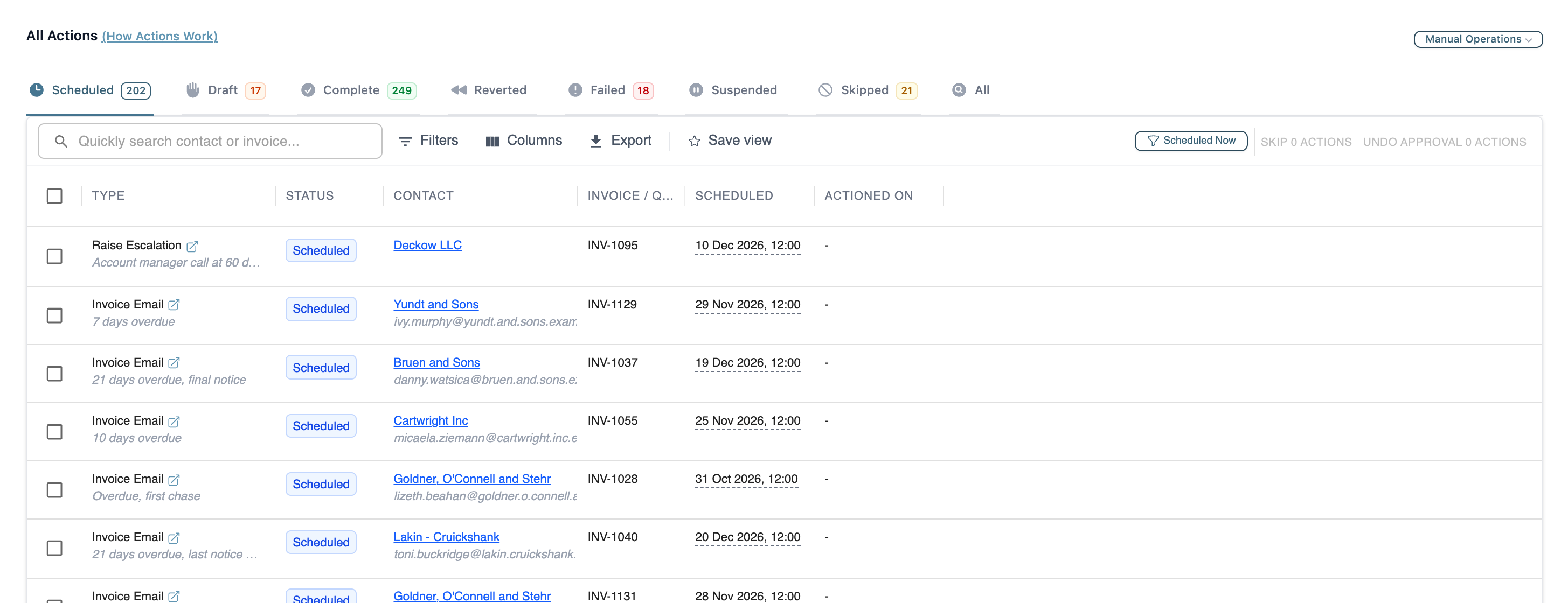
Paidnice checks every policy against every invoice and customer, several times a day and whenever something changes, and creates actions: one thing to do, for one invoice or customer, at one time. See them on the Actions page, the dashboard and each invoice’s timeline.
The Actions page has a tab for each state. Scheduled actions have not run yet, Draft actions are waiting for your approval, and Failed actions have a note saying why. If something you expected did not happen, start with Why did Paidnice not send a reminder or charge a fee?
What Paidnice changes in your accounting system
Paidnice reads from Xero or QuickBooks and writes back only a few things:
- Late fee and statement interest invoices, and late fee or discount lines added to existing invoices.
- Voids, removed lines or credit notes when you revert a fee or discount.
- Marking fee invoices as sent, if Mark late fee invoices as sent is on (Xero).
- A note on the invoice or contact for each action, if Sync notes after each action is on (it is off by default).
- The expected payment date (Xero only).
- Edits you make to contact people.
- The surcharge line on an invoice with a payment plan.
- Payments, fees and surcharges for card payments taken through Paidnice.
- Accepting or declining a quote when a customer does it in the portal.
Everything else is read only. Payment promises and queries live in Paidnice and are never written to your accounting system. For what is read and when, see How syncing with Xero and QuickBooks works.
Testing before you go live
- Open any invoice. The Applicable Policy results table shows every policy with a tick or a cross and the reason.
- Each policy page has a Test & Preview tab to check one invoice or contact.
- Safe mode (Settings, General, or the toggle in the top bar) keeps creating actions but never runs them. Turn it on if you want to watch for a while first. New organizations start with safe mode off, but the sample policies are in Draft, so nothing goes out until you approve actions or make a policy Active.
Turning safe mode off is refused until the organization has at least one group with a policy and every policy is complete. The error says “Please ensure you have at least one group before safe mode can be disabled”, “Please ensure you have at least one policy in a group before safe mode can be disabled” or “Please ensure all policies are complete before safe mode can be disabled”.
Suggested first steps
For the full list, see Go live with Paidnice.
- Connect Xero or QuickBooks and invite anyone else who needs access.
- Check the sample email templates under Settings and put your own wording in. See General settings, sender profiles and custom domains.
- Open your default group, look at the policies there, and switch the ones you want to Active. Start with email reminders.
- Watch the Actions page for a few days.
- If you want customers to pay from the reminder, connect a payment provider.
To stop chasing one invoice or one customer for a while, see How freezing works.