
Help center/Set up/Configuring Paidnice
General settings, sender profiles and custom domains
Where the settings that affect every email live, and how to send from your own domain.
Updated 18 November 2026
Organisation Settings in the sidebar opens a page with seven tabs: General, Emails, Statements, Portal, Advanced, Payment Providers and Audit Logs. This article covers General, Emails and Advanced. For the others see Statement settings and templates, How the customer portal works, How payments work and the Audit Logs section of Exports, reports and email performance.
Settings, General
- Safe Mode: while on, Paidnice creates actions but never runs them automatically. The switch applies as soon as you click it, with no Save, and saving the rest of this page doesn’t change it. The same switch is in the header of every page. Both control one setting for the whole organization, so switching it in one place switches it in the other. New organizations start with it off, but their policies usually start in Draft, so nothing is sent until you approve actions or make a policy Active. Paidnice won’t let you turn Safe Mode off until the organization has at least one group with a policy and every policy in a group is complete. If it refuses, it tells you which of those is missing.
- Organisation Details: legal and display names, company and tax numbers, contact details and address. These appear on statements and in the portal. Use display name puts the display name on everything customers see.
- Footers are not set here. The footer on statement PDFs is set on each statement template (see Statement settings and templates), and the footer on portal pages under Organisation Settings, Portal (see Portal settings).
- Timezone and Default Currency: Default Currency comes from your accounting system. On Xero the timezone does too, and it is shown but can’t be edited. On QuickBooks, Paidnice picks a timezone from the company’s country when you connect, and you can change it here. A change only affects Paidnice, not QuickBooks. The timezone decides when “midday” is for your policies.
- Billing Managed By: who owns the subscription. See Plans and billing.
- Logo, under Branding: your organization’s logos and which one is the default. See Logos below.
- Invoice Tags and Contact Tags: contact tags can include or exclude contacts in policies, invoice tags are for organizing only. See When to use groups or tags.
Users are managed on their own page. See Users and access.
Logos
Logo under Branding is a library of up to 20 logos, shared by your whole organization. Each one shows its file name. Uploading, setting the default and deleting all apply straight away. They don’t wait for the page’s Save.
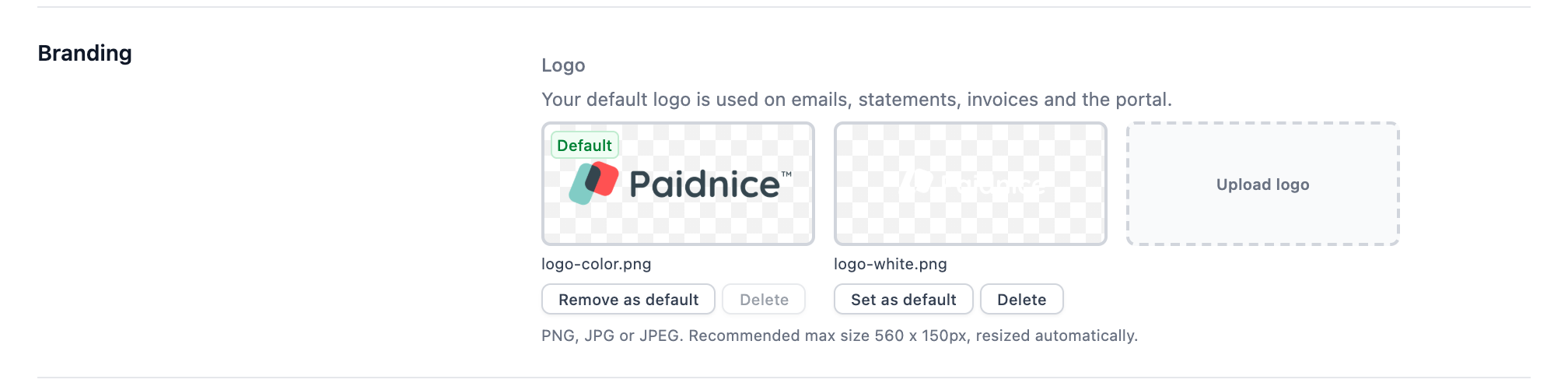
- Upload logo adds a PNG, JPG or JPEG file. Paidnice resizes it, and recommends no more than 560 x 150px. The first logo you upload to an empty library becomes the default. Once you have 20, the tile reads 20 logos maximum until you delete one.
- Set as default makes a logo the default, marked Default. The default logo goes on statements, invoices and the portal, and on emails from any sender profile set to Use default.
- Remove as default leaves you with no default. Statements, invoices, the portal and emails from profiles on Use default then show no logo, and the page says “No default logo. Emails, statements, invoices and the portal show no logo.” A sender profile that picks its own logo keeps it.
- Delete removes a logo from the library, after you confirm. You can’t delete the default logo (“Remove it as the default first”), or a logo a sender profile uses (“A sender profile uses this logo”). Change those profiles to another logo or Use default first. Emails you have already sent still show the logo.
When a logo you upload has a solid background, Paidnice offers to take it out so the logo sits cleanly on colored email headers. Click Remove background, or Keep as is to leave it. After removing it, Undo puts the original back, as long as you haven’t uploaded another logo or left the page.
A sender profile can use any logo in the library. See Set up sender profiles and BCC your CRM.
Sender profiles
Under Settings, Emails, Email Sender Profiles set the From name, where replies go, who is copied in, the logo and the signature. The default profile is used by every policy unless the policy picks another. You can have up to 10 profiles. New organizations start with one default profile that sends replies to the Paidnice shared mailbox. See Set up sender profiles and BCC your CRM.
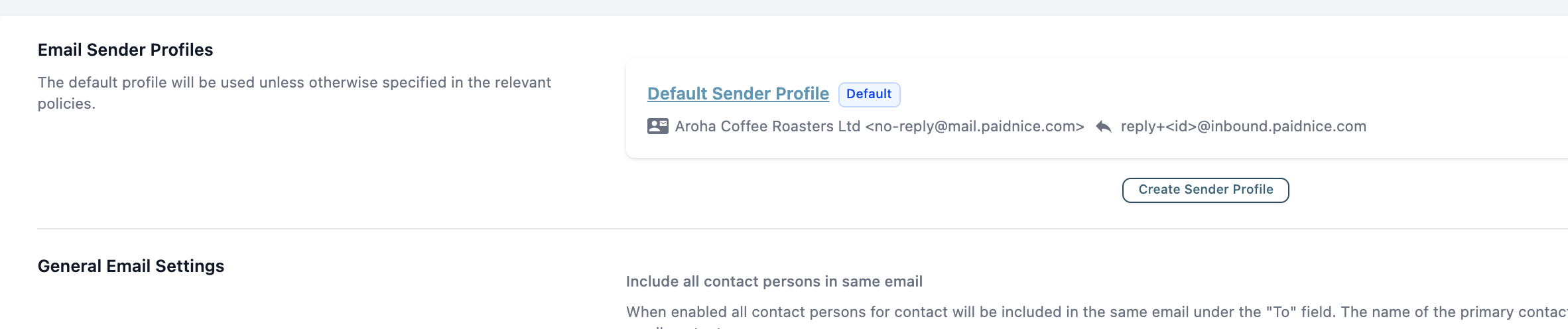
Include all contact persons in same email, on the same tab, puts everyone who should get a reminder on one email instead of sending each person their own. See How email reminders work.
Custom domain
Without a custom domain, emails come from a Paidnice address with your From name. With a verified domain they come from your own address.
- Under Settings, Emails, add your domain.
- Add the DNS records shown. You can email them to whoever manages your DNS.
- Click Verify Domain. Verification can take a little while after the records are added.
A domain verified in one of your organizations can be linked to another without new DNS records. Custom domains need a Pro plan.
Settings, Advanced
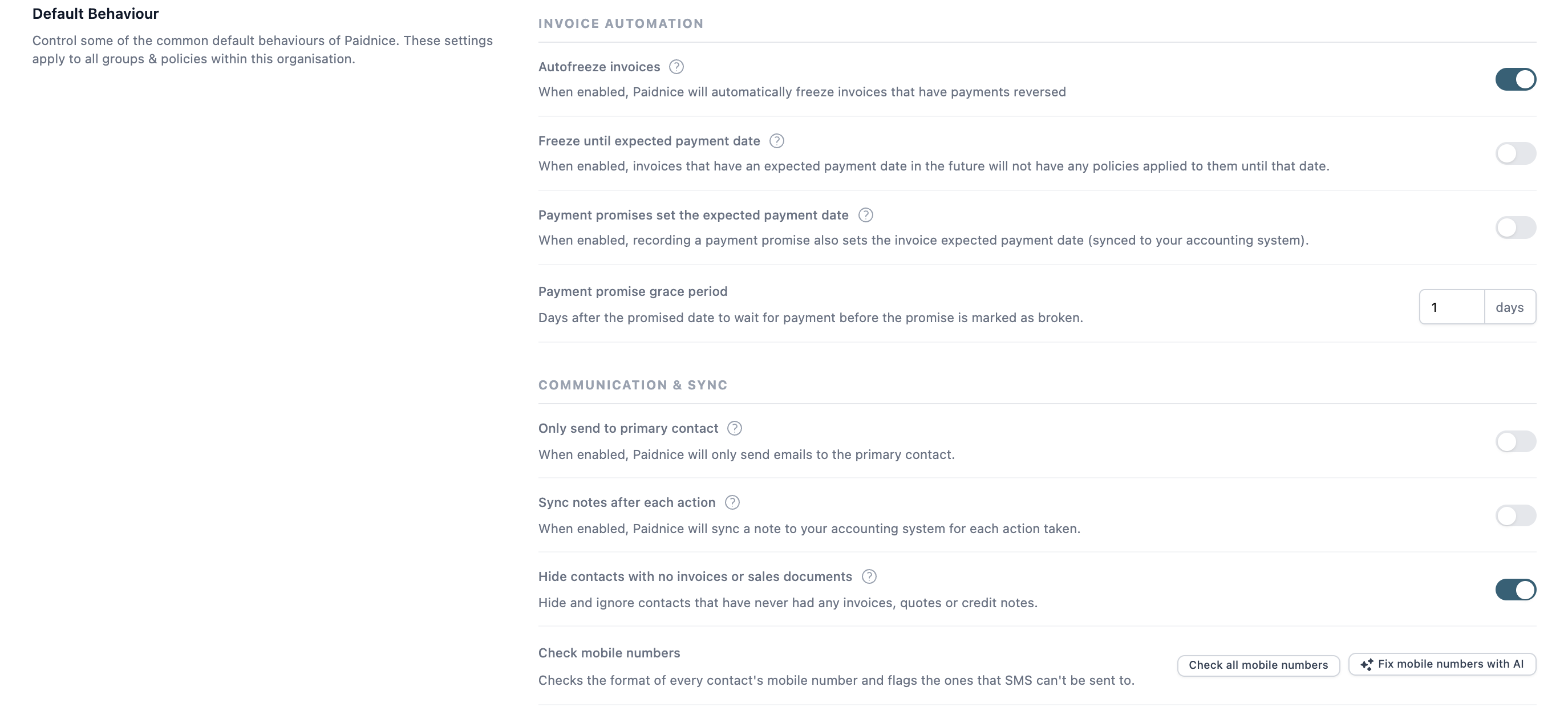
The Default Behaviour tab holds the switches that change how policies behave across the whole organization. Leave these alone unless you know you need them. The defaults below are what a new organization gets.
Invoice automation
- Autofreeze invoices (on): freezes an invoice when a payment on it is reversed. A frozen invoice stays out of policies until someone unfreezes it. See How freezing works.
- Freeze until expected payment date (off): while an invoice has an expected payment date in the future, no policies apply to it until that date. See How freezing works and Set an expected payment date.
- Payment promises set the expected payment date (off): recording a promise also sets the invoice’s expected payment date (written to the invoice on Xero, kept in Paidnice only on QuickBooks). It covers promises made in the portal too. Canceling a promise does not clear the date. See How payment promises work.
- Payment promise grace period (1 day): how many days after the promised date Paidnice waits before it marks the promise broken.
- Mark late fee invoices as sent (on, Xero only): marks new late fee and statement interest invoices as sent in Xero once the notification email goes out. A Draft invoice, or one where no email was sent, is not marked.
Communication and sync
- Only send to primary contact (off): emails go to the primary contact only. If the primary contact has no email address but other people do, nothing is sent.
- Sync notes after each action (off): after each action, Paidnice adds a note to your accounting system that reads “Paidnice Action: “ followed by the action and what happened to it. It goes on the invoice when the action belongs to one, and on the contact otherwise. In Xero it appears in the invoice or contact history. In QuickBooks it is attached to the invoice or customer as a note.
- Hide contacts with no invoices or sales documents (on): leaves out contacts that have never had an invoice or other sales document, such as quotes or credit notes. Turn it off if you need to group a contact before you invoice them.
- Check mobile numbers: Check all mobile numbers checks the format of every contact’s mobile number and flags the ones SMS can’t reach. Fix mobile numbers with AI suggests the correct format for the invalid ones. See How SMS alerts work.
Credits and prepayments
- Credit Note Behaviour (Show & Deduct), plus Unapplied Payment Behaviour (Show & Deduct) on QuickBooks, and Overpayment Behaviour (Show & Deduct) and Prepayment Behaviour (Ignore) on Xero. Each decides how that kind of credit affects the outstanding balance on reminders and statements: Show & Deduct shows it and takes it off the balance, Show Only shows it without deducting, and Ignore does neither. They don’t apply to activity statements. Unapplied Payment Behaviour covers QuickBooks payments not yet applied to an invoice, separately from credit memos. Organizations set up before it was added start with it matching their Credit Note Behaviour. See What is on the statement.
The other tabs under Advanced are Webhooks (see Send Paidnice events to a webhook), Payment Plans (see Set up payment plans for a group), Scheduled Exports (see Exports, reports and email performance), API & MCP (see Use the Paidnice public API), Credit Score (see How contact credit scores work) Invoice PDF on Xero (see Send your own invoice PDF instead of the generated one), Connection (see How to connect Xero or QuickBooks) and, only for organizations that already use them, the legacy Auto-Assign Rules (see Manage groups).